

Glove Knock Filter AI

Put the face from your photo into the Glove Knock AI clip, between the red and blue spring gloves.

  • No prompt
  • Pets too
  • Original sound
Example · Glove Knock

PNG / JPG / WebP · up to 10 MB · at least 512px on the short side

0/1 photos

Add 1 photo of a person, cat or dog to replace the face between the gloves.

Video settings

No prompt needed. Only upload photos of yourself or people who agreed to be featured; celebrity photos and film stills aren't allowed.

Glove Knock and DunPigEffect: the filter behind the meme

Glove Knock is the TikTok camera effect built around a face-level gag with two cartoon spring gloves.

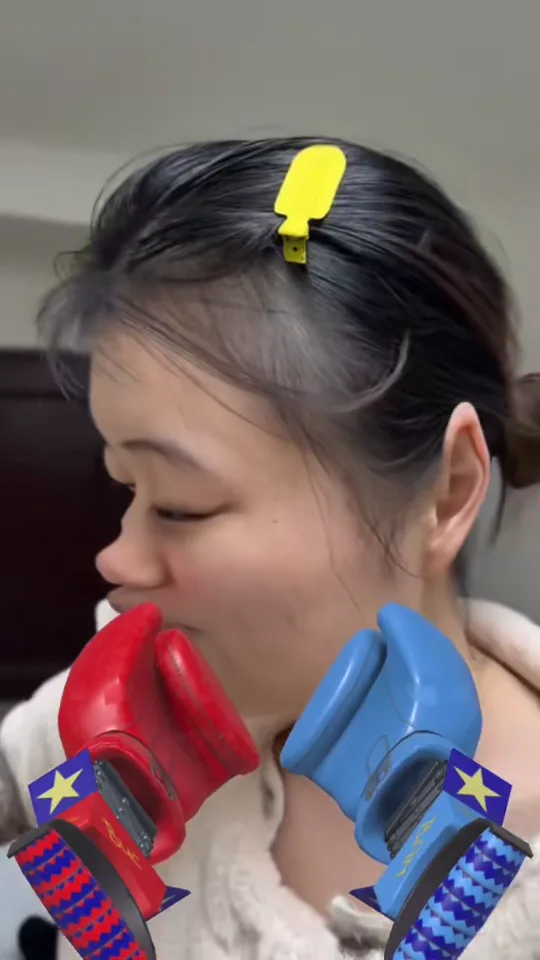
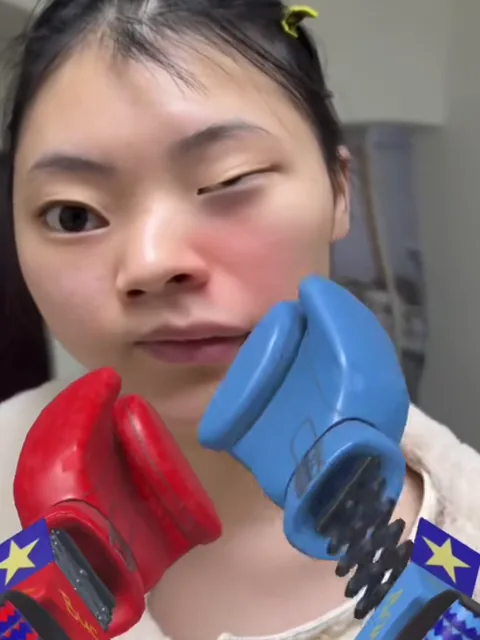
A person squints between two lowered spring gloves.

DunPigEffect is the tag DunPig used on the demos. Glove Knock is the name on TikTok’s effect page.

The reaction made the format easy to reuse: people could play the setup straight and let the visual gag do the rest.

How the effect spread

  1. On November 18 and 19, DunPig posted two TikTok demos tagged #DunpigEffect.

  2. By this point, TikTok posts had adapted the gag for cats and dogs.

  3. A TikTok tutorial showed how to do the DunPigEffect gag with AI from a single still, a separate use from filming with the camera filter.

  4. TikTok’s official effect page showed about 870,000 posts using the camera effect on November 25 and about 1.1 million on November 26. These counts measure use of the camera effect.

Source: TikTok’s Glove Knock effect page, DunPig’s posts and a public photo-to-video tutorial.

Blue right, red left: the Glove Knock timing

The stills follow the first blue contact and the red contact that answers it. A fresh blue movement starts at the very end of the clip.

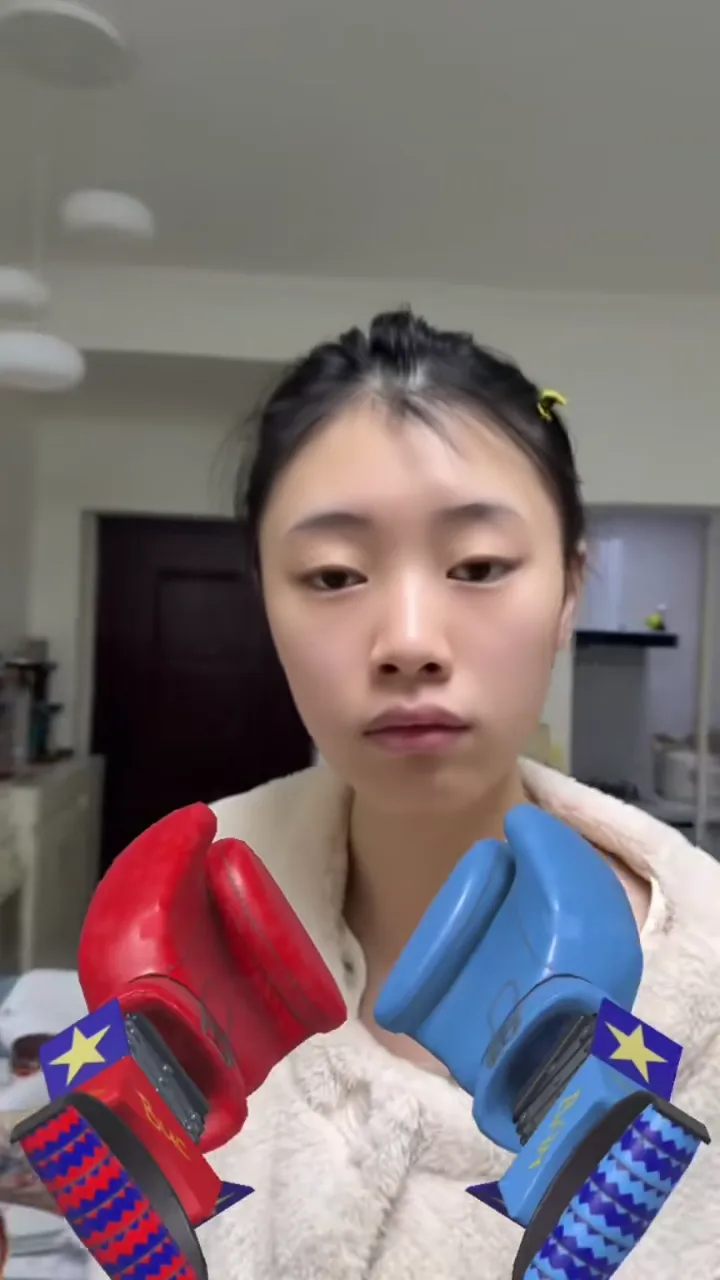
  1. A person faces the lens with both spring gloves lowered.10:00

    The wind-up

    Still at 0.40s. Both spring gloves wait below the cheeks. The expression is still composed.

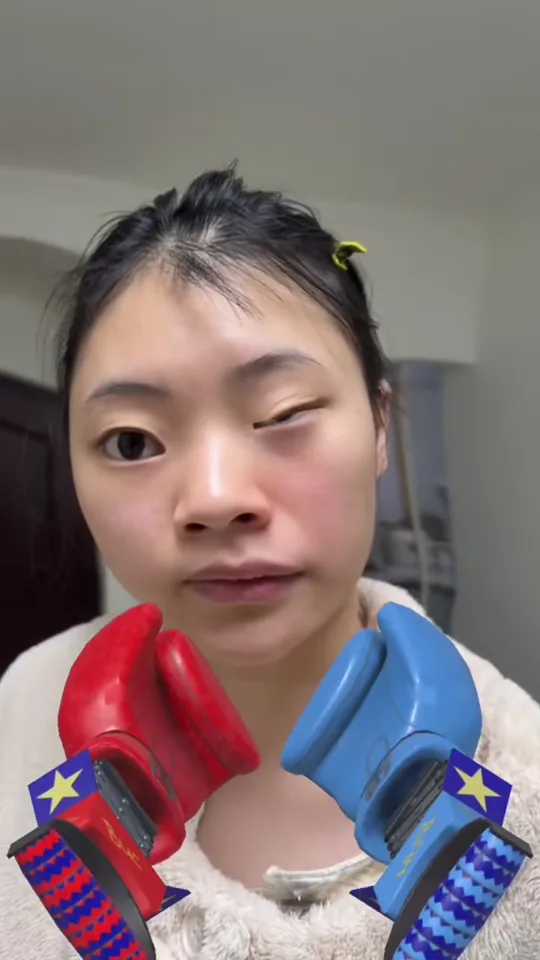
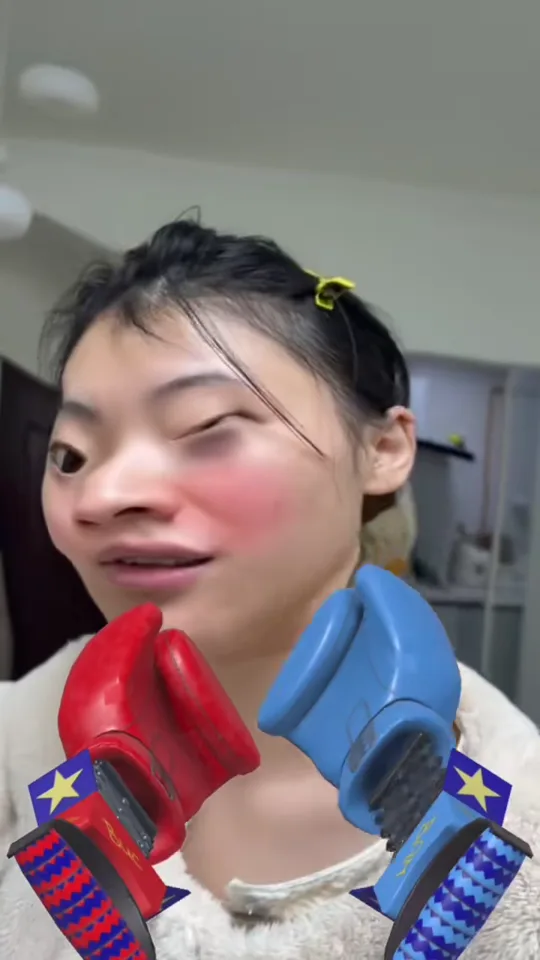
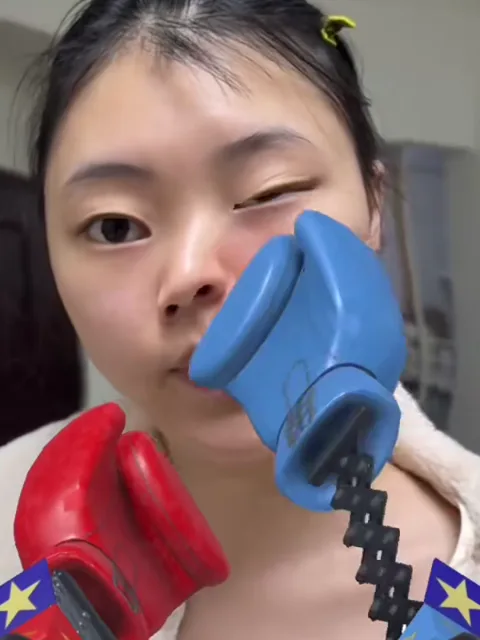
  2. The blue glove presses into the cheek from screen right.20:01

    First hit

    Still at 1.00s. The blue glove starts pressing in around 0.80s from screen right, squeezing the cheek on that side.

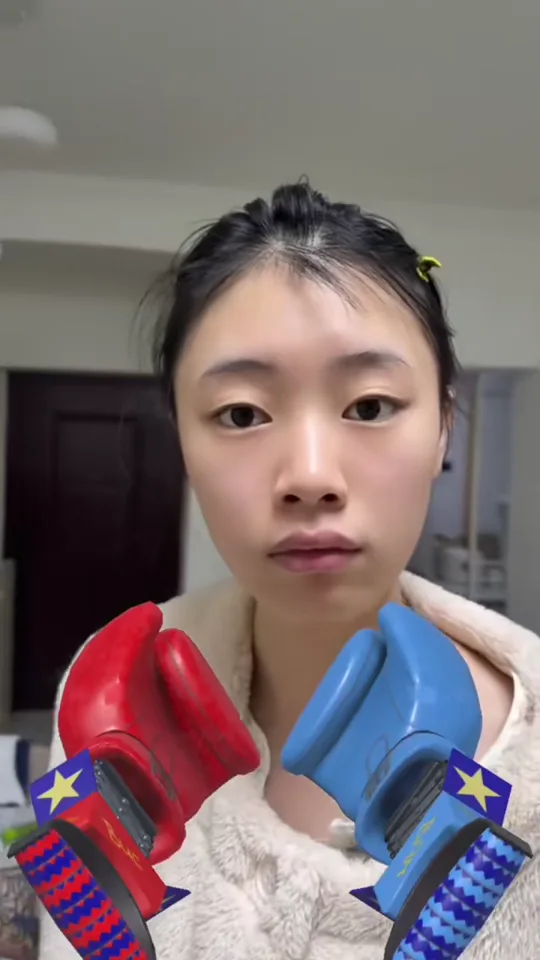
  3. A red spring glove reaches the cheek as the head tips to the side.30:03

    Second hit

    Still at 3.20s. The red glove comes in from screen left around 3.00s. In this still the head is already tipped.

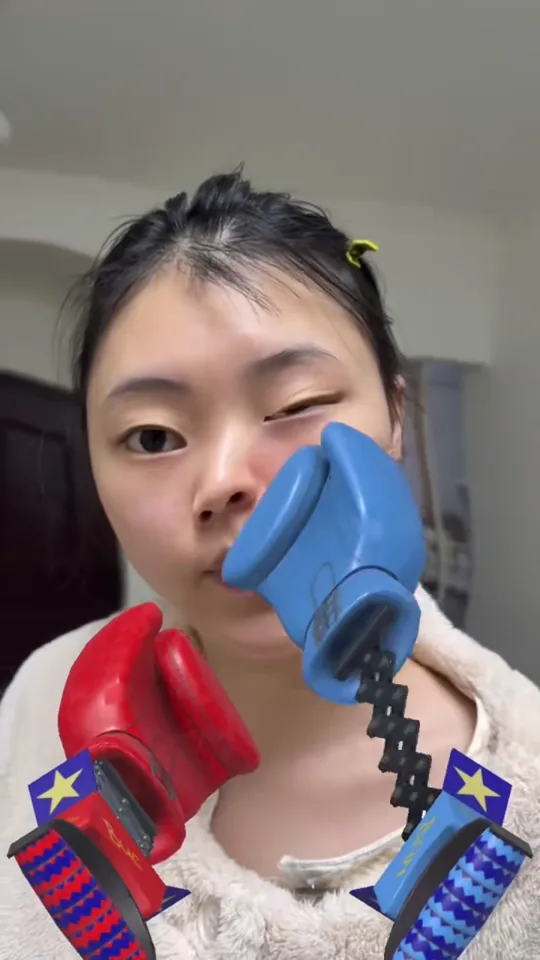
  4. Both gloves are down and the flushed face is turning back toward the camera.40:05

    Flushed pause

    Still at 5.00s. The gloves drop back and the face turns toward the lens again. The blush is still visible.

Glove Knock, camera overlays and CapCut edits

A camera overlay changes what you record. This template puts the face from your photo into the built-in clip.

OptionStarting pointWhat it makes
Glove Knock on Oeneo AIOne uploaded photoA fixed two-hit video
TikTok Glove Knock effectTikTok cameraA recording with the live effect
Boxing glove face filterA selfie or camera viewA glove overlay or animation
Manual CapCut editMedia added in CapCutA cut you assemble

Make Glove Knock from a photo

  1. A blue spring glove presses against a face framed by the red glove.

    Photo 1Face

    Kling 4.0 uses your photo to replace the head and face between the gloves. The built-in clip supplies the framing and glove motion.

    • A clear edge around the cheeks helps the new face line up with the glove contact.

Frame the face for the glove contact

Works well

  • A curly-haired woman smiling at the cameraFace the camera with both cheeks visible
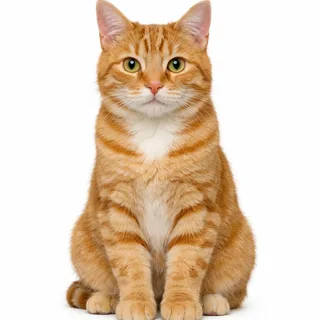
  • A ginger tabby sitting upright on whiteCat with both ears and muzzle in view

Avoid

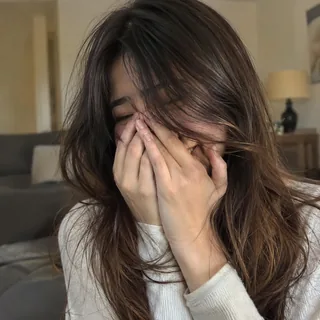
  • A laughing woman covering her face with both handsKeep hands away from the face
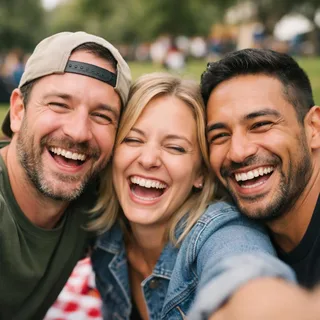
  • Three friends in a picnic selfieKeep other faces out of frame
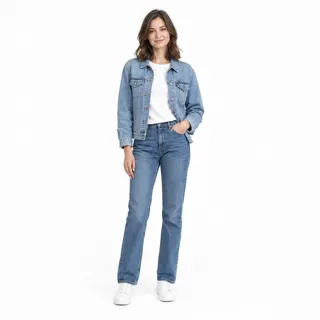
  • A woman in a denim jacket shown from head to shoes.Skip distant full-body shots

Turn a still into a reaction clip

  1. Choose a photo

    Add your image to the Face slot.

  2. Generate the clip

    Pick a resolution, check the price on the button and generate.

  3. Download and share

    Save the clip to share as a reaction in a post or chat.

Glove Knock AI prompt for Kling 4.0 video edit

In Kling 4.0 video edit, use the Glove Knock clip to guide the action and your photo to replace the head and face.

Kling 4.0 · Video edit

Prompt length 776

Use @Video1 as the source clip. Replace only the head and face between the two spring gloves with the subject in @Image1. Preserve the subject's identity and species, including facial features and, for a cat or dog, its own ears, muzzle and fur markings.

Follow the presses in order: blue from screen right, then red from screen left. Keep the brief cheek squash at contact and the flushed reaction as the face comes back toward the camera. End the action before the next blue lift and hold the reaction with the gloves lowered through the end of the clip.

Keep the fixed camera, framing, room, lighting, cuts, spring gloves and their star stickers from @Video1. Keep the source audio, including the punch sounds, in sync. Add no hits, subjects, props, text or camera moves.
What to keep from the clip

  • Keep the presses in order

    Keep the blue press from screen right, the red press from screen left, then the flushed reaction.

  • Lock the shot and the audio

    Keep the source room, lighting, framing and cuts. Keep each punch sound aligned with its contact.

What to leave out of the edit

  • Skip the next blue lift

    Finish the movement before the next blue lift. Let the face settle in the existing shot.

  • Leave the gloves and stars alone

    Both spring gloves and their star stickers belong to the source shot. Keep the edit confined to the head and face.

Specify what changes between the gloves

Too broad

Replace everything between the gloves and make it look like a boxing video.

Specific

Replace only the head and face in @Video1 with the subject in @Image1. Keep the blue-right, red-left presses and the source punch sounds, then hold the flushed reaction before the next blue lift.

The specific instruction identifies the replacement and protects the punch timing and sound.

Glove Knock for people, cats and dogs

Use the reaction cards for ideas. The last card shows an older portrait you could start with.

  • A person squints between a red and a blue spring glove.

    A deadpan reaction

    Try a straight-faced reaction for the next time your group chat has too much to say.

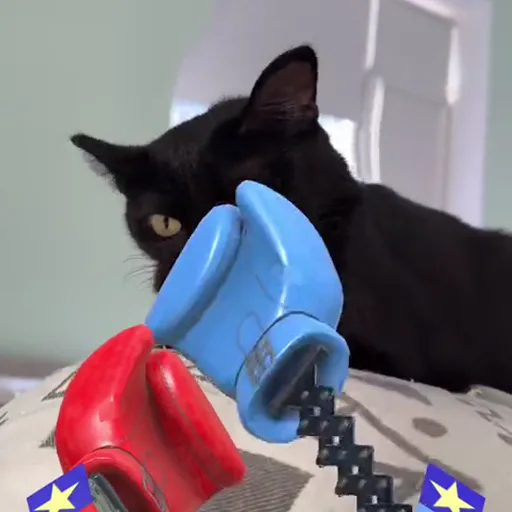
  • A blue spring glove beside a black cat.

    A curious cat

    Make a reaction to the sound of a treat bag opening.

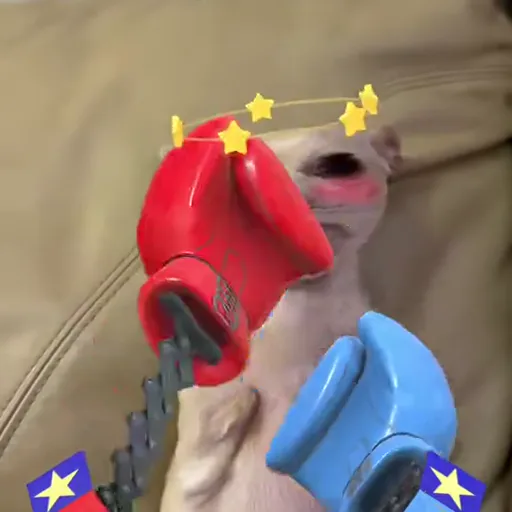
  • A cream-colored dog tilts its head behind a red glove and cartoon stars.

    A small dog

    Try a puzzled reply to “Who’s a good dog?”

  • A gray-haired man in a navy sweater faces the camera
    Input example

    An old portrait

    A familiar portrait can be the setup for a new reaction.

Glove Knock video length, frame and credits

Glove Knock video length, frame and credits
Photos
1 photo · PNG / JPG / WebP, up to 10 MB, short side at least 512 px
Length
6.30s, follows the source edit and cuts
Aspect ratio
9:16, follows the source clip
Sound
Keeps the source track, including the punch sounds
Resolution
720p or 1080p. Default: 720p. Only resolution is adjustable.
Credits
720p: 237 credits and 1080p: 356 credits

Edit the Glove Knock reaction after export

Upscale the finished clip, extend its ending or start a different video.

  • AI Video Generator

    Generate a clip from a prompt, a still image, a reference or existing footage.

    Open tool
  • Video Upscaler

    Raise a clip to 1080p or 4K and sharpen detail frame by frame.

    Open tool
  • Video Extender

    Add seconds before or after a shot while its motion and subject carry on.

    Open tool
  • Motion Control

    Give a character image the performance from a reference clip.

    Open tool

Faces, sound and settings for Glove Knock

Does the Glove Knock filter for pets have separate cat and dog versions?+

Both use the same template. It handles one subject in each clip.

Can I use an old photo for Glove Knock?+

Yes. You can upload an older digital photo or a digitized print. Use the checklist above to verify the framing.

Does the video keep the Glove Knock original sound?+

Yes. The edit keeps the clip’s own track, including its punch sounds. This template has no setting for a different song or audio upload.

Why do the gloves sometimes miss the face?+

The gloves follow the source footage. If they appear to miss, check whether the replacement face is lined up with the cheek they touch. A clear front-facing photo gives Kling a better guide for that edge.

Can I upload a photo with two people?+

No. Two people in the same shot are unsupported. Make separate clips if both people want to try the effect.

Can I use a friend's photo?+

Yes, if your friend gives you permission to use their photo.

Is there a dedicated Glove Knock CapCut template?+

The November 26 listings did not show a dedicated CapCut template. You can make and download this version in your browser.

Is the Glove Knock filter free?+

No. Generation uses credits. The exact price for your selected resolution appears on the Generate button.

Make a Glove Knock video from one photo

Put your face or your pet’s into the two-hit clip and share the reaction.