GPT Image 2.6

GPT Image 2.6, called Images 2.6 in ChatGPT, is OpenAI's model for creating and editing images. Use it right in your browser on Oeneo AI with no API key: draft fast with Flare, then switch to Sunburst for detail that holds across edits.

  • Flare + Sunburst
  • Up to 16 references
  • Text to image + editing

Reference images (Optional)

0/16
0/5000

Model

Aspect ratio

Number of images

Resolution

Quality

Output format

GPT Image 2.6 Flare vs Sunburst, plus GIF and SVG versions

Flare and Sunburst take the same prompts, reference images and settings, so you can draft with one and finish with the other. The GIF and SVG versions turn a text prompt into a short looping animation or a vector file.

  • GPT Image 2.6 Flare

    Opens first
    Built for
    Fast drafts, layouts and variations
    What you get
    Still images in as little as six seconds at low quality, per OpenAI
    Edits
    Quick, single changes
    Pick it when
    You want options fast or a clean poster layout

    Start here. Switch to Sunburst if edits keep changing parts you meant to keep.

  • GPT Image 2.6 Sunburst

    Precision
    Built for
    Dense detail and rounds of revision
    What you get
    Still images with finer detail, at a slower pace
    Edits
    Keeps details steadier from one edit to the next at medium or high quality
    Pick it when
    A product or character has to survive several edits

    Use it for final assets and multi-step edits.

  • GPT Image 2.6 GIF

    Animated
    Built for
    Simple motion from a text prompt
    What you get
    A short looping GIF
    Edits
    Text only; photo-to-GIF is not supported
    Pick it when
    You want a reaction, a mascot wave or a product loop

    One GIF per run, made from your description alone.

  • GPT Image 2.6 SVG

    Vector
    Built for
    Logos, icons and flat illustrations
    What you get
    A scalable vector file
    Edits
    Text only; no reference images
    Pick it when
    You need a logo, an icon or a simple badge

    One SVG per run, sharp at any size on the web or in print.

GPT Image 2.6 for poster layouts and reference-image edits

Start from a prompt, or add reference images and describe the change. Generating and editing happen in the same workbench, on either model.

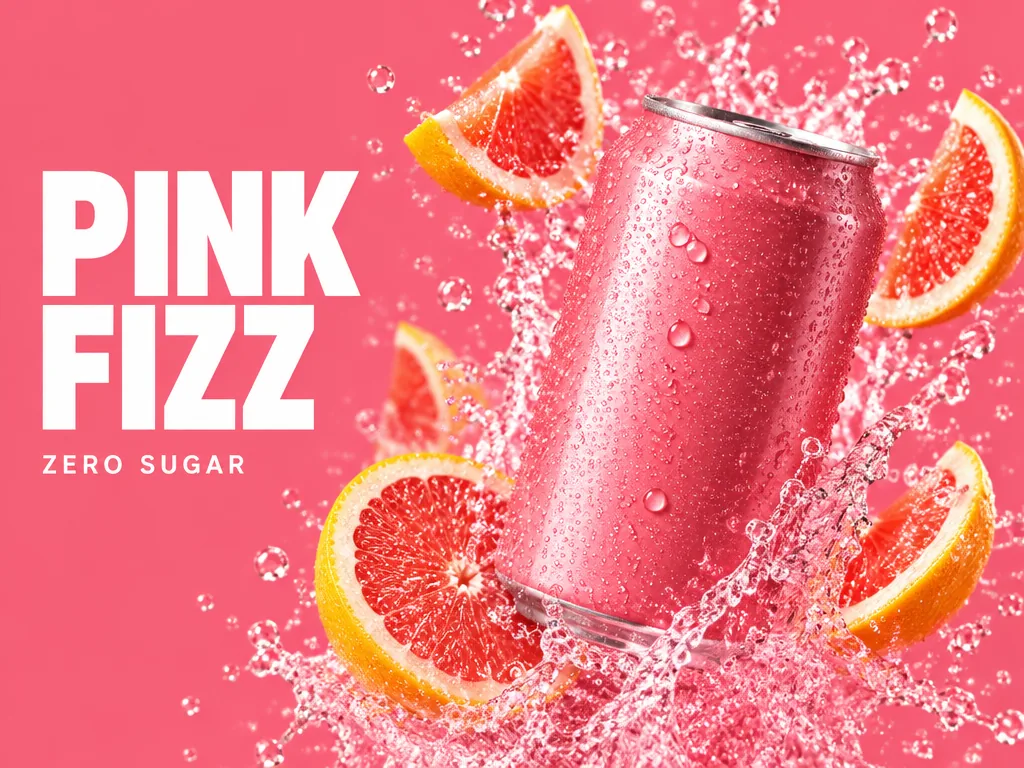
Pink grapefruit soda can bursting through a splash with grapefruit slices, beside the headline PINK FIZZ and the line ZERO SUGAR

Text to image

Ad layouts and posters with exact headline text

Describe the layout along with the subject: where the headline sits, how big it is and what goes next to it. Put every word you want on the image in quotes and keep headlines short, then zoom in to check the spelling before you publish. Flare is the quicker way to try several layouts.
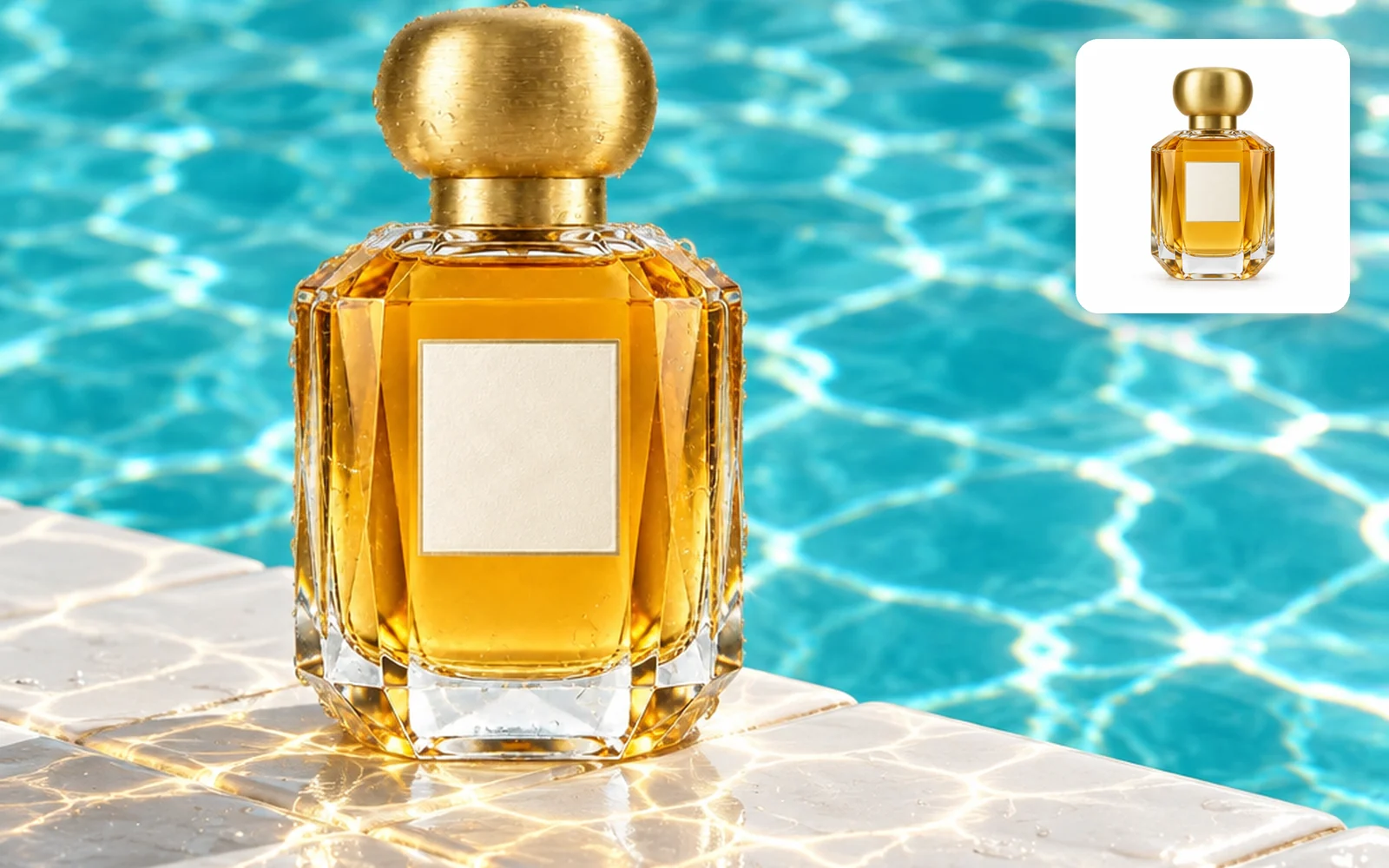
Amber perfume bottle with a gold cap standing on a sunny pool edge, with the original white-background product photo in the top corner

Product edit

Put a product in a new scene without redrawing it

Upload a clean product photo and describe only the new setting. Name what has to stay fixed, such as the shape, label and cap, so the edit changes the scene and leaves the product alone. For a set of campaign shots, run them on Sunburst and compare each one with the original.

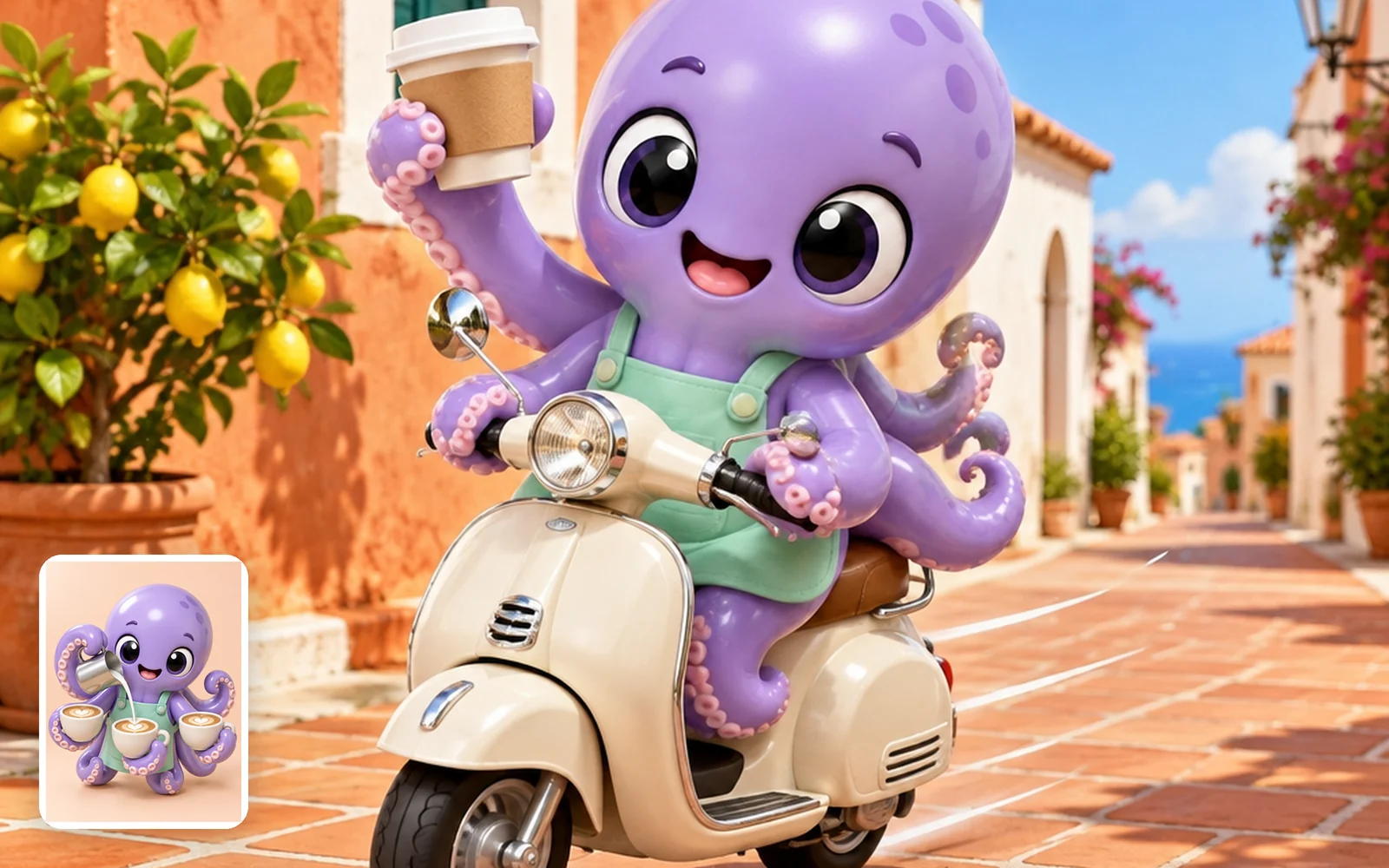
Purple octopus mascot riding a cream scooter down a sunny terracotta street with a coffee cup raised, with the original mascot render in the bottom corner

Character consistency

Keep a mascot on-model in new scenes

Use a finished render or a character sheet as the reference, then describe the new pose and setting. Naming what defines the character, like its colors, eyes and outfit, helps it stay recognizable. Add another reference when one angle doesn't show enough.

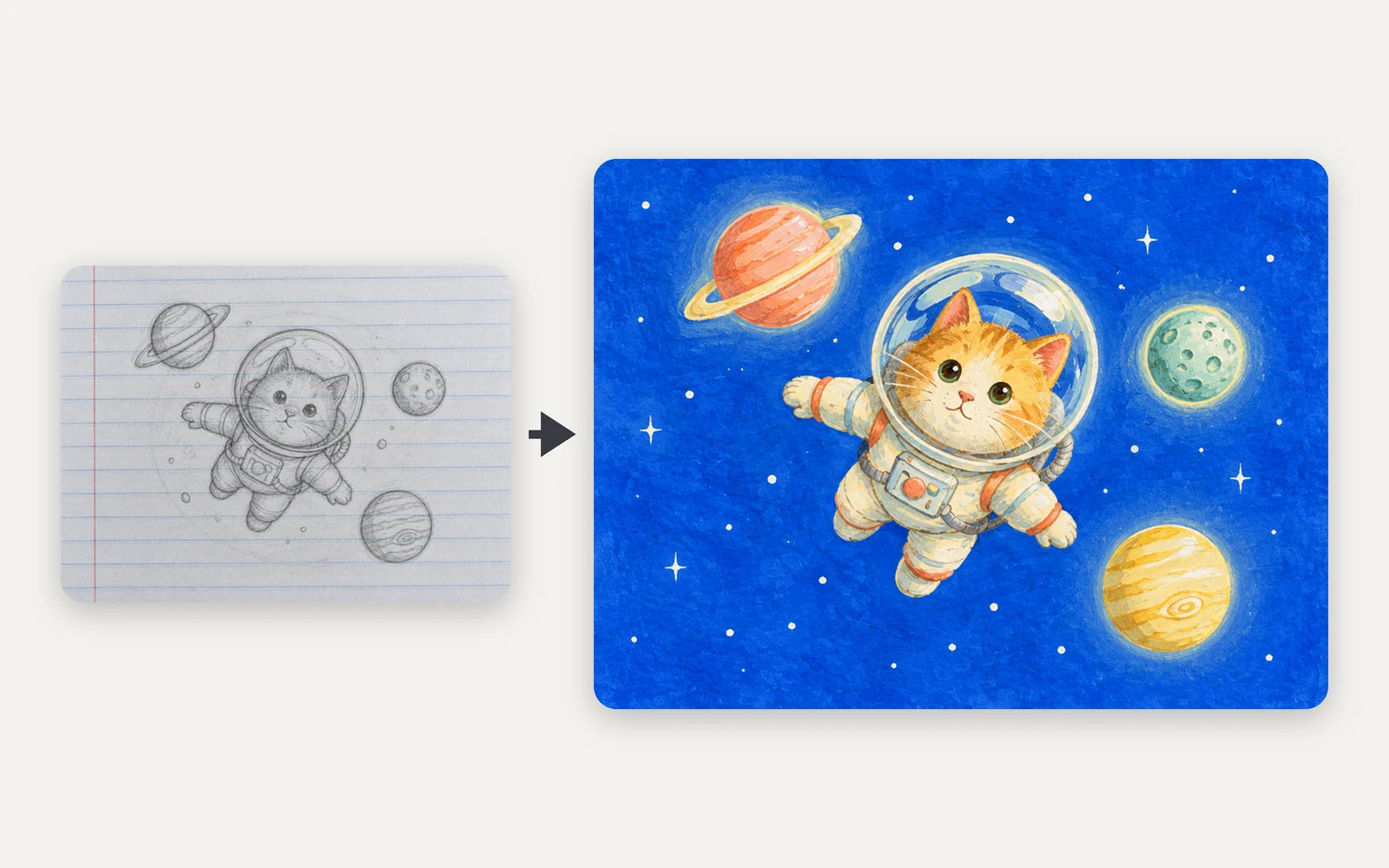
Pencil sketch of a cat astronaut on lined notebook paper next to the finished gouache illustration of the same cat floating among planets on a cobalt sky

Sketch to image

Turn a rough sketch into finished art

Photograph a pencil sketch and describe the finished style. The sketch sets the layout and poses, and your prompt sets the medium, colors and light. Ask for the paper and ruled lines to be removed so they don't carry into the result.

GIF loops and SVG logos from a GPT Image 2.6 prompt

Choose the GIF or SVG version, then describe what should move or what the mark should look like.

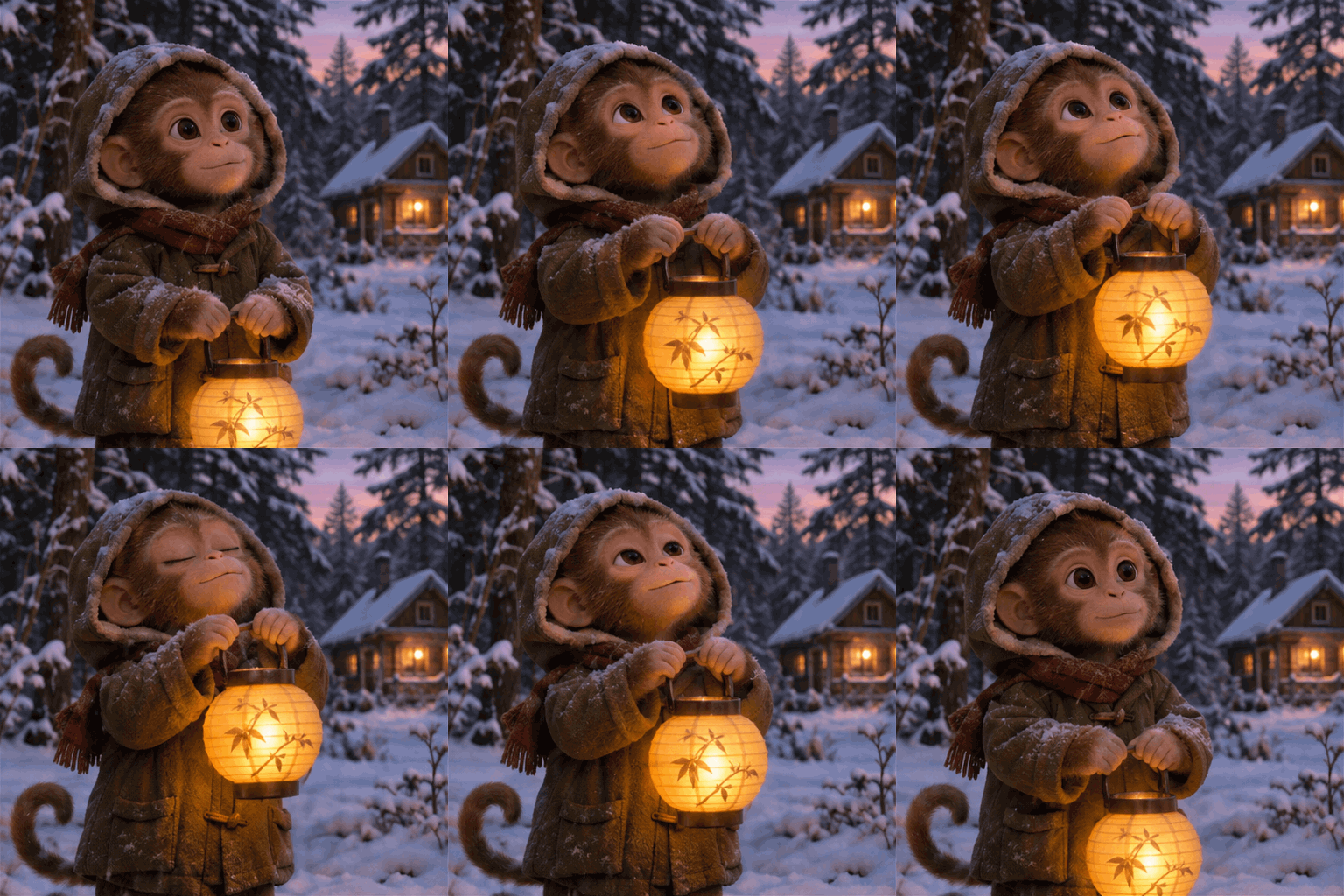
Looping animation of a little monkey in a hooded winter coat lifting a glowing paper lantern in a snowy forest at dusk

GIF version

Animate a scene as a short GIF loop

Keep it to one simple motion that can repeat, like a lantern being lifted or steam curling up. Short loops like this work for chat reactions, social posts and website banners.

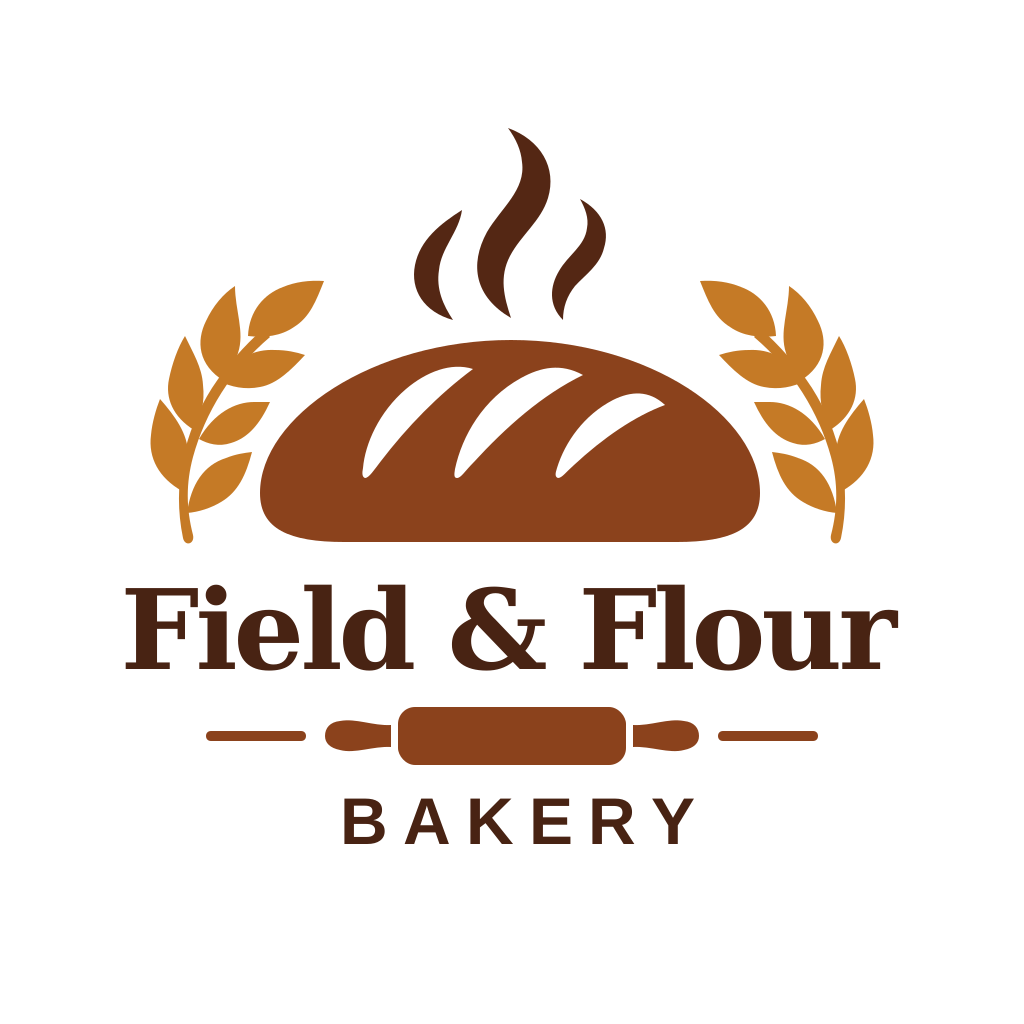
Bakery logo in brown and gold: a scored loaf with rising steam between two wheat stalks, the name Field & Flour, a rolling pin and the word BAKERY

SVG version

Draw a logo as an editable SVG

Name the shapes, the colors and the exact wording in quotes. The result stays sharp at any size and can be recolored or reshaped in design tools. To trace a logo or photo you already have, use the Image Vectorizer.

GPT Image 2.6 step by step: pick, prompt, generate

  1. Pick a version

    Open the model menu in the workbench above and choose Flare, Sunburst, GIF or SVG.

  2. Write the prompt

    Describe the subject and the layout. With Flare or Sunburst you can add reference images to edit; GIF and SVG start from text.

  3. Check the credits, then generate

    The Generate button shows the credits for your settings. Generate, then download the result you want to keep.

GPT Image 2.6 vs 2.5: release, quality levels and focus

Both generations come as Flare and Sunburst and run in the same workbench here. Credits for each are listed in the specs below.

CompareGPT Image 2.6 FlareGPT Image 2.6 SunburstGPT Image 2.5 FlareGPT Image 2.5 Sunburst
ReleasedNovember 4, 2026November 4, 2026September 8, 2026September 8, 2026
Qualitylow · medium · highlow · medium · highlow · medium · high · xhigh · maxlow · medium · high · xhigh · max
Output formatsPNG, JPEG, WEBPPlus GIF and SVG versionsPNG, JPEG, WEBPPNG, JPEG, WEBPPNG, JPEG, WEBP
OpenAI's 2.6 focusPoster and product layoutsSteadier detail across edits——
Where to use itWorkbench on this pageWorkbench on this pageOpen model pageOpen model page

Copy-ready GPT Image 2.6 prompts for Flare, Sunburst and GIF

Paste a prompt into the workbench and swap in your own subject. With Flare and Sunburst, test at low quality and switch to high for the final image.

GPT Image 2.6 Flare

Prompt length 389

Magazine ad layout for a sparkling grapefruit soda. A pink can bursts out of a splash of soda with grapefruit slices flying around it, filling the right half of the frame. On the left, a large white headline reads "PINK FIZZ" with one small line under it that reads "ZERO SUGAR". Flat grapefruit-pink background, bright studio light, crisp condensation on the can. No other text, no logos.

Spell out

  • The job and the layout

    Say what the image is for, such as a poster, a product shot or a story page, and where the main elements go.

  • Exact words in quotes

    Quote every word that should appear and say where it goes. Short headlines come out cleaner than long lines of small text.

  • What changes and what stays

    For edits, name the one change and list what must not move: the face, the product shape, the label, the background.

Avoid

  • Several changes in one edit

    Make one change per run and build on the result. Stacked requests are harder to check and more likely to drift.

  • Vague style words

    Words like "modern" or "nice" leave the model guessing. Name the medium, the main colors and the light instead.

  • Unlabeled reference images

    With several references, say what each one is for, such as "the bottle from the first image" or "the colors from the second".

From a vague prompt to a usable brief

Vague

A cool summer movie poster.

Specific

Summer poster for a rooftop movie night. Large headline "MOVIES UNDER THE SKY" at the top, a couple on a picnic blanket watching a glowing screen below, coral and teal palette, Swiss-style grid, no other text.

The second version names the job, the layout, the exact headline and what to leave out.

GPT Image 2.6 pricing, sizes and limits

GPT Image 2.6 pricing, sizes and limits
Models
GPT Image 2.6 Flare (opens first) and GPT Image 2.6 Sunburst
Modes
Text to image; image editing with up to 16 reference images
Images per run
Up to 4
Resolution
1K, 2K, 4K; 4K goes up to 3840×2160 (16:9) or 2880×2880 (1:1)
Aspect ratios
Auto, 1:1, 4:3, 3:4, 16:9, 9:16, 21:9, 9:21
Quality
low · medium · high; the workbench starts on low
Formats
PNG, JPEG, WEBP
GPT Image 2.6 Flare / GPT Image 2.6 Sunburst: text to image at 1K
low 8 · medium 14 · high 16 credits per image
GPT Image 2.6 Flare / GPT Image 2.6 Sunburst: editing at 1K with one reference
low 12 · medium 21 · high 24 credits per image
GPT Image 2.5 Flare / GPT Image 2.5 Sunburst for comparison: text to image at 1K
low 2 · medium 4 · high 16 · xhigh 32 · max 60 credits per image
Failed runs
Credits return automatically if a generation fails.
Not supported here
Transparent backgrounds, mask or markup edits, and the complexity setting

What GPT Image 2.6 can and can't do on Oeneo AI

What is GPT Image 2.6?+

GPT Image 2.6 is OpenAI's image generation and editing model, released on November 4, 2026. ChatGPT calls it Images 2.6; for developers it comes as two models, Flare for speed and Sunburst for detail. You can use both on this page.

Is GPT Image 2.6 free on Oeneo AI?+

It runs on credits, and new accounts get 10 credits when they sign up. The price depends on the quality, resolution and number of reference images you pick, and the Generate button shows it before you start.

Does GPT Image 2.6 cost more than GPT Image 2.5?+

At low and medium quality, yes: the same settings use more credits on 2.6 than on 2.5. At high quality the two cost the same. The specs above list the exact credits for both.

Do I need an OpenAI account or an API key?+

No. Sign in to Oeneo AI and use GPT Image 2.6 in the workbench at the top of this page. There is no API key, code or OpenAI account to set up.

Can GPT Image 2.6 make GIFs or SVG files here?+

Yes. Choose the GPT Image 2.6 GIF or SVG version from the model menu in the workbench and describe what you want. Both work from text alone: you can't upload a photo, so turning a photo into a GIF is not supported, and each run makes one file, either a short looping GIF or a vector SVG. To animate a photo, use the AI Video Generator; to convert an existing image into a vector, use the Image Vectorizer.

Can it make images with a transparent background?+

No. Generate the image first, then remove the background with the Background Remover.

Can I change just one part of an image?+

Yes, by describing it; there is no mask or markup canvas here. Upload the image, name the one change and list what must stay the same, then check the whole image after each round.

Does GPT Image 2.6 support 4K?+

Yes. You can generate at 1K, 2K, 4K. OpenAI marks sizes above 2560×1440 as experimental, so zoom in on faces, text and edges before you use a 4K result.

Are my GPT Image 2.6 images public?+

Results from a free account are public. After you buy any plan or credit pack, new results are private by default.

Can I use GPT Image 2.6 images commercially?+

Yes. Oeneo AI's generated content license lets you use your results in personal and commercial projects without attribution. OpenAI's usage rules for the model still apply.

Generate images online with GPT Image 2.6

Turn a prompt or a reference image into a finished poster, product shot or illustration with Flare or Sunburst.