


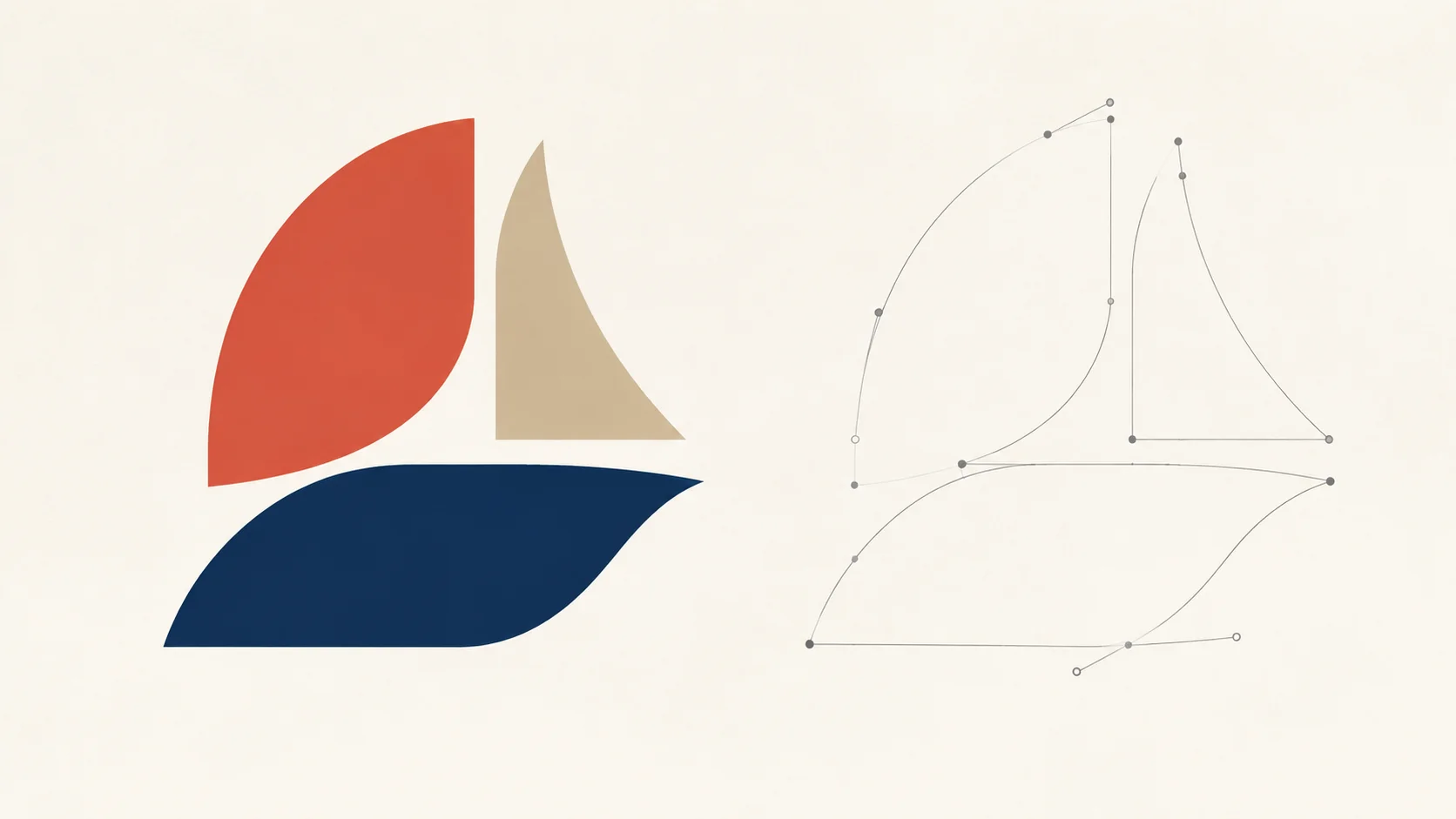
SVG
Get native SVG paths
The result is SVG built from paths and shapes rather than an embedded bitmap. Open it in Illustrator, Figma, Inkscape, or another SVG-compatible editor.
Turn a raster logo, icon, or flat illustration into editable SVG paths for packaging, interfaces, signage, and brand systems that need clean resizing.
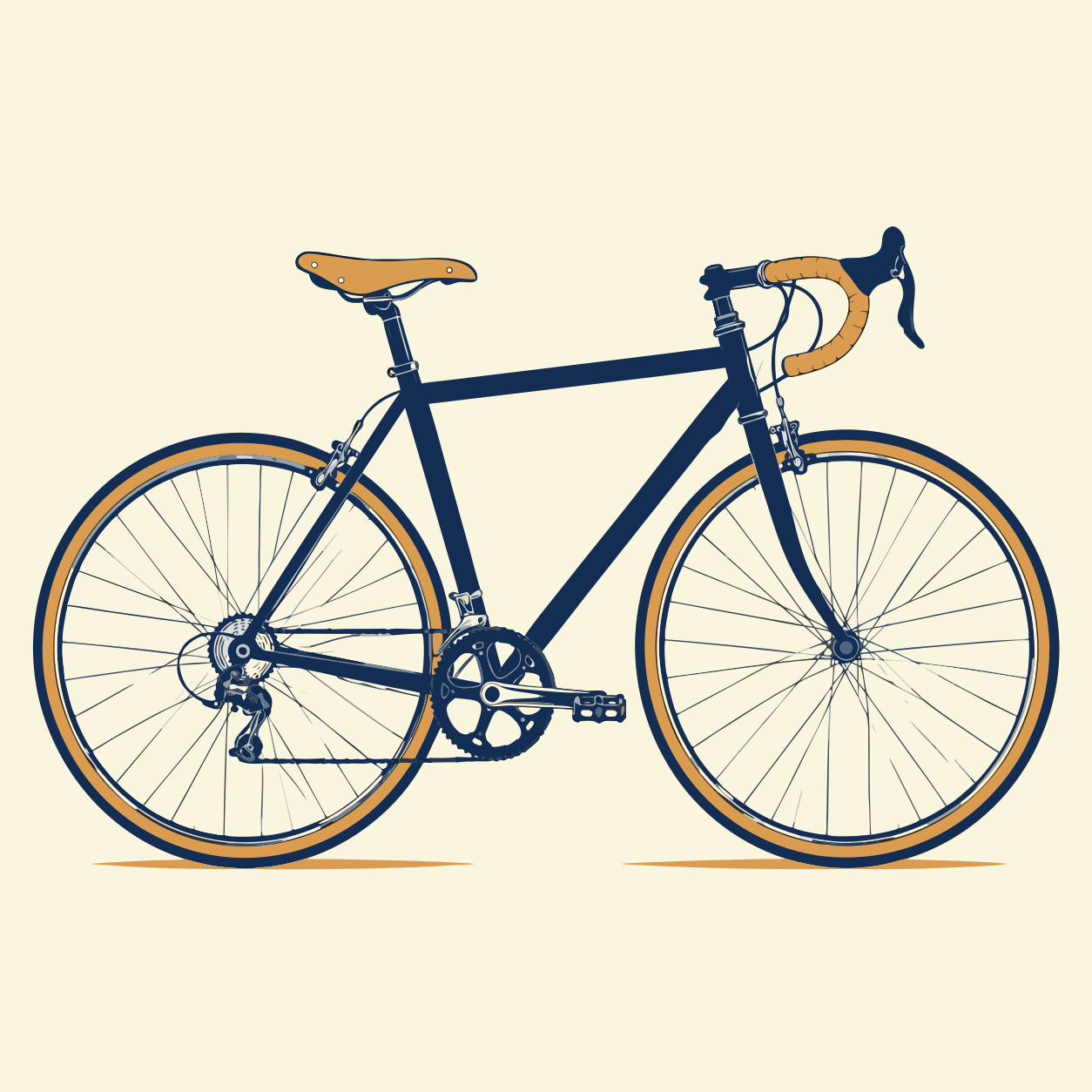
Compare each raster source with the SVG result. Look for cleaner curves, closed shapes, preserved negative space, and details that remain readable at both icon and print sizes.
 Raster
 Vector (SVG)
Prepared for responsive web, print, and signage
 Raster
 Vector (SVG)
Converted for consistent use across screen densities
Raster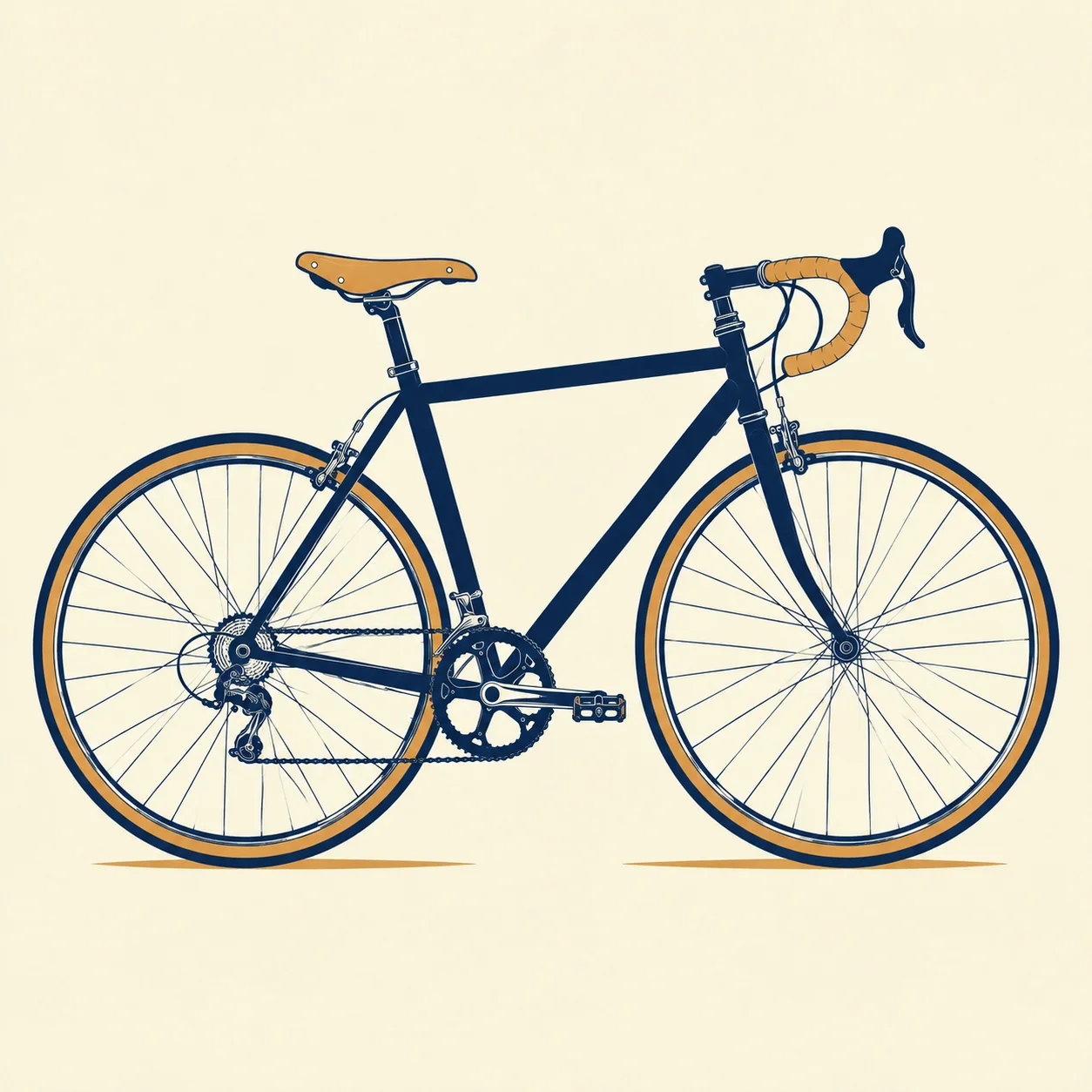 Vector (SVG)
Prepared for recoloring, print, and responsive layouts
How it works
Start with suitable artwork, confirm the fixed quote, compare the traced shapes, and review the SVG before production use.
Choose a PNG, JPG, or WebP with clear shapes, strong contrast, and enough resolution for small details.
Confirm the quote. The vectorizer identifies boundaries and rebuilds the raster artwork as SVG shapes.
Check curves, corners, gaps, letterforms, and color regions against the original raster source.
Open the SVG in your preferred vector editor to simplify paths, correct details, and prepare final exports.
What vectorization gives you
Create an editable SVG starting point from a raster logo, icon, or flat illustration for clean resizing across brand and product surfaces.
SVG
The result is SVG built from paths and shapes rather than an embedded bitmap. Open it in Illustrator, Figma, Inkscape, or another SVG-compatible editor.
∞
A clean vector can serve an app icon, navigation mark, packaging panel, presentation, or sign without introducing pixelation at the larger size.
Logos
Turn a raster logo, wordmark, or identity graphic into a vector starting point when the original design file is unavailable. Review letterforms and spacing before release.
Edit-ready paths
Convert flat artwork into editable shapes that a designer can simplify, recolor, align, and reuse across a brand or product system.
Simple, high-contrast artwork converts most reliably. Inspect curves, small gaps, gradients, and type before treating the SVG as final artwork.
Use flat, deliberate artwork
Solid colors, limited gradients, and clearly separated shapes produce paths that are easier to inspect and edit.
Separate the mark from its background
Strong boundary contrast produces cleaner paths. Remove a photographed or paper background first when it interferes with the mark.
Give small details enough pixels
Use a source large enough to show corners, counters, and thin strokes. Upscale a tiny original before vectorizing when necessary.
Photographs create excessive paths
Continuous color, texture, and lighting do not translate into efficient vector shapes. Keep photographs as raster images.
Soft gradients may be simplified
Subtle blends, transparency, and soft shadows may become flatter shapes or extra paths. Inspect those areas in a vector editor.
Tiny details may merge or disappear
Small counters, thin lines, and intricate patterns can change during tracing. Simplify the source or provide more resolution before converting.
Vectorization costs 2 credits per source image. Treat the generated SVG as an editable starting point and review it before production.
The raster inputs, dimension limits, ideal source characteristics, SVG output, and fixed credit price used by this workflow.
Where SVG makes sense
Prepare logos, app icons, packaging artwork, signage, and flat illustrations that need crisp reproduction at several sizes.
Recover a usable vector starting point from a raster logo so the mark can be reviewed and prepared for web, print, and signage.
Example: Vectorize a PNG logo for use in web, print, and signage.
Convert clear raster pictograms into SVG shapes that can be aligned, recolored, and normalized for a web or mobile design system.
Example: Convert a set of PNG icons to SVG for a design system.
Prepare flat illustrations, marks, and display graphics for packaging, apparel, banners, and signage without carrying a fixed pixel size.
Example: Vectorize a raster illustration for a 10-foot banner.
Use SVG marks and illustrations that stay sharp across compact navigation, retina screens, and responsive landing-page layouts.
Example: Convert hero graphics to SVG for responsive landing pages.
Image vectorizer FAQ
Answers about SVG output, gradients, small details, supported files, and when a generated vector still needs a designer's cleanup.
Image vectorization traces a raster image made of pixels and rebuilds it as paths and shapes. A clean vector can scale without pixelation and can be edited, recolored, and reused across logo, icon, web, and print workflows.
PNG and JPG files store a fixed grid of pixels and soften when enlarged. SVG files describe shapes and curves, so suitable artwork stays sharp at different sizes. Use vectors for logos and icons; keep photographs as raster images.
Flat graphics with solid colors, clear boundaries, limited gradients, and enough resolution work best. Logos, icons, wordmarks, pictograms, and flat illustrations are strong candidates. Photographs and textured imagery are not.
Technically a photograph can be traced, but the result usually contains too many shapes and loses photographic nuance. Keep photos in PNG, JPG, or WebP and use vectorization for artwork with deliberate boundaries.
Yes. The output uses SVG paths and shapes. Open it in Illustrator, Figma, Inkscape, or another SVG-compatible editor to adjust nodes, simplify paths, recolor elements, and prepare production exports.
Input images must be between 256 and 4096 pixels per side, up to 5MB. If your image is too small, upscale it first. If too large, resize before vectorizing.
Vectorization costs 2 credits per source image, regardless of its size or complexity. New users receive 10 free credits valid for 365 days, and failed tasks are refunded.
The current workbench processes one source image per run. If you need to convert a full icon library or catalog, contact us about future or enterprise batch options.
Ready to recover editable paths
Turn a suitable raster mark into an SVG starting point with 10 free credits. No credit card required.