
Ideogram 4.5 AI Image Generator

Generate images online with Ideogram 4.5, or upload an image for precise edits. Recolor products, edit text, preserve details across multi-turn changes, and refine high-resolution visuals in Oeneo AI.

  • Precise image editing
  • Reference-guided changes
  • Text-to-image designs

Reference images (Optional)

0/5
0/5000

Model

Aspect ratio

Number of images

Resolution

Quality

Text-to-image prompt examples

How can you generate poster designs with Ideogram 4.5?

These official Ideogram examples come from its Ideogram 4.0 prompt guide; the guide does not identify them as 4.5 outputs. Use the prompts as creative references, then try Ideogram 4.5 in the workbench above.

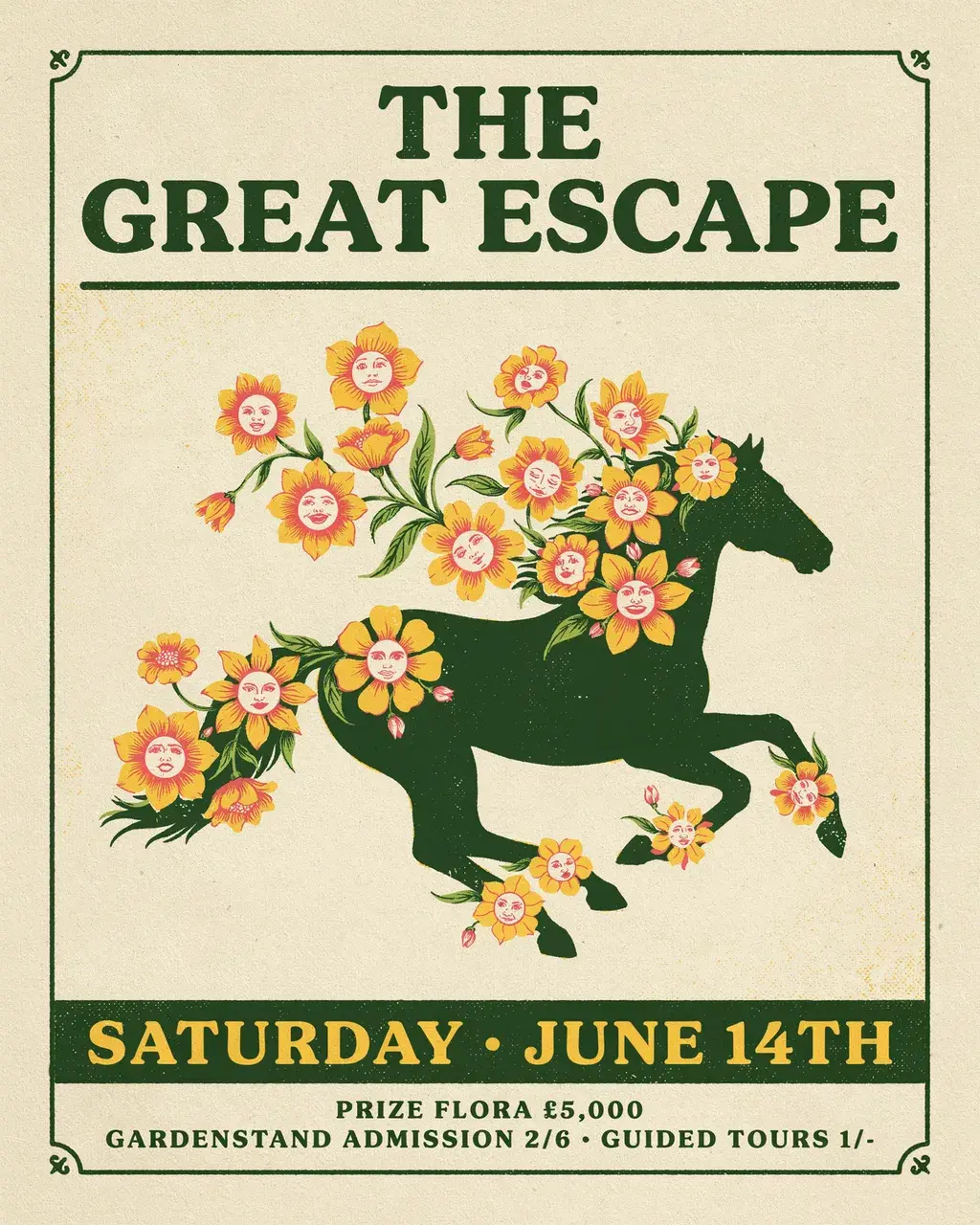
Official Ideogram 4.0 generation example: vintage event poster with a galloping horse silhouette and face-flowers in forest green, yellow, cream, and coral
Official Ideogram 4.0 example

Vintage event poster with a surreal botanical illustration

Prompt: Vintage 1950s-era event poster. Flat graphic illustration, bold display type, three to four spot colors (forest green, butter yellow, aged cream, coral pink). Galloping horse silhouette with face-flowers blooming from mane and tail. Distressed print grain: risograph halftone, paper stock tooth. Poster hierarchy: dominant headline type, central illustration, supporting detail.

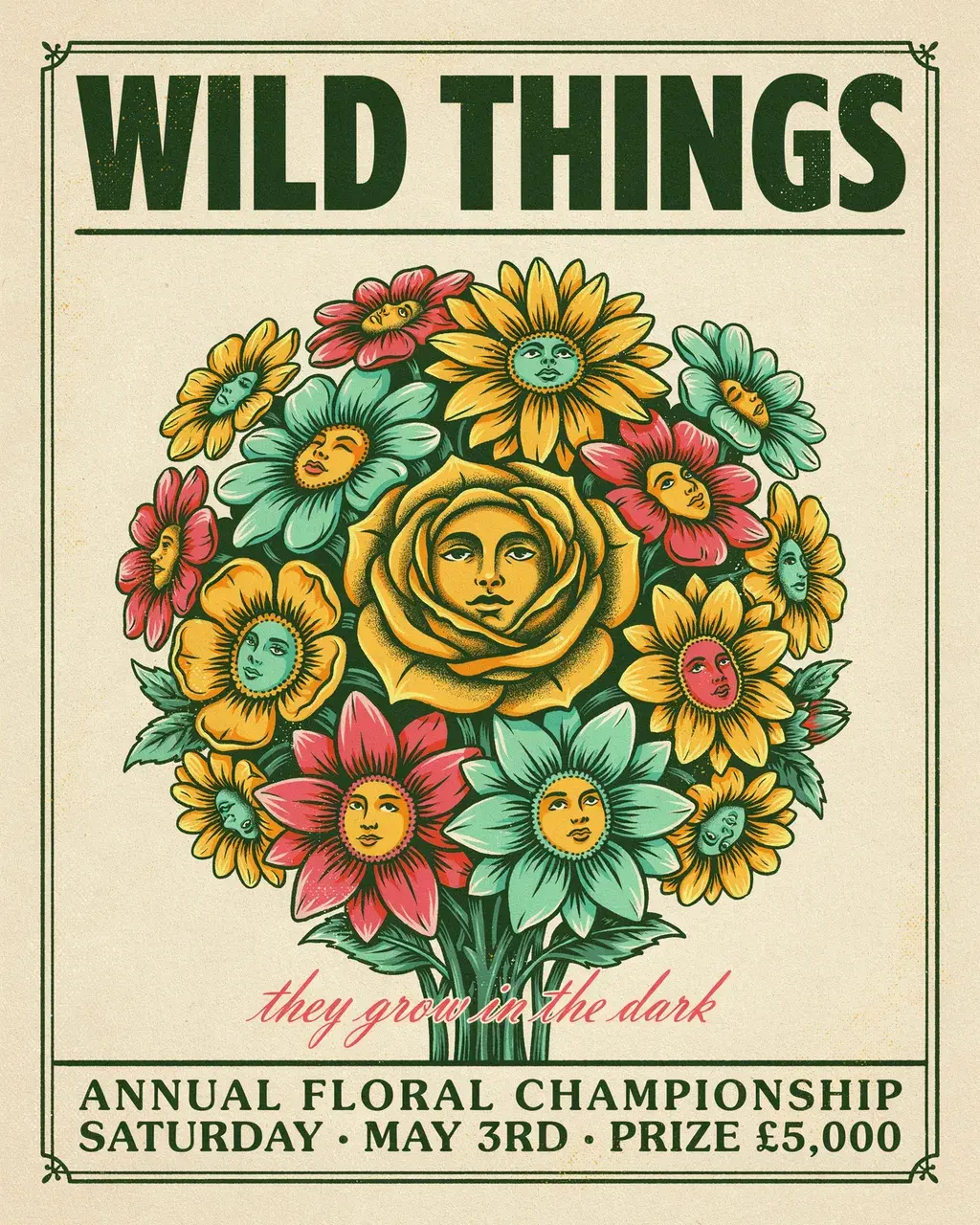
Official Ideogram 4.0 generation example: vintage botanical poster with a face-flower bouquet on an aged cream background
Official Ideogram 4.0 example

Botanical poster built around a face-flower bouquet

Prompt: Vintage 1950s-era botanical event poster. Flat graphic illustration, bold display type, limited spot colors (forest green, butter yellow, aged cream, coral pink). Large face-flower bouquet as central illustration. Distressed print grain, risograph halftone. Surreal botanical composition: flowers with human faces in their petals.

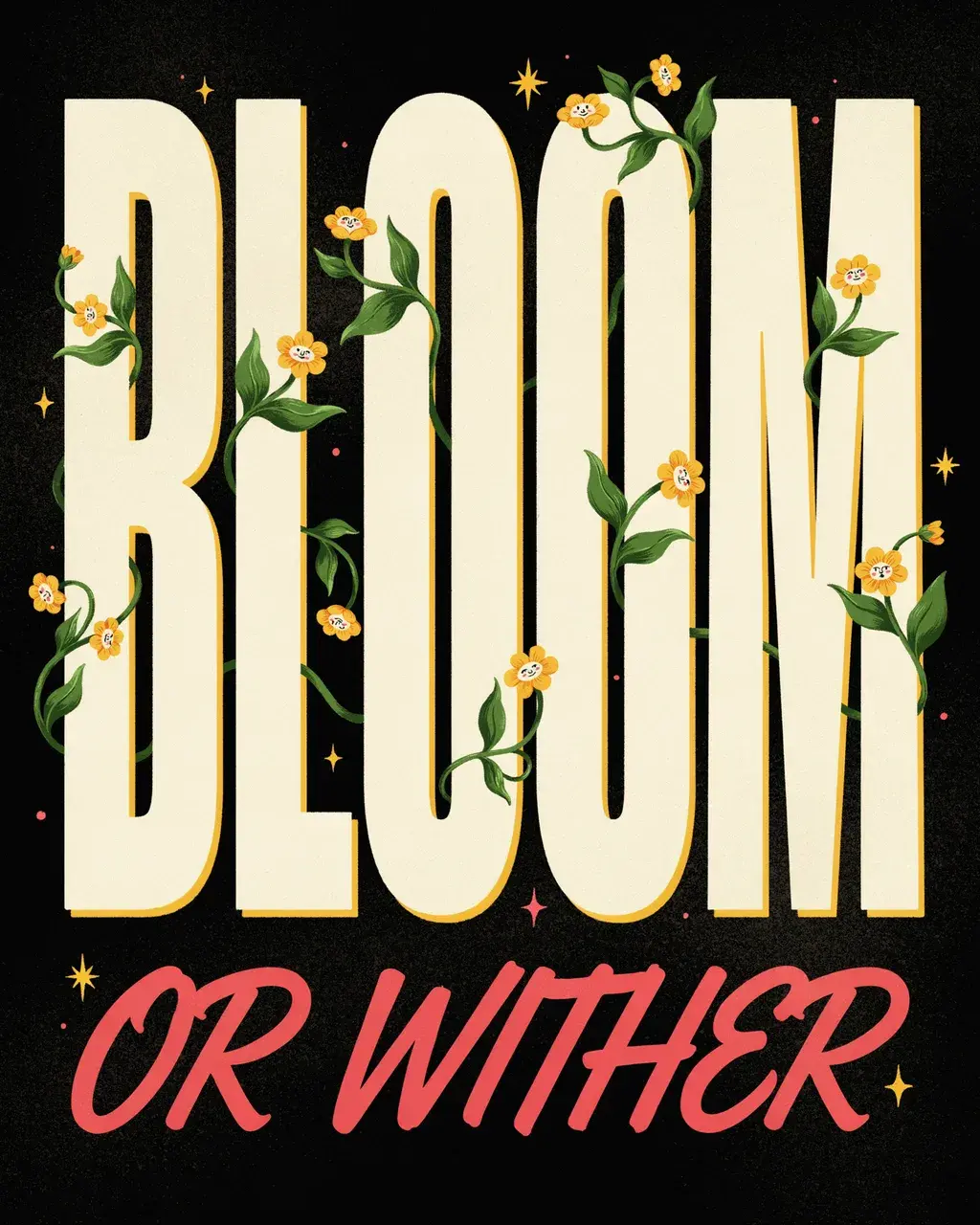
Official Ideogram 4.0 generation example: black, cream, and green typographic poster with face-flowers growing from condensed letters
Official Ideogram 4.0 example

Typography-led poster with flowers growing from the letters

Prompt: Vintage 1950s-era typographic poster. Flat bold condensed letters with face-flowers growing from terminals as living ornament. Black ground, cream and green. Distressed print grain: risograph halftone, worn registration marks. Poster hierarchy: dominant type, botanical ornament, playful punchline.

View Ideogram's 4.0 prompt guide

Ideogram 4.5 examples

How can Ideogram 4.5 precisely edit colors, text, and scenes?

Use the Ideogram 4.5 image editor to change a product finish, revise text in an existing design, or explore a room style from a photo. These official examples illustrate possible tasks; they were not generated on Oeneo AI.

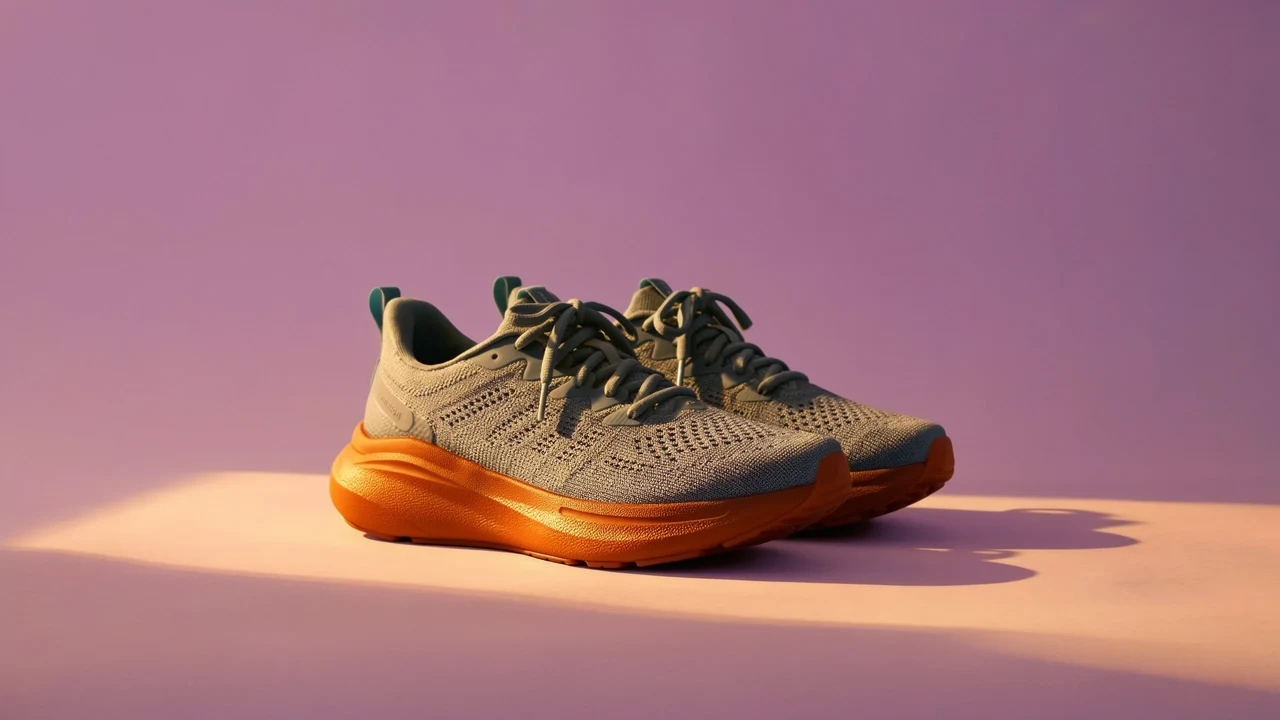
Official Ideogram example: gray knit running shoes with orange soles on a mauve studio backdrop

Product color and material

Change a product's color without redesigning it

Use an image edit prompt to request a new color or material, then name the shape, position, and lighting to retain. Precise editing is designed to reduce unrelated changes, which makes it useful for product photo colorways and campaign revisions.

View the official examples
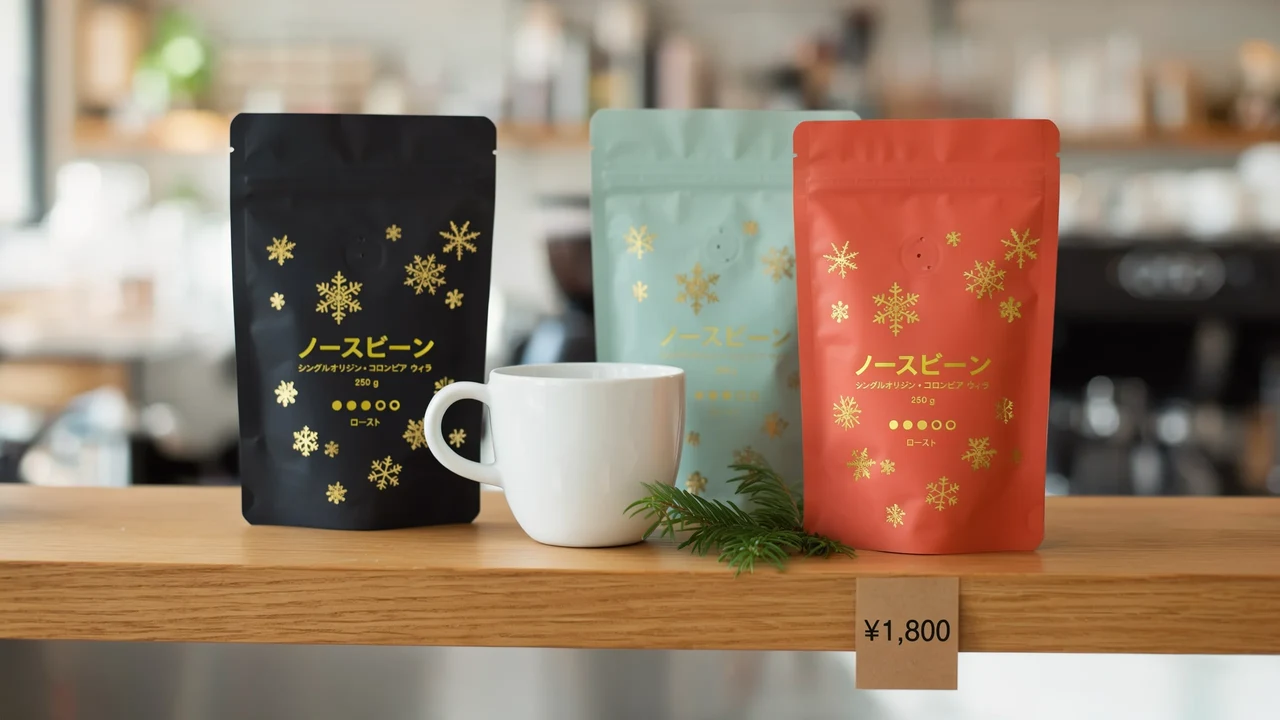

Official Ideogram example: black, mint, and red coffee packages with Japanese lettering, a white mug, and a yen price card

Text replacement and localization

Replace text in an image without rebuilding the design

Ask Ideogram 4.5 to replace a poster headline, update a package label, or translate a sign while retaining the surrounding layout. Put the exact new words in quotes. For a new design, use text-to-image to create poster and packaging concepts with readable typography.

Official Ideogram example: a bohemian bedroom with terracotta walls, a macrame hanging, and a patterned rug

Interior design from a photo

Restyle a room from a photo while keeping its layout

Use an interior photo to explore new furnishings, surfaces, or colors. In the edit prompt, specify which walls, windows, and camera angle should stay. Treat the result as an interior design concept, not a measured renovation plan.

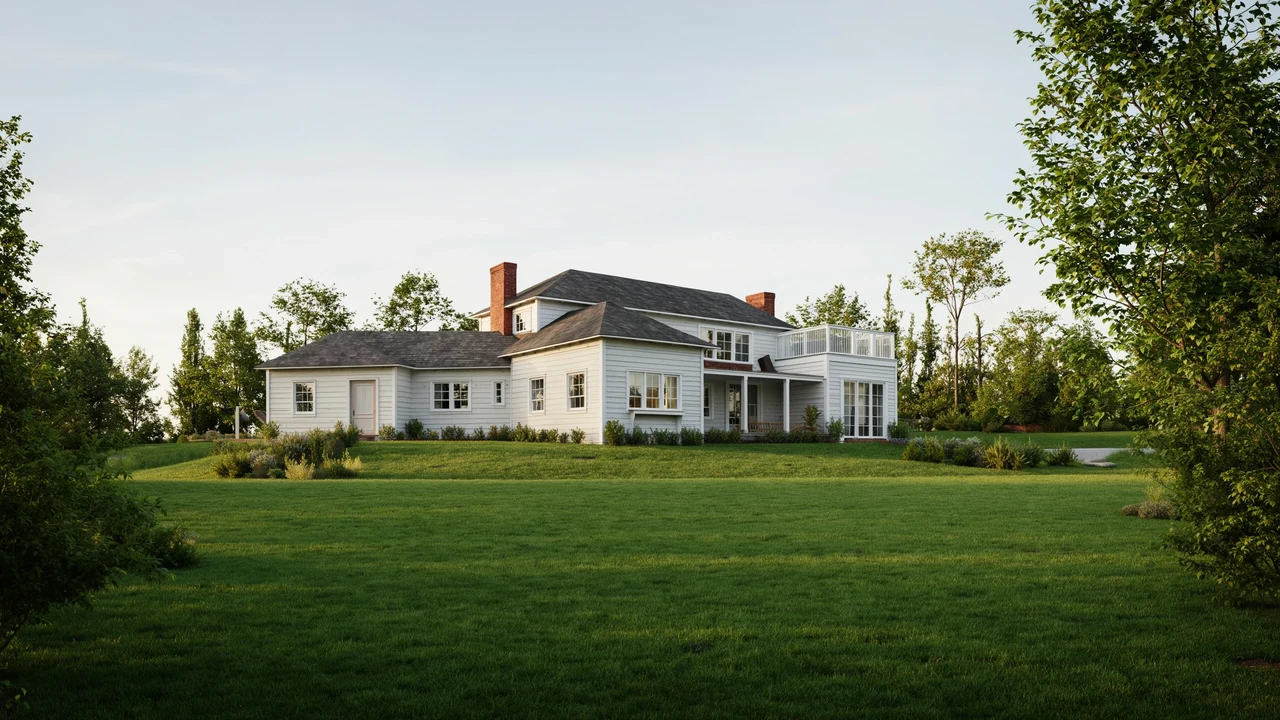
Official Ideogram sketch-to-image example: a photoreal white country house on a lawn beneath trees and a blue sky

Sketch to image

Turn an architecture sketch into a visual concept

Start with an architectural drawing or concept sketch and describe the materials, light, and photographic style you want. Add a reference image to guide the finish, and specify the proportions and composition to retain.

Multi-turn image editing

How to refine an image with Ideogram 4.5 across multiple edits

Make one focused change at a time with precise editing. Each round is a separate generation: review the image, then upload the approved result to continue.

  1. Choose a source image

    Upload the image you want to edit first. Add reference images afterward when a product detail, material, or style should guide the change.

  2. Describe one specific edit

    Name the object and requested change, then list the composition details to preserve. Narrow prompts make image edits easier to assess.

  3. Review the edited image

    Check text, edges, faces, and areas you asked to retain. Precise edit mode restores unchanged regions, but broad changes can still affect the image.

  4. Upload the result for another round

    Download the version you want to keep and upload it as the next source image. Oeneo AI does not currently keep an automatic multi-round edit session.

How do you write an Ideogram 4.5 edit prompt?

For prompt-based image editing, upload the source first and then any reference images. Describe one specific change and what should stay; leave uploads empty to generate a new image from text.

Give the edit a clear target

  1. Name one object and one change

    Try: “Change the bottle to emerald green. Keep the label, cap, background, and camera angle unchanged.” Narrow instructions make each result easier to review.

  2. Give each reference a job

    The first upload is the image being edited. Explain whether each additional image supplies a material, a product detail, or a visual style.

  3. Quote the words you need

    For a new poster, try: “A minimalist jazz festival poster. The headline reads ‘BLUE NOTE NIGHTS’. Place ‘OCT 18’ beneath it.” For an edit, identify the existing text to replace.

Keep the revision manageable

  1. Do not expect global changes to stay local

    Changing the time of day or lighting affects much of the frame. Make small object edits first and save whole-scene changes for the end.

  2. Do not skip the close-up check

    Inspect spelling, product edges, faces, and any area you asked to preserve. Precision editing reduces drift; it does not guarantee a flawless result.

  3. Do not overwrite your approved version

    Download a result you like and upload it as the first image for the next round. Keep earlier downloads so you can return to a better starting point.

Start with low or medium quality to check the instruction, then try high for a more considered result. Check the credit quote before every generation.

How Ideogram 4.5 compares with other AI image models

Choose by task instead of a generic winner. This comparison describes each model's current role in the Oeneo AI image workspace; output quality still depends on the prompt, references, and requested edit.

ModelBest fitText to imageImage editingMulti-turn work
Ideogram 4.5Typography-led designs and controlled revisionsPosters, logos, packaging, and readable textPrecise edit with source image and referencesDesigned for focused, multi-turn edits with less drift
GPT Image 2General image generation and instruction-based editsGeneral scenes, products, and art directionGenerate and edit with reference imagesReview each round and keep approved constraints
Nano Banana 2Fast concepts and reference-driven changesConcepts, scenes, and visual variationsReference-guided image generation and editsUseful for iterative exploration with new references
FLUX 2 ProPhotoreal concepts and visual explorationPhotoreal scenes, products, and compositionsPrompt-based edits with source and reference inputsCompare variations and select a direction per round

Ideogram 4.5 image editing and generation settings

Text-to-image generation uses a selected output size. Image editing starts from one source image, can use additional references, and follows the source image's geometry. The controls below describe the current Oeneo AI integration.

Ideogram 4.5 image editing and generation settings
What you can do
Generate from text, or edit an uploaded image with a written instruction.
Image inputs
One source image, followed by up to 4 reference images.
Text-to-image sizes
1K / 2K; aspect ratios: 1:1, 4:3, 3:4, 16:9, 9:16.
Precise edit size
Follows the source image's geometry. Oversized images may be downscaled by the provider; a separate output size is not selectable.
Quality choices
low / medium / high
Images per request
1–4 images, with credits charged per requested output.
Credits
The generation button shows the current quote. Quality and output count change the cost; reference uploads do not add a separate image fee.

Ideogram 4.5 editing, prompts, sizes, and pricing

What is Ideogram 4.5?+

Ideogram 4.5 is an AI image generator and precise image editing model. Its precise editing mode is designed to restore unchanged regions from the source image, reducing pixel, color, and texture drift through repeated edits. It also generates posters and designs from text prompts.

Can I generate images without uploading a photo?+

Yes. Leave the image uploads empty, write a prompt, and select a size, quality, and output count. It is suited to posters, signs, product visuals, and other designs that include text. Adding an image switches the request to editing, with your first upload as the source.

Will it leave everything else in my image unchanged?+

Oeneo AI uses high edit precision for uploaded images. This mode restores regions that the model considers unchanged, but the interpretation of your instruction still matters. Broad relighting or style changes can affect the whole image. Review the result rather than assuming pixel-perfect preservation.

Why use Ideogram 4.5 for multi-turn image editing?+

Ideogram 4.5 is designed for focused, multi-turn edits: change a product color, then lighting, then text while carrying the approved image forward. Download each accepted result and upload it as the next source; precise edit can reduce drift, but it does not guarantee that broad changes leave every pixel untouched.

Can I use Ideogram 4.5 through an API?+

This Oeneo AI page provides a browser workbench for Ideogram 4.5 generation and editing. API access, endpoint names, rate limits, and provider pricing depend on the integration you choose; check the provider's current documentation before building a production workflow.

How many images can I upload, and which one gets edited?+

Upload the source image first, then up to 4 additional references—5 images in total. Only the first image is the edit target. The remaining images guide details such as a material, product, or style. To continue editing a result, download it and upload it as the next source.

Can I replace or translate text inside an image?+

Yes, you can ask Ideogram 4.5 to replace a headline, update a label, or translate a sign. Specify the exact words and the layout to retain. Proofread every result: spelling, small lettering, and matching an original typeface are not guaranteed.

Can I draw a mask or choose an editing resolution?+

Not in this workspace version. Uploaded images use precise editing with source geometry rather than a selected output size. Hand-drawn masks, seed control, and the very_low quality tier are not exposed. Text-to-image generation offers the sizes and quality choices listed above, with prompt expansion enabled.

How do credits and free access work?+

The workspace quotes credits before you submit. Choose low, medium, or high quality and 1–4 outputs; more outputs cost more credits. Eligible new accounts receive registration credits, but this is not unlimited free generation. Free-account results are public; private generation requires a paid account.

Can I use a generated poster or logo commercially?+

Check the Oeneo AI terms and the rights to your source images, logos, and reference material before commercial use. Generating a logo does not give you trademark clearance or guarantee exclusive ownership. Check text, branding, and recognizable people before publishing.

Edit an image or generate a design with Ideogram 4.5

Upload a source image and describe one change, or leave uploads empty to generate a new poster or design with Ideogram 4.5.