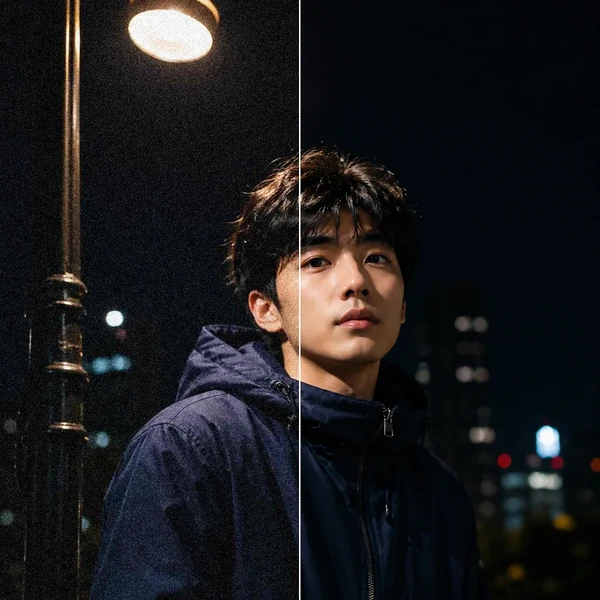
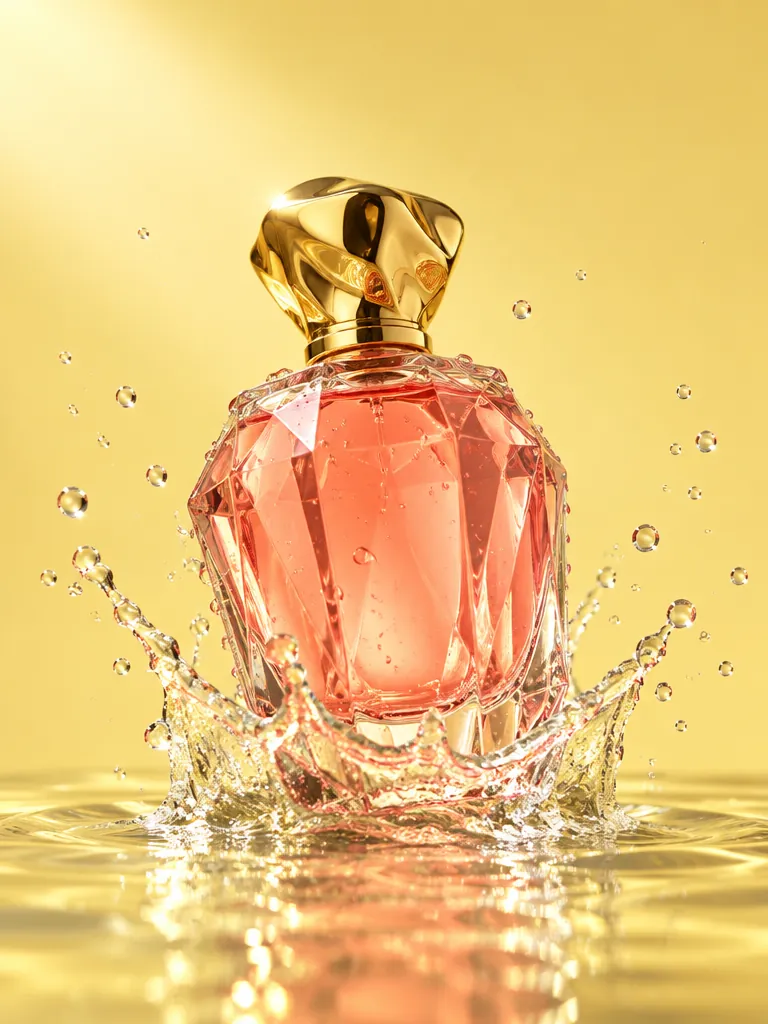
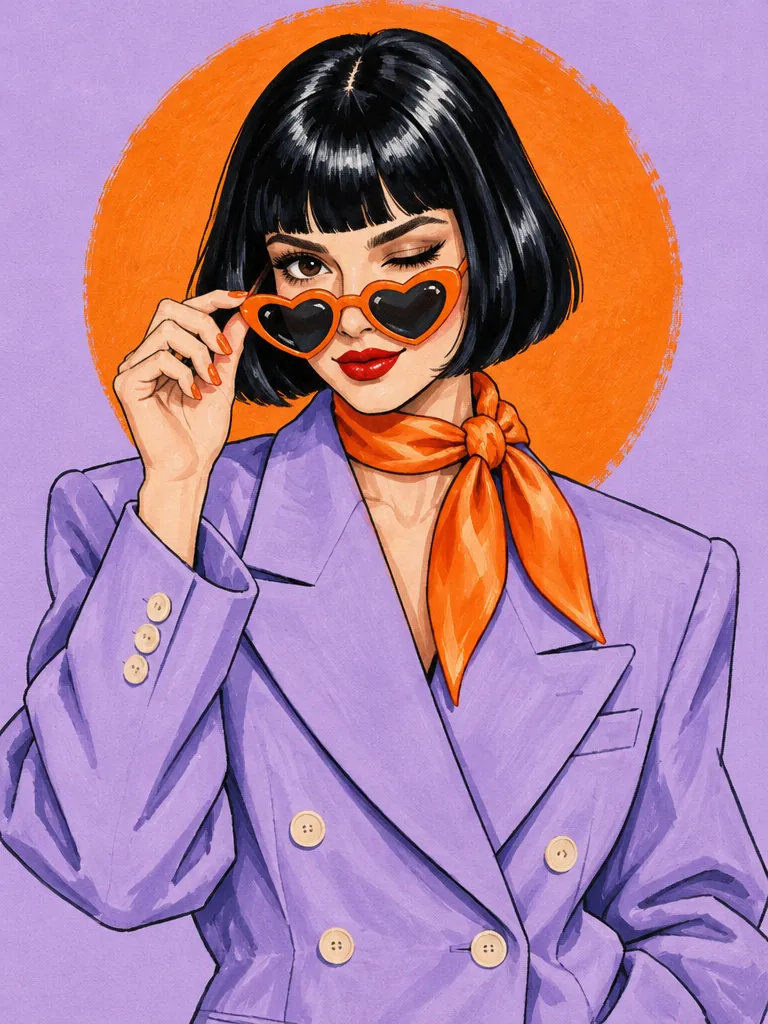
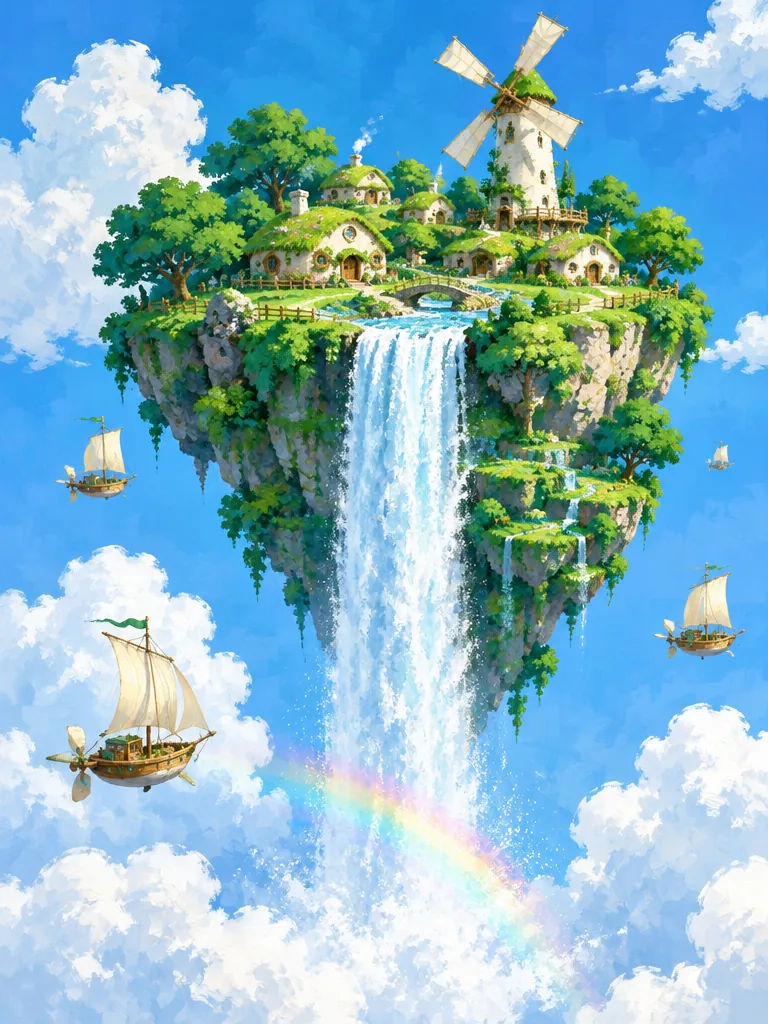
MiniMax H3 Image

Create and edit still images with MiniMax's new image model, in Standard or the faster Highspeed version. Start from a written brief or up to 16 reference images, combine people, products, and scenes, and run it in your browser with no GPU or local install.

Reference images (Optional)

0/16
0/5000

Model

Aspect ratio

Number of images

Resolution

Output format

Editing and references

Edit images with MiniMax H3 Image

Upload one photo to change a detail, or several to merge them into one picture. The same model handles both, so a draft can move from first idea to final version without switching tools.

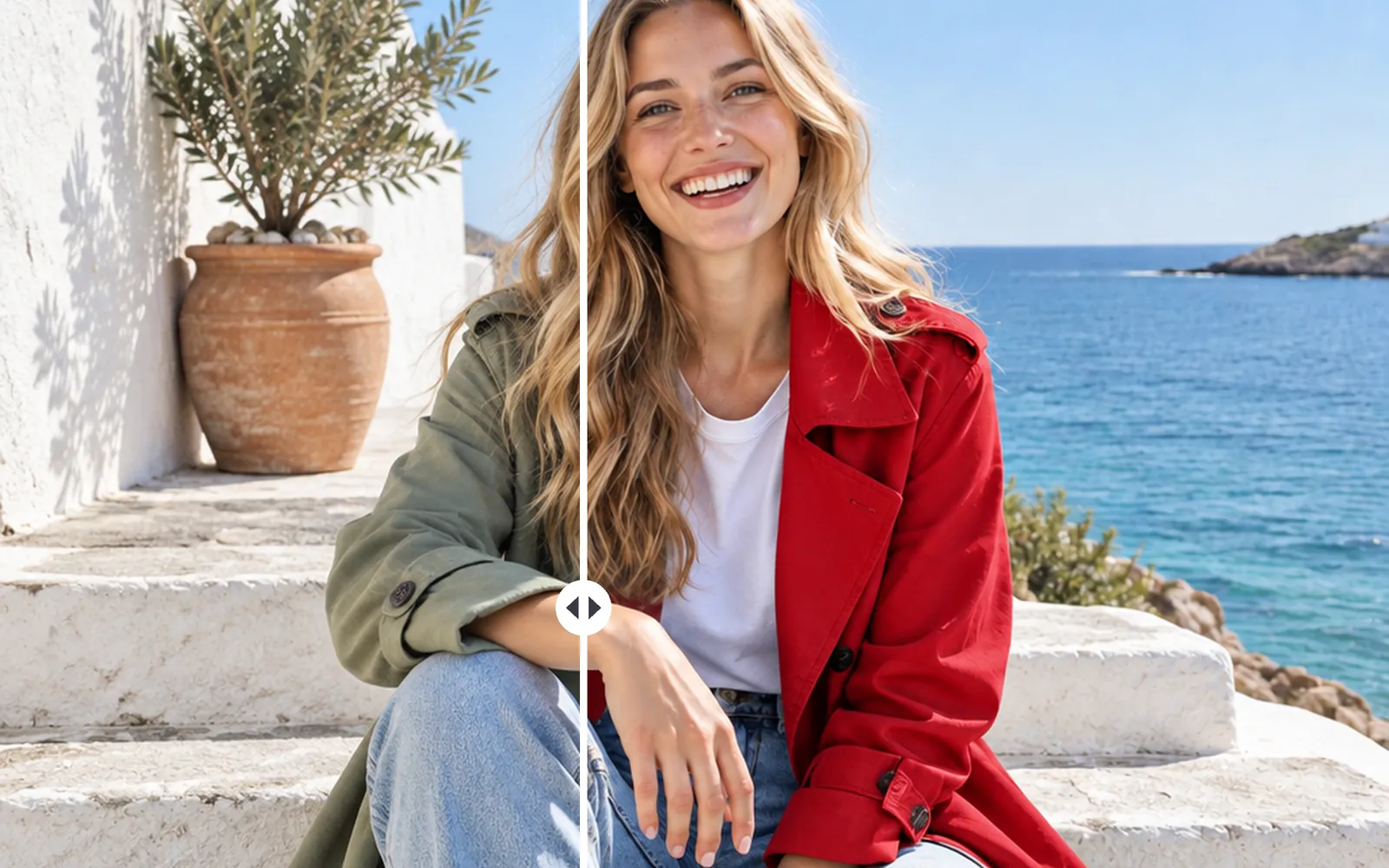
The same photo of a laughing woman on seaside steps split in two: a sage-green trench coat on the left, a cherry-red coat after the edit on the right

One photo

Change one detail with a sentence

Upload a photo and describe the change, like a new coat colour, a different time of day, or a prop taken out. The rest of the picture stays as close to the original as the model can keep it. Look at the face, hands, and edges before you build on the result.
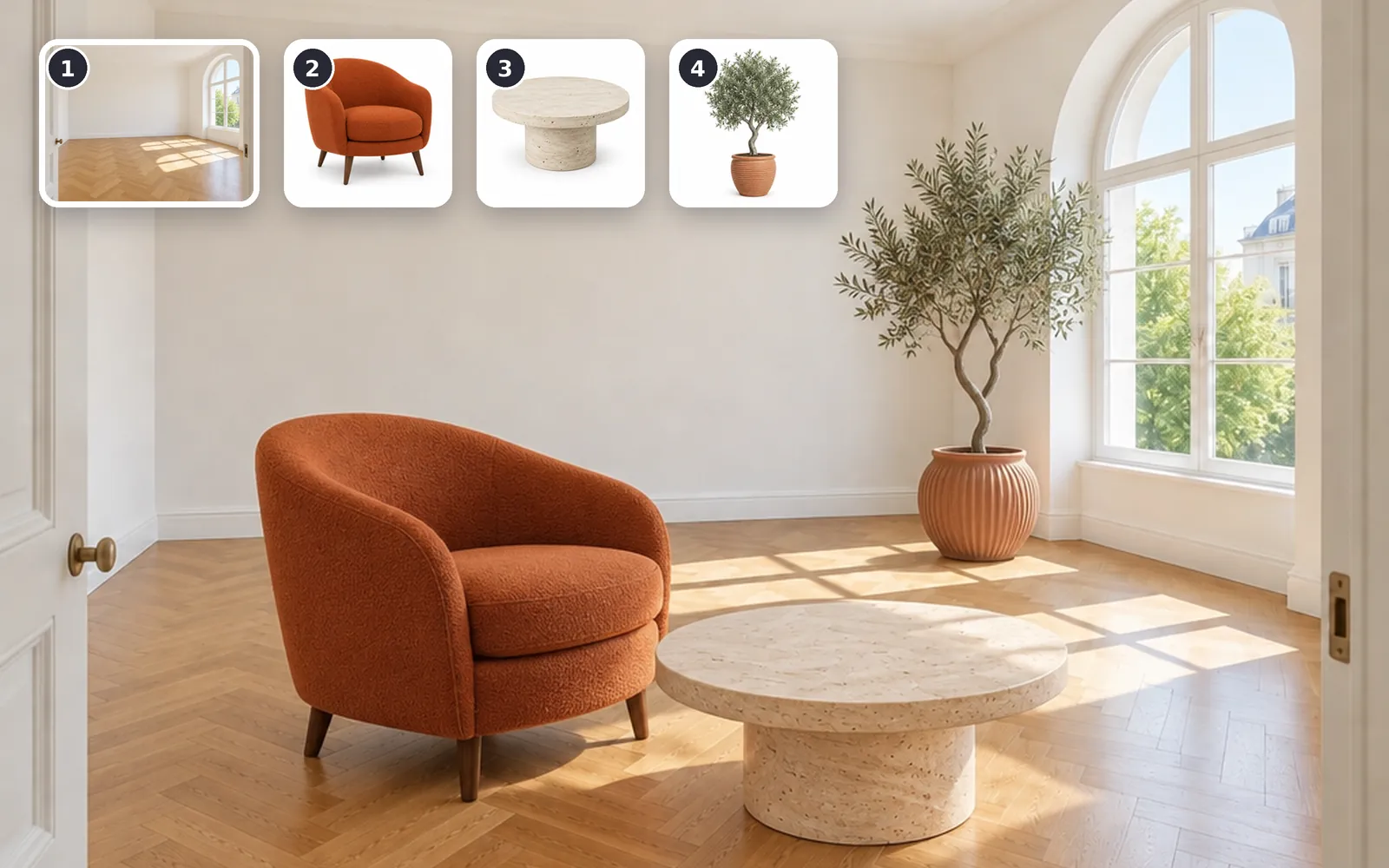
A sunlit room furnished with a rust bouclé armchair, a travertine coffee table and a potted olive tree; corner cards show the inputs: 1 the empty room, 2 the armchair, 3 the table, 4 the olive tree

Several references

Combine subjects, styles, and scenes

Give each reference one job: a room as the setting, a separate photo for each piece of furniture, a palette to follow. MiniMax H3 Image arranges them in one coherent frame. Check the count, scale, and overlaps afterwards, since an item can come out smaller than expected or go missing.

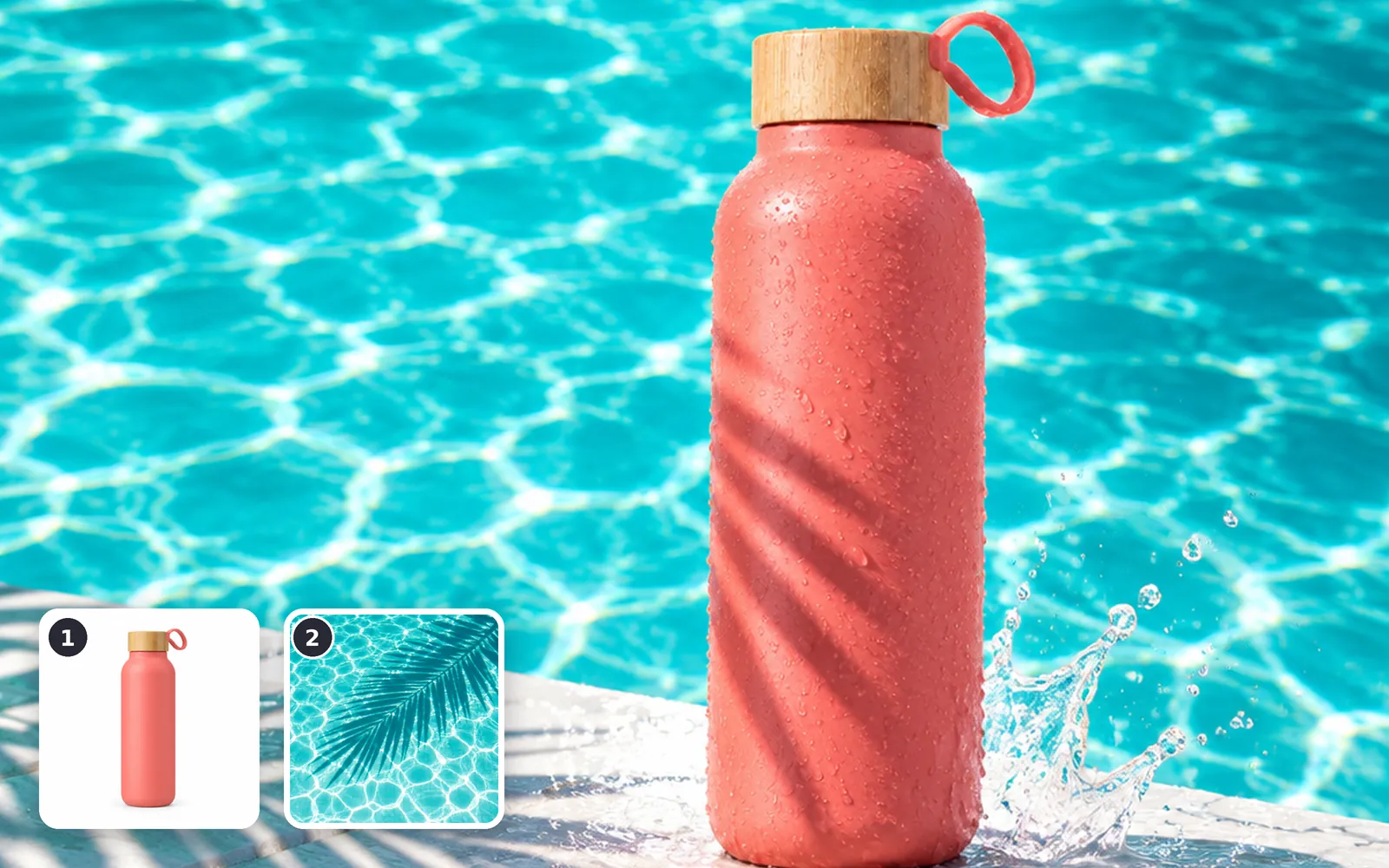
A coral-pink bottle with a bamboo lid on a turquoise pool edge under a palm-leaf shadow; corner cards show 1 the plain product shot on white and 2 the pool mood reference

Product and style

Restage a product with a style reference

Pair a plain product shot with an image of the light and colour you want. The result keeps the product and borrows the mood for a campaign still. Compare the label text and the shape with your original before you publish.

How do you prompt MiniMax H3 Image?

Write plain sentences about the subject, the setting, the light, and the style. When you add references, call them Image 1, Image 2, and so on in the order you uploaded them, and say what each one contributes.

Write it like this

  1. Number the references

    Write “Image 1 is the room, Image 2 is the armchair” so every file has a single role in the result.
  2. Say what must stay

    In an edit, list what should not move: the face, the pose, the background, the product's shape.

  3. Describe light and framing

    For text-only prompts, add the camera distance, the light, and the mood. MiniMax expands short prompts on its own, so the details you name decide what it keeps.

Avoid

  1. Counting on a mask or seed

    There is no mask, seed, or negative prompt. Name the area in words, for example “only the coat”.

  2. Two references with one job

    If two images both look like the subject, the model has to guess which one you meant. Drop one, or say which part comes from each.

  3. Many changes in one edit

    Changing the outfit, the pose, and the room at once makes a miss hard to trace. Change one thing, check it, then continue.

Example edit prompt: “In Image 1, change the trench coat to cherry red. Keep her face, hair, smile, pose, and the seaside steps behind her.”

Create product, character, and environment concepts

A written brief is enough to start the visuals a project needs. Each task below notes what to review before the image goes out.

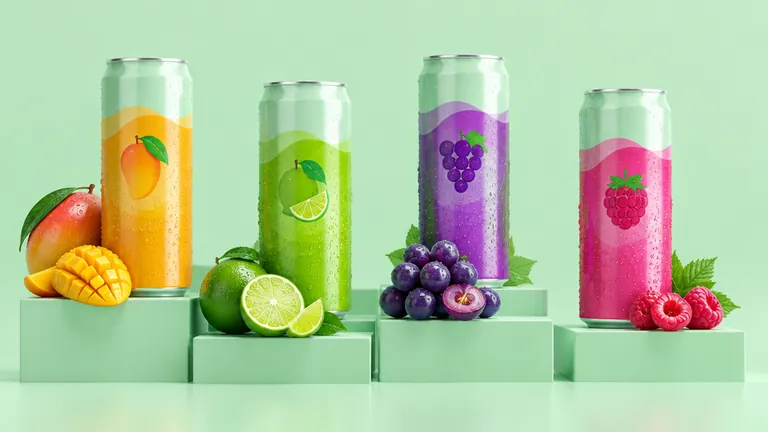
Four sparkling-water cans in mango, lime, grape and raspberry colours sharing one design, each beside its fruit on mint plinths

Product and packaging visuals

Describe the product, the surface, and the light to get campaign stills and packaging mockups. Check the label text and proportions before you use them.

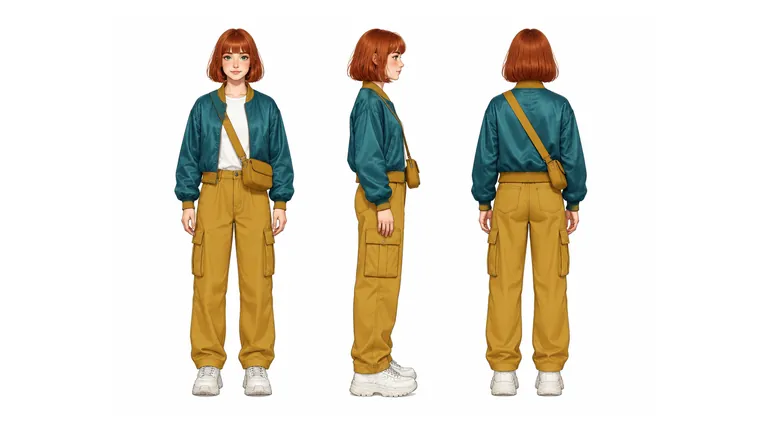
Character turnaround of a red-haired young woman in a teal bomber jacket and mustard cargo pants, seen from the front, side and back

Character and costume sheets

Ask for front, side, and back views of one character to plan a costume, a mascot, or a story lead. Compare the panels, because small details can shift between views.

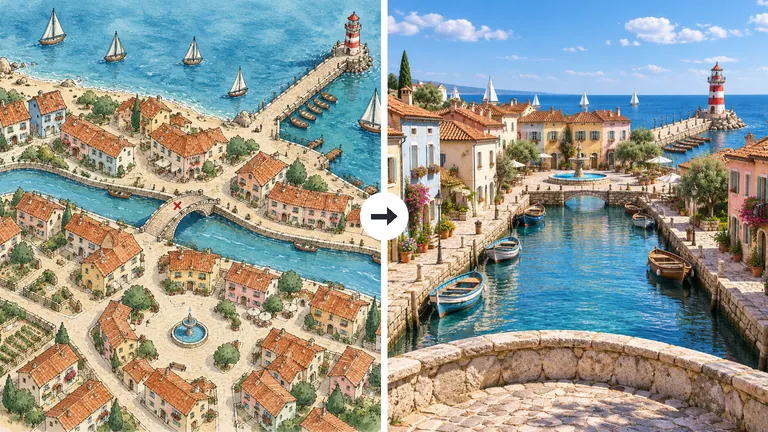
A hand-drawn watercolour map of a harbour town beside the street-level view from its stone bridge along the canal to the lighthouse

Scenes from a map or sketch

Upload a rough map or layout and describe where the viewer stands to explore a game or story location. Use it for visual exploration, not as an exact reconstruction.

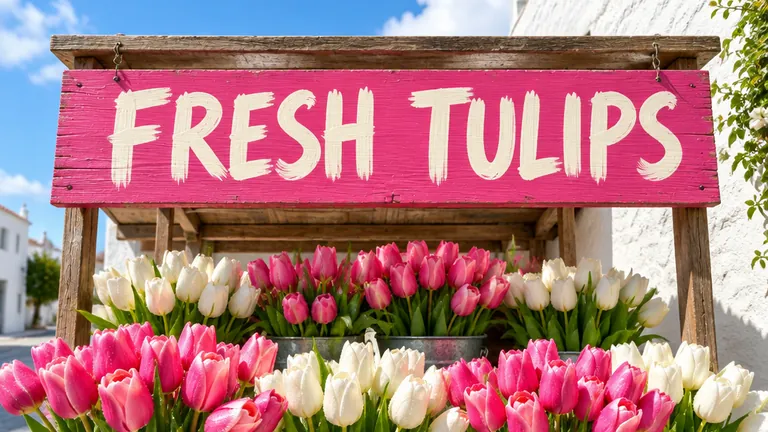
A hand-painted pink sign reading “FRESH TULIPS” over a kiosk full of pink and white tulips

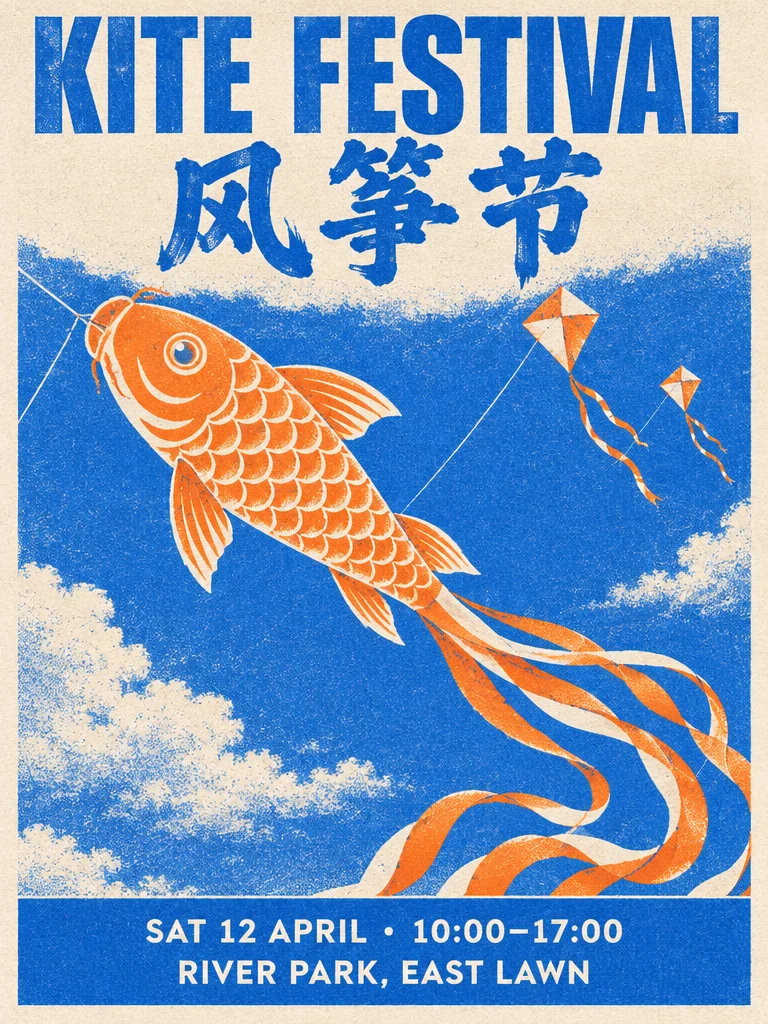
Posters and signs with short text

Short titles, prices, and tags can sit inside the design itself. Proofread every word, and keep long copy for your layout tool.

Sizes and frames

Inspect the details at high resolution

Pick 1K, 2K, or 4K before you generate. The tier sets how many pixels you get; the exact width and height follow the aspect ratio you choose.

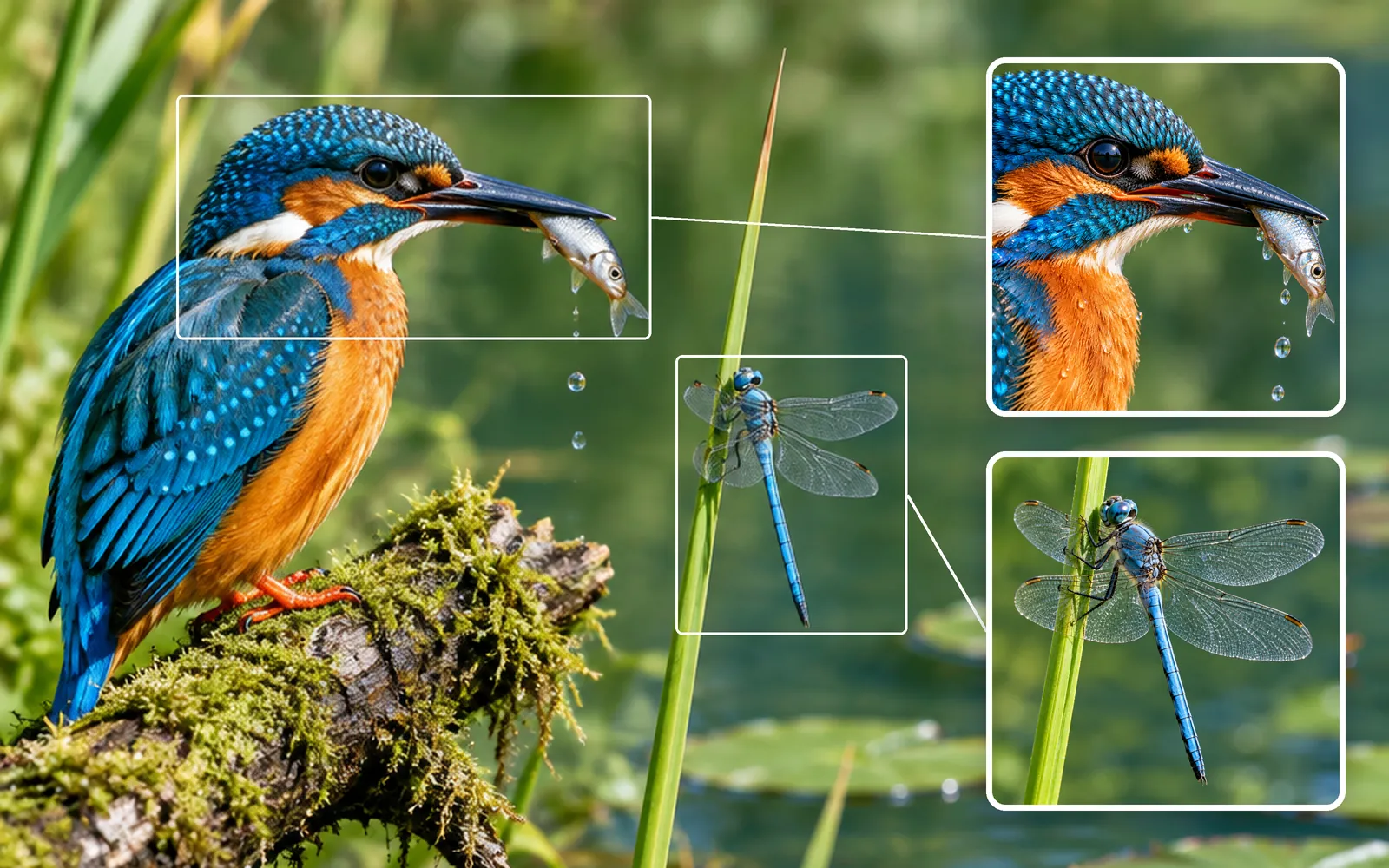
A kingfisher holding a fish beside a blue dragonfly over a pond, with outlined areas linked to close-ups of the bird’s head and the dragonfly’s wings

Resolution

Generate at 1K, 2K, or 4K

Explore ideas at 1K or 2K, then switch to 4K for the version you will crop, print, or zoom into. At 4K a square image is 4096×4096 pixels and a 16:9 frame is 5120×2880.

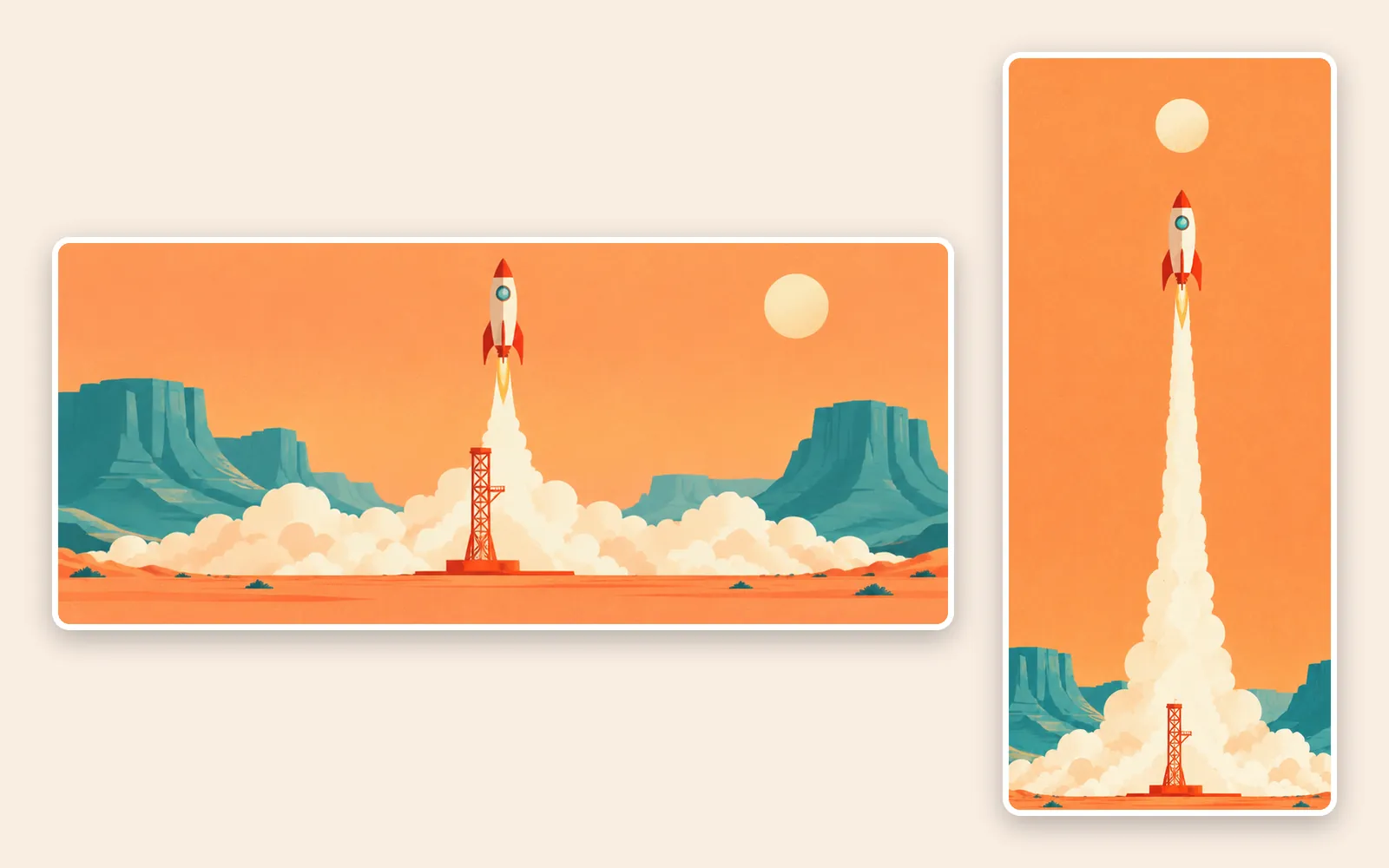
The same flat-style rocket launch over teal mesas, framed as a wide 21:9 banner and a tall 9:21 image side by side

Aspect ratio

Choose a wide or tall frame

Fixed ratios run from 9:21 to 21:9. Auto makes a square for text-only prompts. For edits, auto follows the first reference image as long as it sits between 1:3 and 3:1; for a wider panorama, pick a fixed ratio instead.

MiniMax H3 Image Standard vs Highspeed

Both versions take the same prompt, up to 16 reference images, 1K–4K sizes, and the same ratios and formats; they differ in speed and credits. Switch between them in the model menu of the generator at the top of this page.

SpecificationStandardHighspeed
4K text to image, median16.0 sMiniMax P50 timing10.3 sMiniMax P50 timing
4K edit, 3 references, median21.4 sMiniMax P50 timing14.4 sMiniMax P50 timing
Credits to generate6 / 7 / 161K / 2K / 4K9 / 10 / 301K / 2K / 4K
Credits to edit, 1 reference9 / 10 / 201K / 2K / 4K13 / 14 / 351K / 2K / 4K
Each extra reference+2 credits+3 credits
Choose it forFewer credits per imageShorter waits per run

Speed

How fast is MiniMax H3 Image Highspeed?

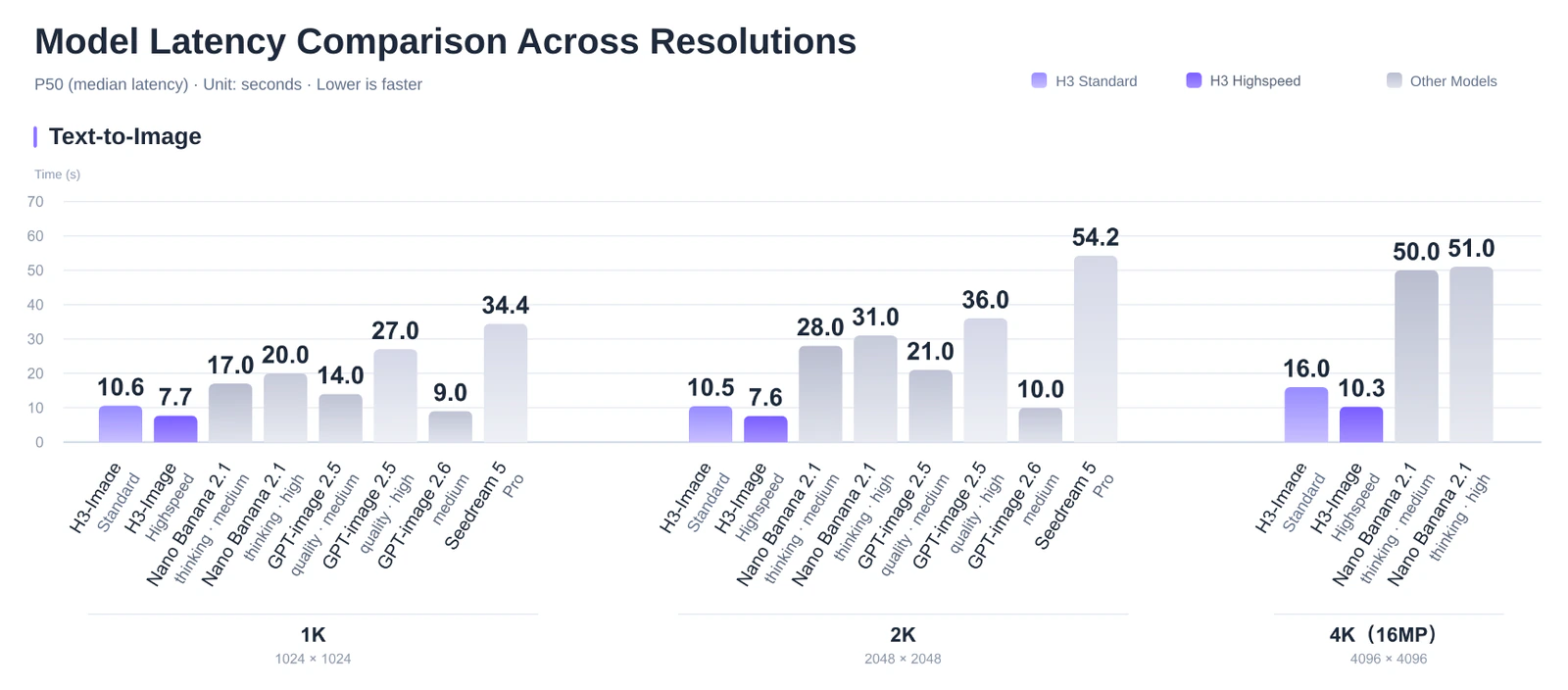
MiniMax measured median (P50) times on its own platform: Highspeed takes roughly a quarter to a third less time than Standard at every size. On Oeneo AI the wait also includes the queue, so read these as a guide rather than a promise.

Bar chart of median text-to-image times in seconds at 1K, 2K, and 4K for H3 Image Standard and Highspeed, Nano Banana 2.1, GPT Image 2.5, GPT Image 2.6, and Seedream 5 Pro

Text to image

Text to image at 1K, 2K, and 4K

Highspeed returns a 4K image in a median 10.3 seconds against 16.0 for Standard; at 1K and 2K both stay close to ten seconds or under. The same chart lists other image models from an earlier measurement round, so compare those bars loosely.

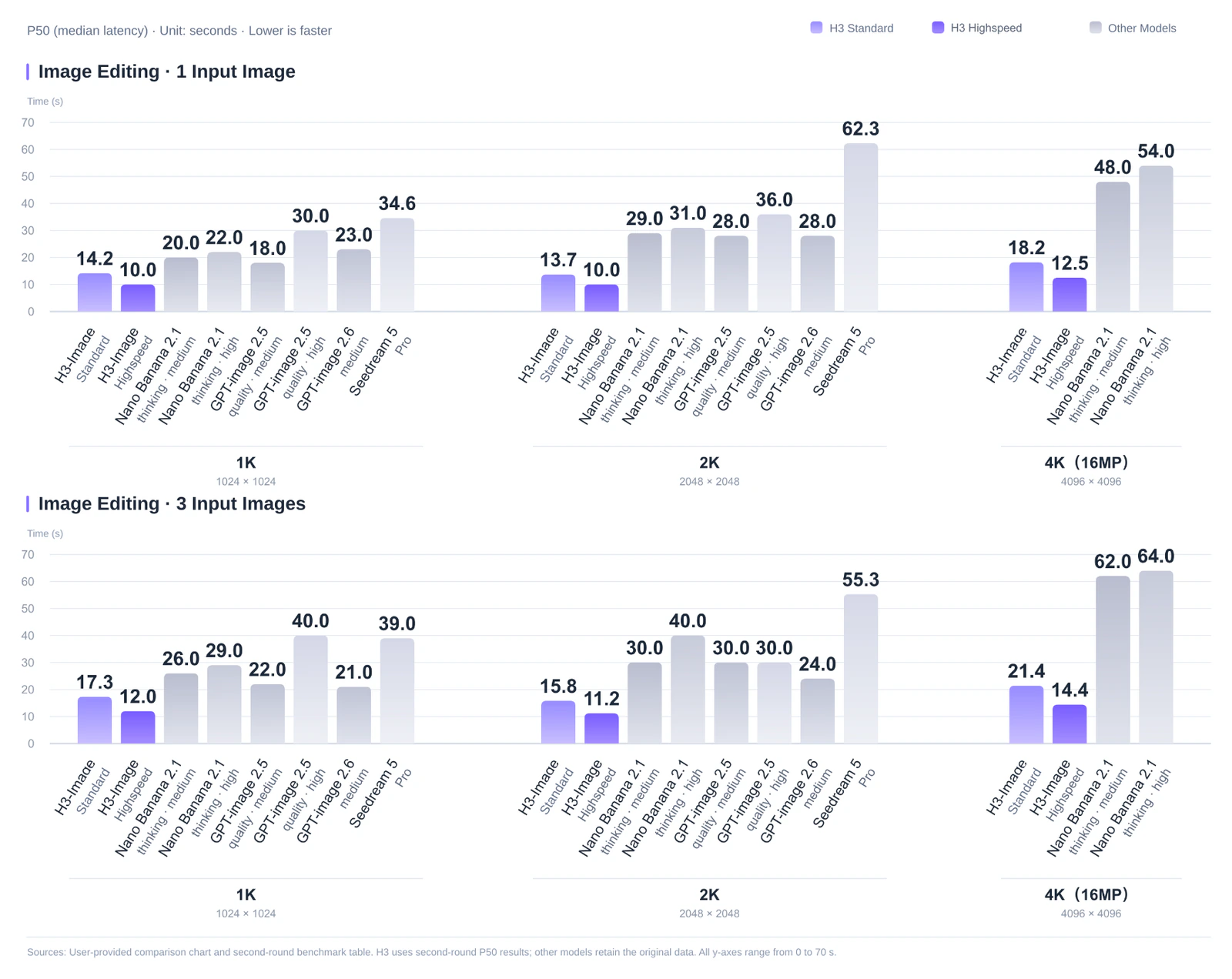
Two bar charts of median editing times in seconds with one and three input images at 1K, 2K, and 4K for H3 Image Standard, Highspeed, and other image models

Editing

Edits with one or three references

Each extra reference adds a little time to both versions. With three references at 4K, the median is 14.4 seconds on Highspeed and 21.4 on Standard.

MiniMax H3 Image examples across styles and edits

Photoreal shots, painted styles, a puzzle board written out in full, and edits from one or ten references, all made by MiniMax H3 Image and shown here in square frames.

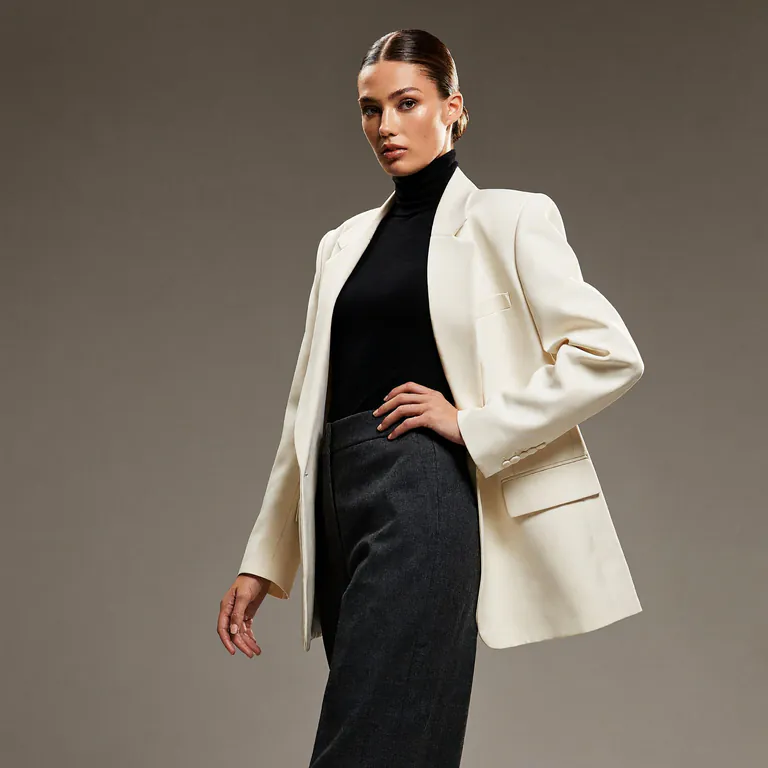
  • Studio fashion photo of a woman in an oversized cream blazer, a black turtleneck, and charcoal trousers
    Text to image

    Photoreal studio fashion

    Tailoring, fabric texture, and studio light read like a real fashion shoot.

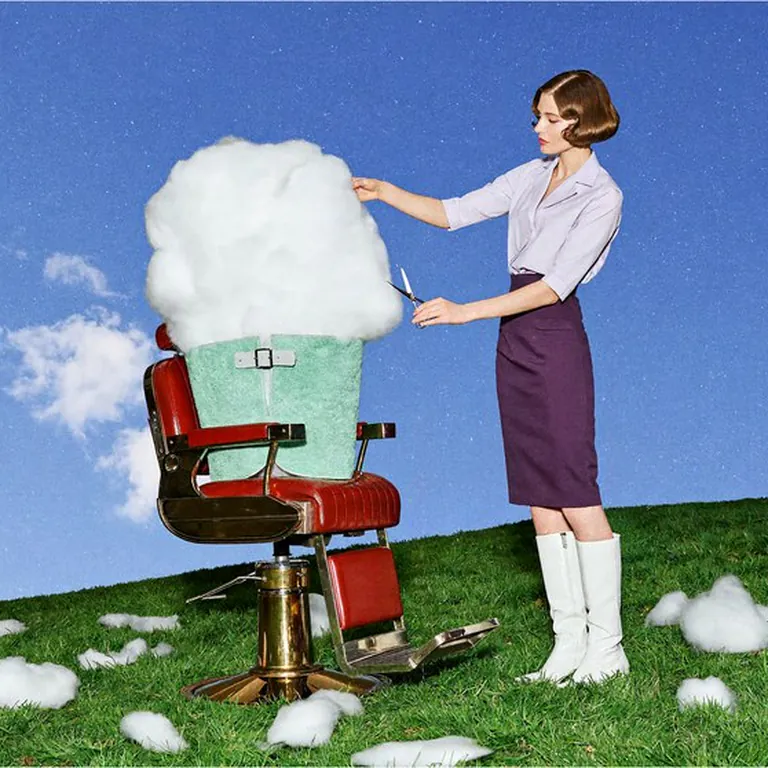
  • A woman in a white blouse and white boots trims a cloud sitting in a red barber chair on a grassy hill
    Text to image

    Surreal editorial ideas

    An impossible brief, shot with the lighting and grain of a magazine photo.

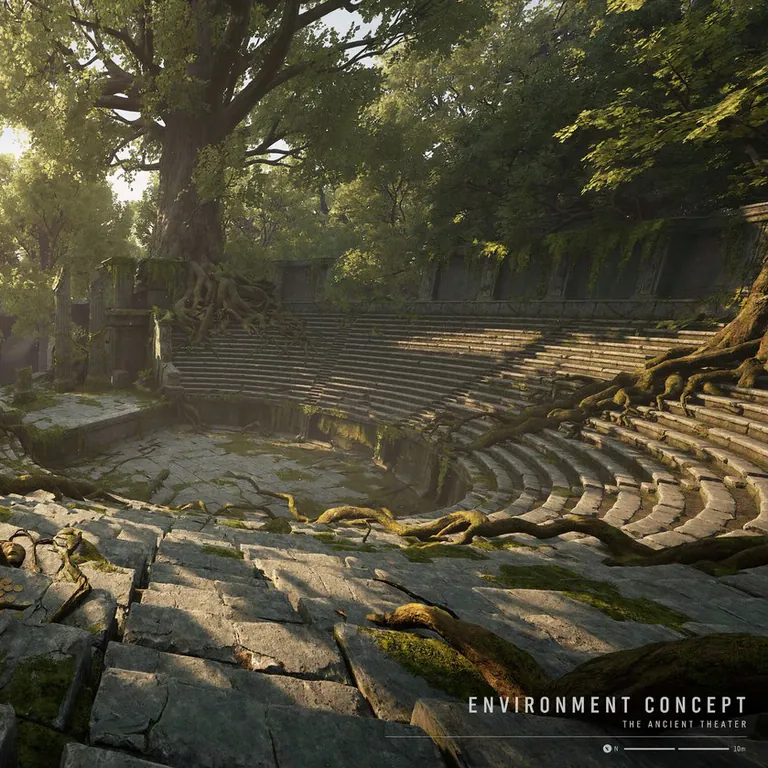
  • Overgrown ruins of an ancient open-air theatre in late sunlight, captioned “ENVIRONMENT CONCEPT: THE ANCIENT THEATER”
    Text to image

    Environment concepts with a heading

    A concept-art board with its title lettered into the layout.

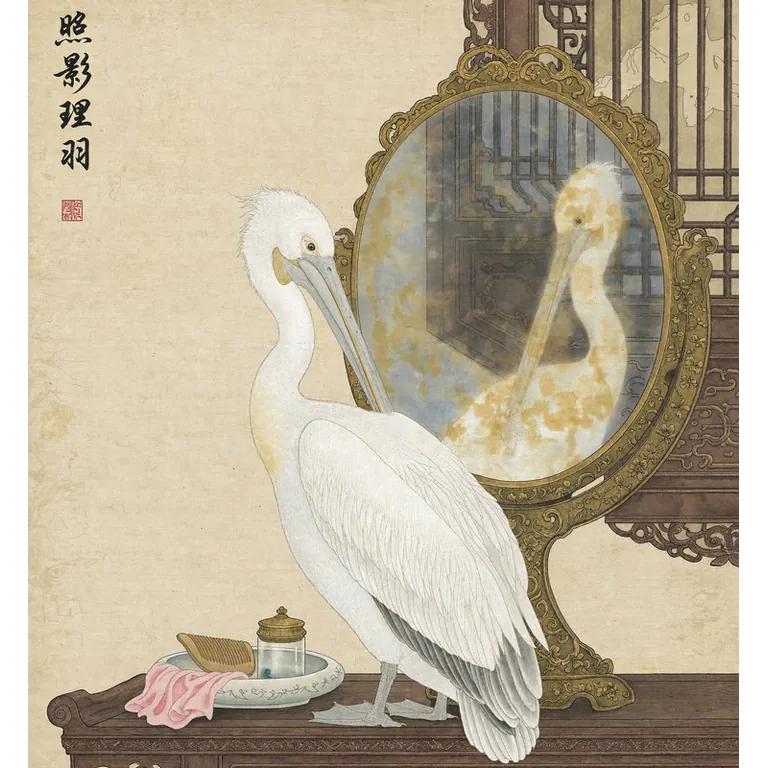
  • Chinese gongbi painting of a white pelican preening before an ornate mirror, with four calligraphy characters and a red seal
    Text to image

    Painting and illustration styles

    A gongbi painting with its calligraphy and red seal set into the composition.

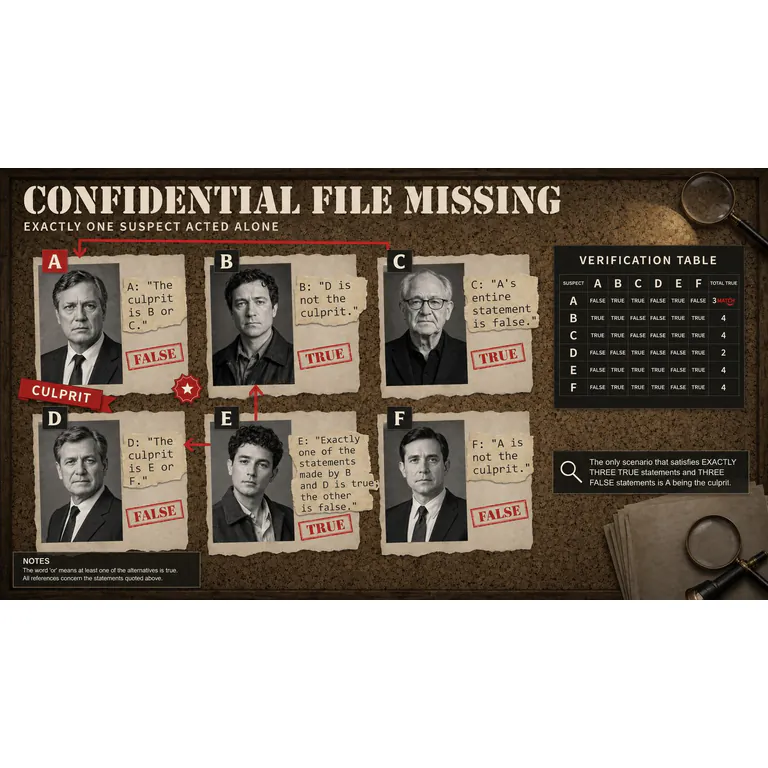
  • Logic-puzzle board titled “CONFIDENTIAL FILE MISSING” with six suspects, quoted statements, TRUE and FALSE stamps, and a verification table
    Text to image

    Text that follows a reasoning task

    A logic-puzzle board with its clues, stamps, and answer table written out.

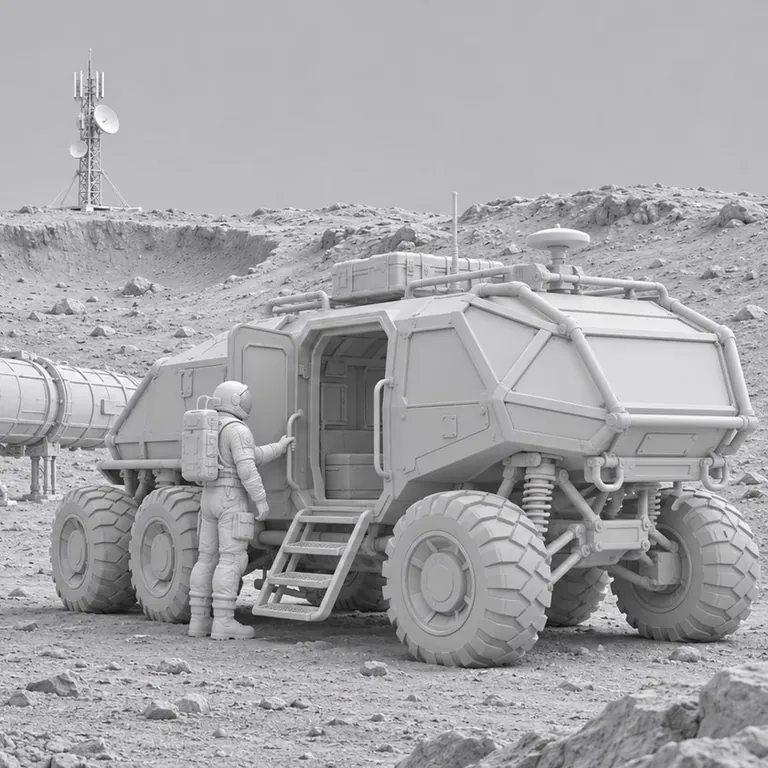
  • Untextured grey 3D render of a lunar rover, an astronaut, and habitat modules
    Input
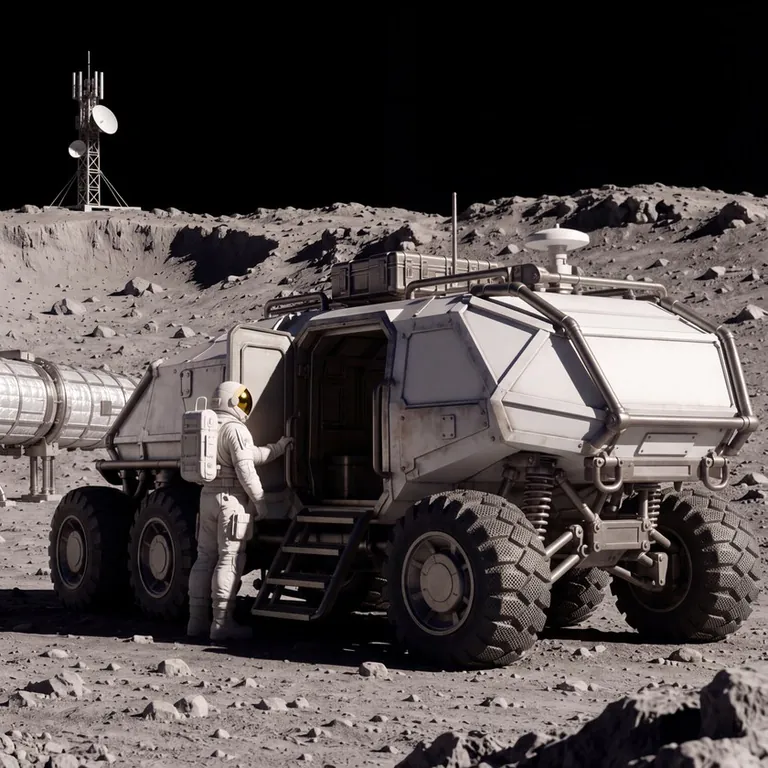
    The same lunar scene as a photoreal film still under a black sky
    Result
    Edit · 1 reference

    From a 3D blockout to a film still

    One untextured render turned into a lit, photoreal frame with the same layout.

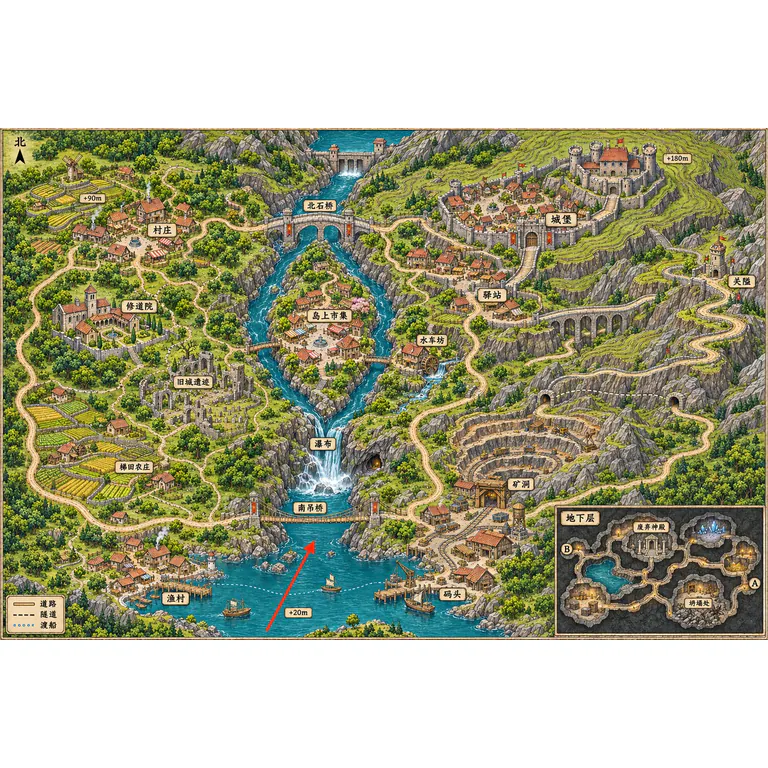
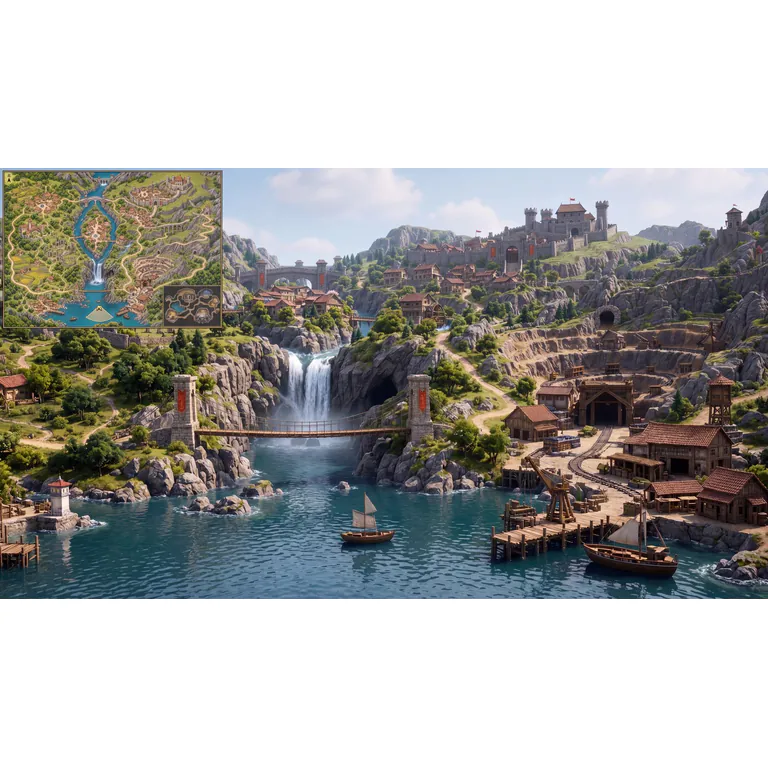
  • Illustrated game map with a river, waterfall, bridges, castle, village, mine, and harbour, and a red arrow on the southern lake
    Input
    First-person 3D game view from the lake towards the waterfall, suspension bridge, mine, and hilltop castle, with a minimap in the corner
    Result
    Edit · 1 reference

    From a game map to a first-person view

    A red arrow on the map sets where the player stands; the map returns as a minimap.

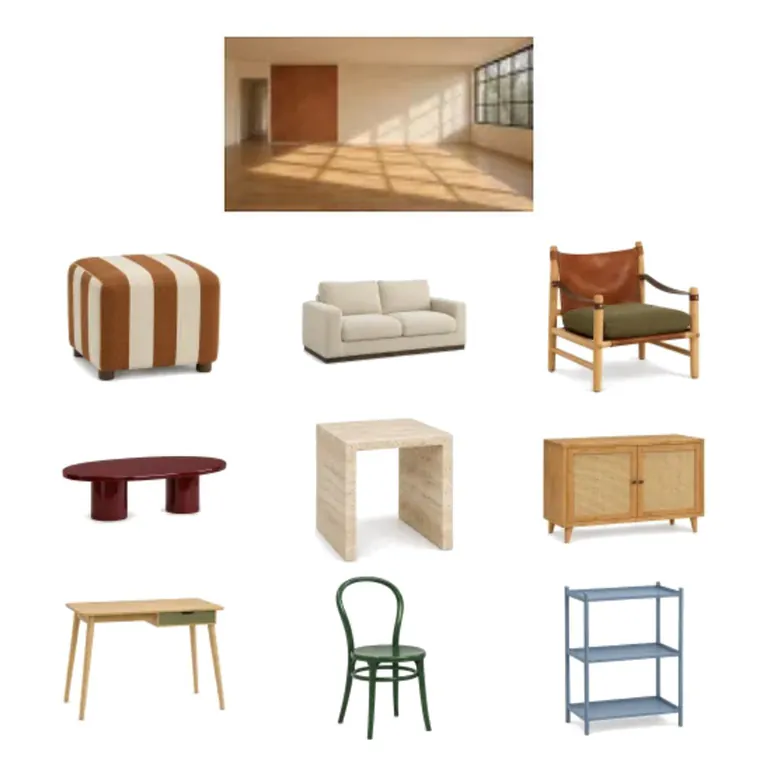
  • Ten reference images on white: an empty sunlit room above nine pieces of furniture
    10 inputs
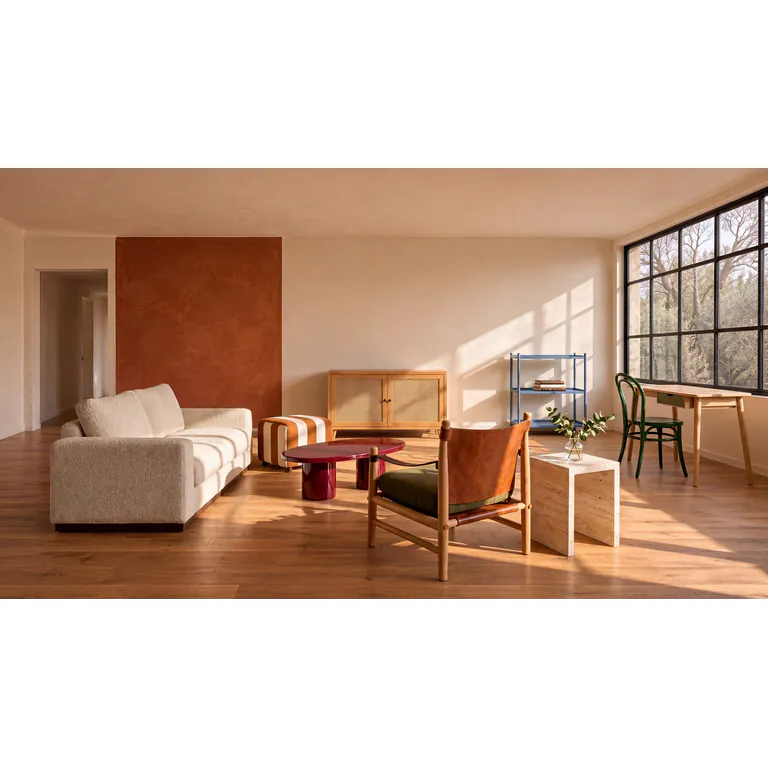
    The sunlit room furnished as a living room with all nine pieces
    Result
    Edit · 10 references

    Ten references in one room

    An empty room and nine separate pieces of furniture, composed into one living room.

MiniMax H3 Image inputs and outputs

MiniMax H3 Image inputs and outputs
Tasks
Text to image; editing and combining 1–16 reference images
Reference images
Up to 16, numbered Image 1, Image 2… in upload order
Reference files
PNG, JPG/JPEG, WebP, up to 10 MB and 16 MP each, 128–8192 px per side
Output sizes
1K, 2K, 4K; at 4K, 4096×4096 square or 5120×2880 at 16:9
Aspect ratios
1:1, 4:3, 3:4, 16:9, 9:16, 21:9, 9:21, or auto
Output formats
PNG, JPEG, WEBP; no transparent background
Images per run
4
Prompt length
Up to 5,000 characters
Model version
Standard or Highspeed, chosen in the model menu
If a generation fails
Credits return automatically

MiniMax H3 Image FAQ

What is MiniMax H3 Image?+

MiniMax H3 Image is MiniMax's still-image model for text-to-image generation and image editing, released on November 11, 2026. One model takes a written prompt or up to 16 reference images. MiniMax also publishes the weights under its own community license. Oeneo AI runs both the Standard and the Highspeed version online.

Is MiniMax H3 Image the same as the MiniMax H3 video model?+

No. Both belong to the MiniMax H3 family, but H3 Image makes still pictures and the video models make clips. To animate an image you made here, download it and use it as the first frame in the Oeneo AI video generator.

Is MiniMax H3 Image free on Oeneo AI?+

No, each run uses credits. New accounts get 10 free credits when they sign up. The price depends on the version, the resolution, and how many reference images you add, and the Generate button shows the exact amount before you start.

How do I use MiniMax H3 Image online?+

Type a prompt in the box at the top of this page, or add reference images first. Pick Standard or Highspeed, the resolution, aspect ratio, and format, check the credits on the Generate button, then generate and download the result.
How many reference images can I upload?+

Up to 16. The upload order sets the numbers: the first file is Image 1, the second is Image 2. Every image needs 128 to 8192 pixels on each side.

Can MiniMax H3 Image make a transparent PNG?+

No. PNG results keep a solid background. To cut out the subject, run the image through the Oeneo AI Background Remover.

Can MiniMax H3 Image put text in an image?+

Yes, for short text such as titles, prices, labels, and signs. Put the exact words in quotes in your prompt. Longer paragraphs can come out with mistakes, so proofread every word before you publish.

Can I paint a mask, set a seed, or add a negative prompt?+

No. On Oeneo AI the model takes a prompt, optional reference images, and the size, ratio, and format settings. Describe the area you want changed in words, and generate again for another take.

Do I need a GPU or ComfyUI to use MiniMax H3 Image?+

No. It runs online here, so nothing is installed on your computer. MiniMax also offers open weights for local setups such as ComfyUI, which need a large download and a capable GPU. Node settings from the older H3 video workflows do not carry over to this image model.

What is the difference between MiniMax H3 Image Standard and Highspeed?+

Highspeed is a separately hosted version of the same model that returns results faster for more credits; it is not a quality setting. Both take the same inputs, sizes, and formats, and the resolution you pick decides the output size in either. Choose one in the model menu above the prompt box.

Create your next image with MiniMax H3 Image

Write a brief or upload your references, check the credits on the button, and generate.