
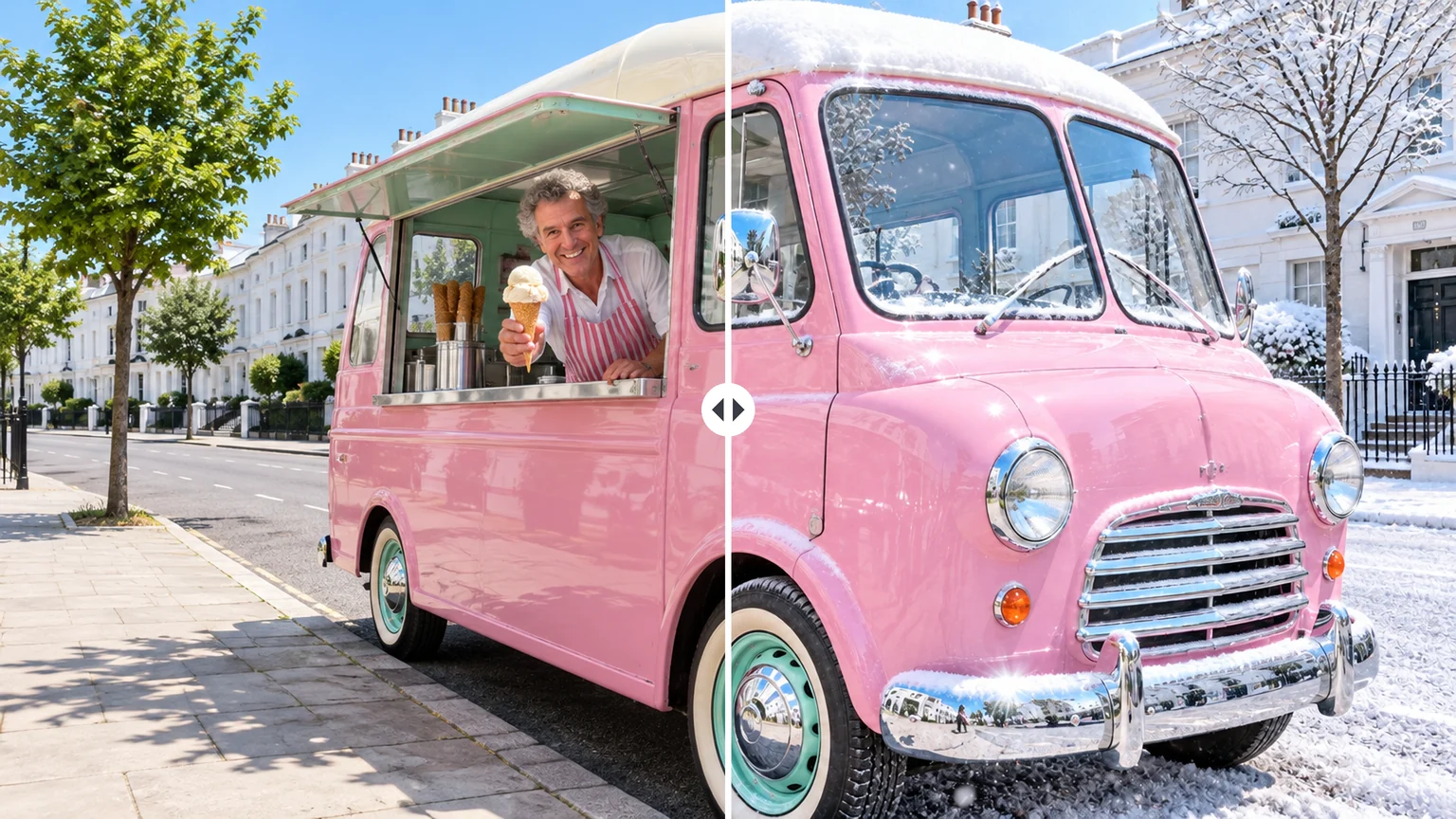
Image to image
Edit a photo you already have
Upload an image and describe one change, such as a new season, background or color, while the subject stays recognizable. Most models accept a source image for edits.
Describe the image you want or upload a photo to change, then generate it with 20 AI models from OpenAI, Google, ByteDance, Black Forest Labs and more. New accounts get 10 free credits.
Prompt examples
Each example shows a finished image with a prompt that describes it. Copy one into the workbench, change the subject and keep the structure: subject, setting, light and style.
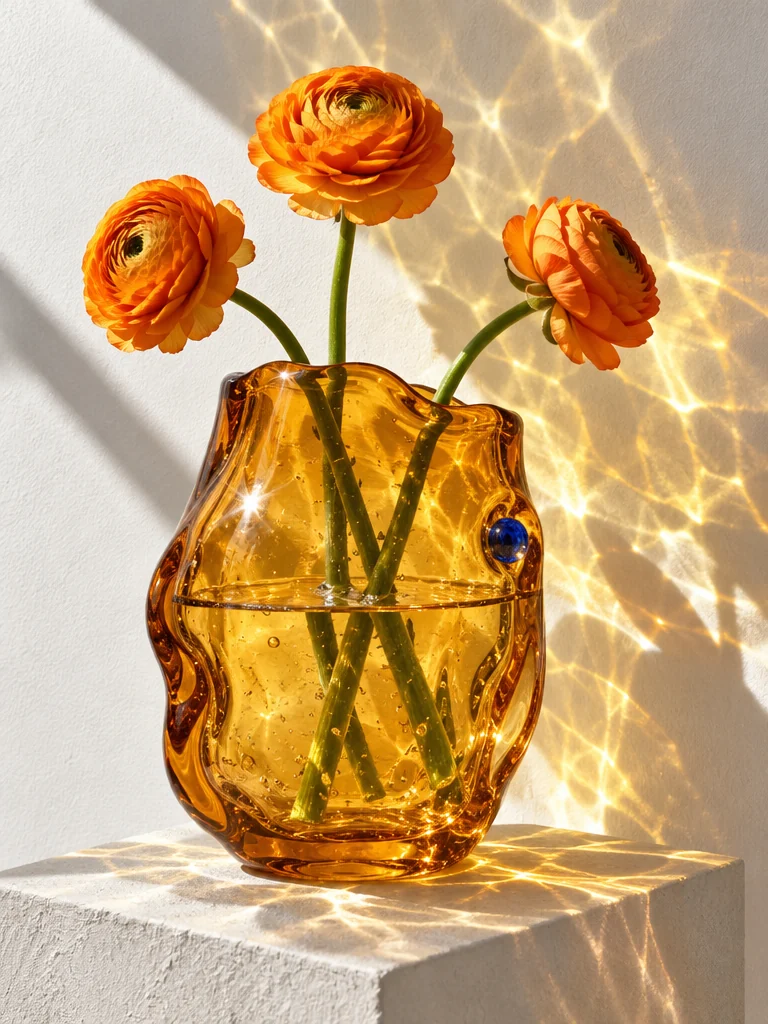
Example prompt: Product photo of a hand-blown amber glass vase holding orange ranunculus on a white ledge, hard sunlight, bright caustic patterns rippling across the wall, a crisp shadow and visible bubbles in the glass.
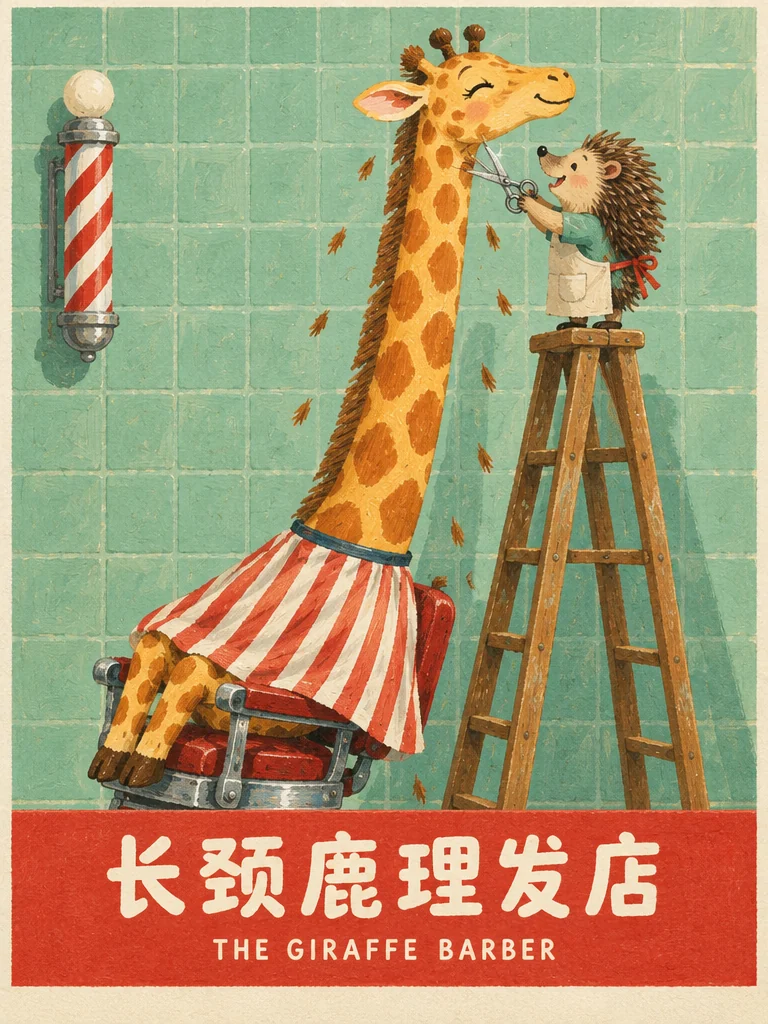
Example prompt: Retro print poster: a giraffe in a striped cape sits in a barber chair while a hedgehog on a wooden ladder trims its mane with scissors, mint tiled wall and a barber pole. A red banner at the bottom carries the title "长颈鹿理发店" and the small line "THE GIRAFFE BARBER".
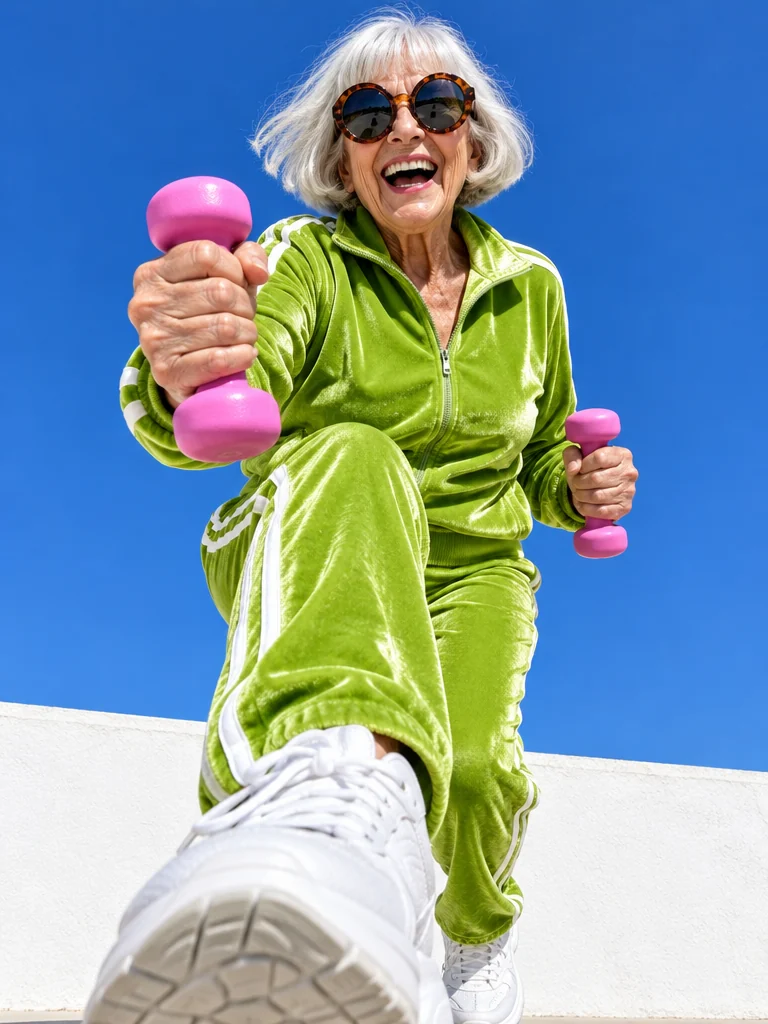
Example prompt: Low-angle photo of a silver-haired woman in a lime green velour tracksuit and dark sunglasses power-walking toward the camera with pink dumbbells, a white wall and clear blue sky behind her, midday sun, natural skin texture, 24mm lens.
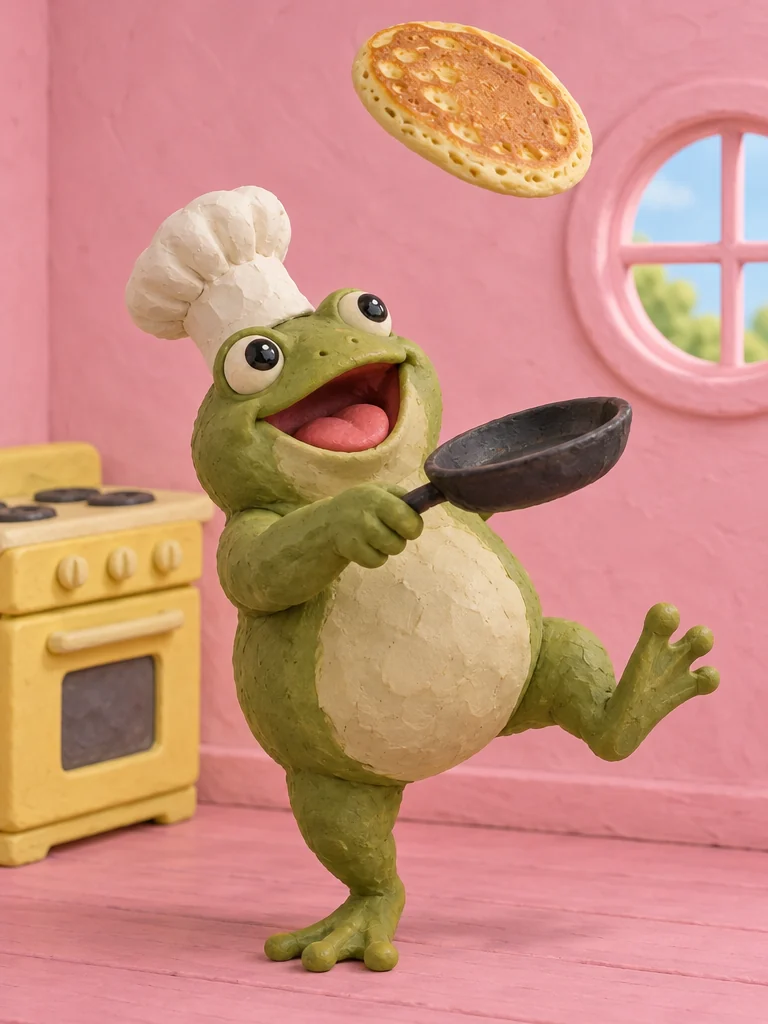
Example prompt: Claymation-style frog chef in a white hat tossing a pancake out of a frying pan, pastel pink kitchen with a round window and a small yellow stove, soft studio light, fingerprints visible in the clay.
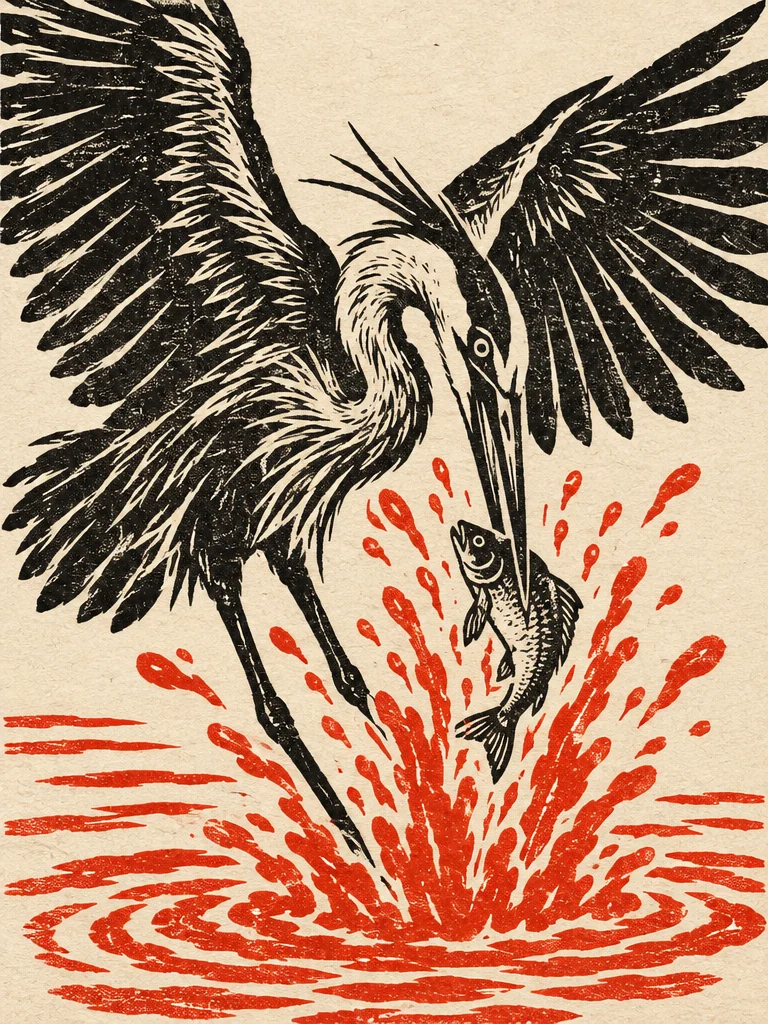
Example prompt: Two-color linocut print of a heron with its wings spread wide, snatching a fish from red splashing water, bold carved lines, black and vermilion ink on cream paper, visible paper grain.
Switch models in the workbench above, or open a model page for examples, prompts and prices. The newest models come first.
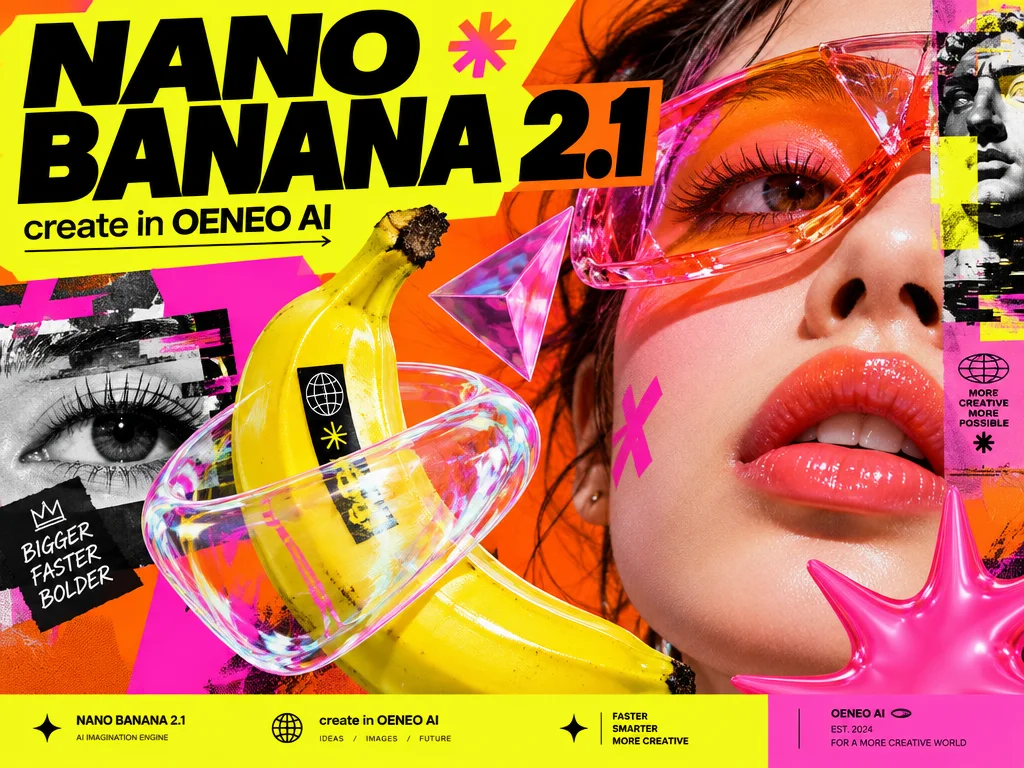 New
New Google
Consistent characters, product placement, exact short text
View model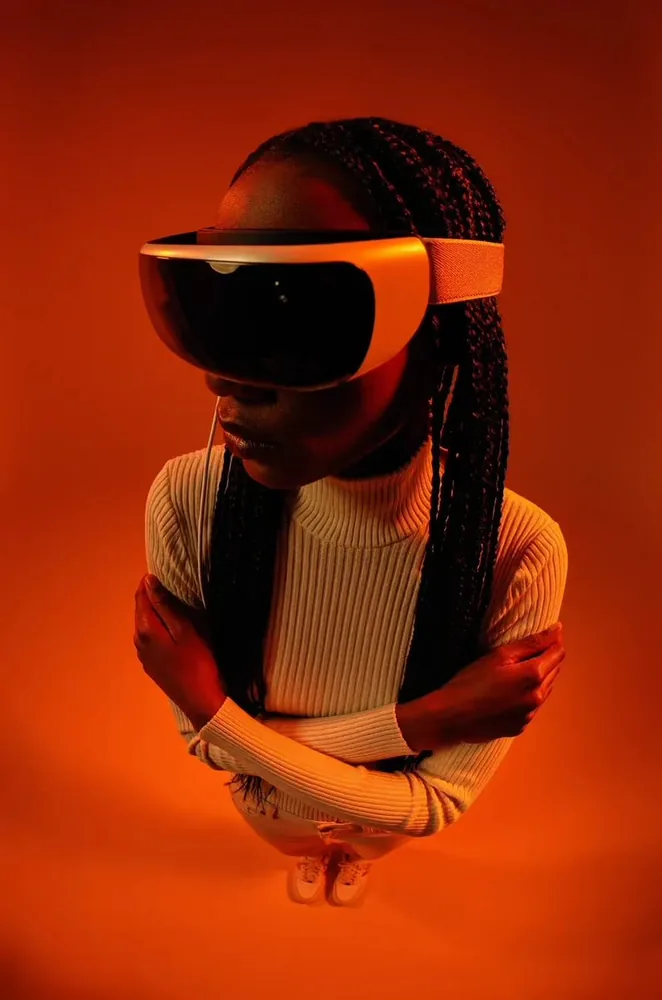 New
New Black Forest Labs
Composed scenes from a prompt or references
View model New
New Ideogram
Refine image details with source-guided edits and readable text.
View model
 OpenAI
Faster everyday generation, natural lighting and rich textures
View model OpenAI
Precision-first detail, premium visual fidelity
View model
 xAI
xAIBold visual hooks, scene text, plain-language edits
View model
 Microsoft
Object consistency, brand scenes, visual reasoning
View model
 Alibaba
Long prompts, multilingual typography, text-heavy images
View modelAlso available

Infographics, dense layouts, multilingual design
Google's fastest Nano Banana for 1K images
Precise local edits, text updates, identity preservation
Readable text, complex briefs, precise edits
Sentence-based edits, multi-image composites, in-image translation
Open styles, prompt control, visual studies
Fast 4B and 9B drafts and low-cost photo edits
Multi-image composition and reference fidelity
Fast variations at the lowest cost
Photoreal products, materials, camera and lighting
Labeled diagrams, five-person shots, logos on products
Beyond text to image
Edit a photo you already have, combine several references into one scene, set exact words on signs and posters, or keep the same people across a series.
Image to image
Upload an image and describe one change, such as a new season, background or color, while the subject stays recognizable. Most models accept a source image for edits.
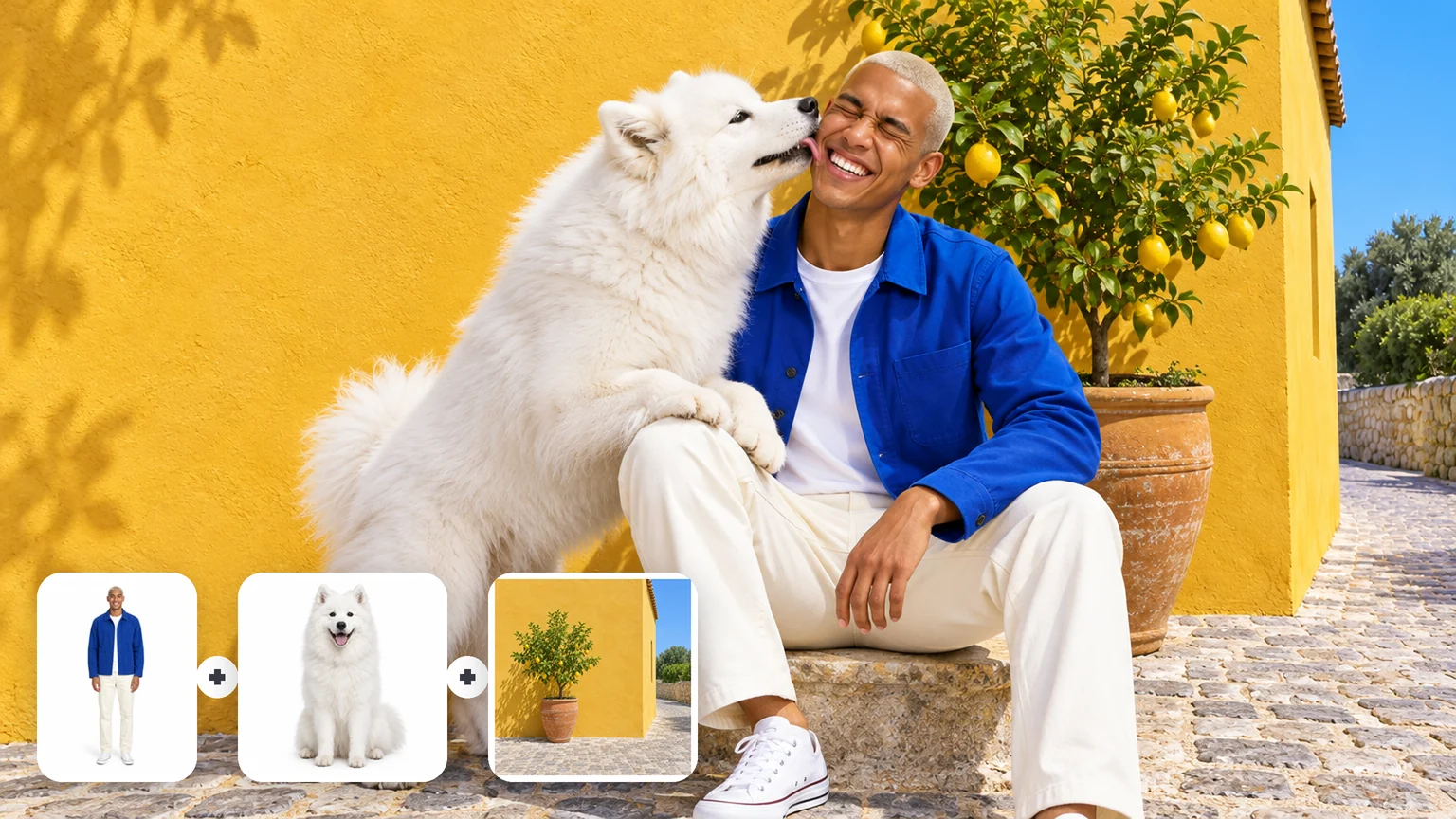
Up to 16 references
Add a person, a pet and a place as separate references, then say how they come together. The workbench shows how many references the selected model accepts.
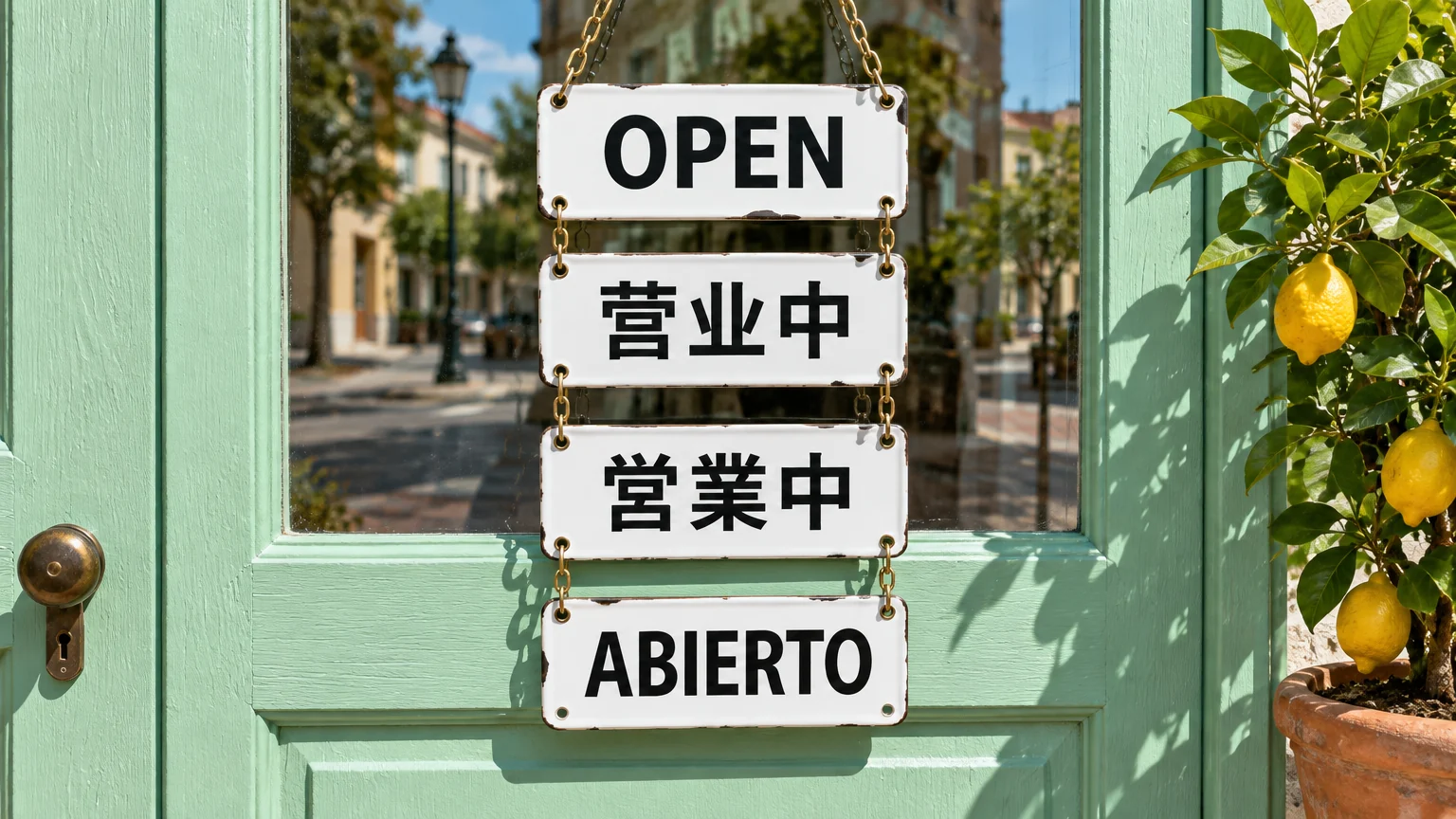
Readable text
Write the exact words in quotes and say where they go. Text-focused models such as GPT Image, Ideogram, Qwen Image and Seedream keep short headlines, labels and multilingual signs legible.
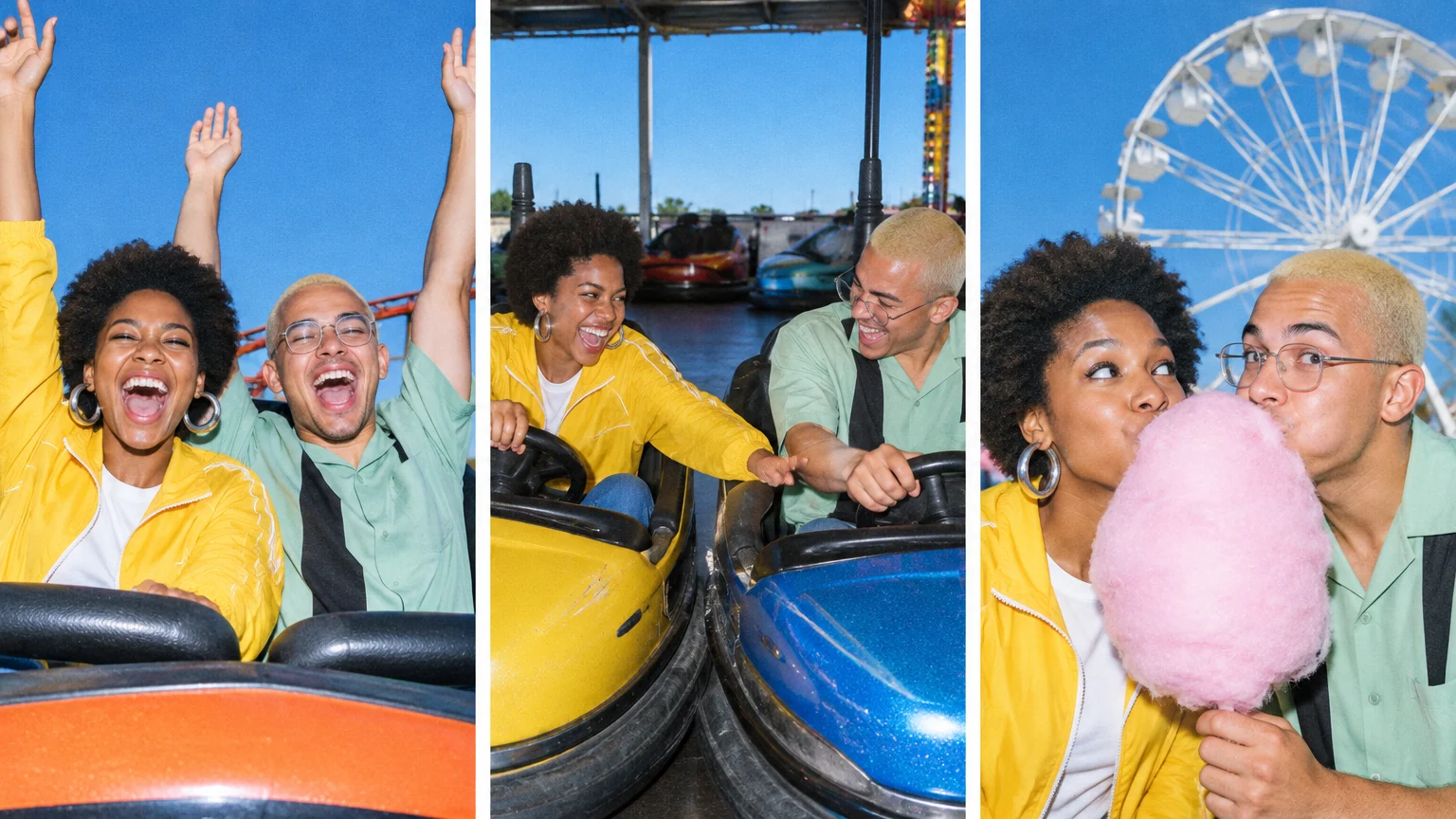
Consistent characters
Upload a photo of your characters and ask for new scenes. Reference-based models such as Nano Banana keep faces, outfits and colors close, so a set reads as one story.
How it works
Four steps from a written idea to a downloaded file.
Write the subject, setting, light and style in full sentences. Put the details that must not change first.
Upload an image to edit it, keep a face or product, or match a color palette. Skip this step for pure text to image.
Choose the model, aspect ratio and resolution. The Generate button shows the credit cost before you start.
Check faces, hands and any text at full size, then download as PNG, JPEG, or WebP.
Use cases
Common jobs people bring to the generator, each with a short example brief.
Put a product reference on new surfaces and in new light for listings, ads and launch pages.
Example: A ceramic mug on a linen tablecloth in morning window light, with space for a price tag.
Make event posters, menus and post graphics with short readable headlines, in square, story or banner ratios.
Example: A 9:16 story poster for a Saturday night market titled "Night Bites".
Design a character once, then show them in new poses and scenes for a comic, a campaign or a tabletop game.
Example: A dwarf blacksmith character sheet with front, side and back views.
Upload a photo of a room and try new paint, furniture or materials before you buy anything.
Example: Paint this living room sage green and swap the sofa for a pink velvet one.
Remove the background, upscale, vectorize or denoise any result, all on the same credit balance.
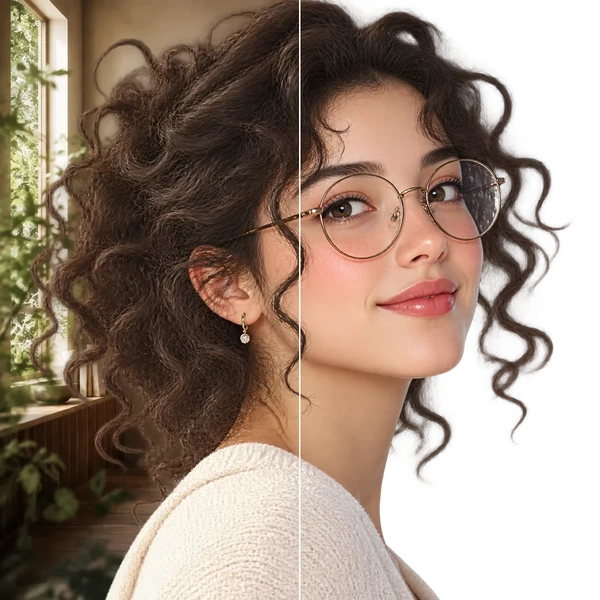
Transparent PNG or WebP with clean hair and product edges, ready for a listing or a new composition.
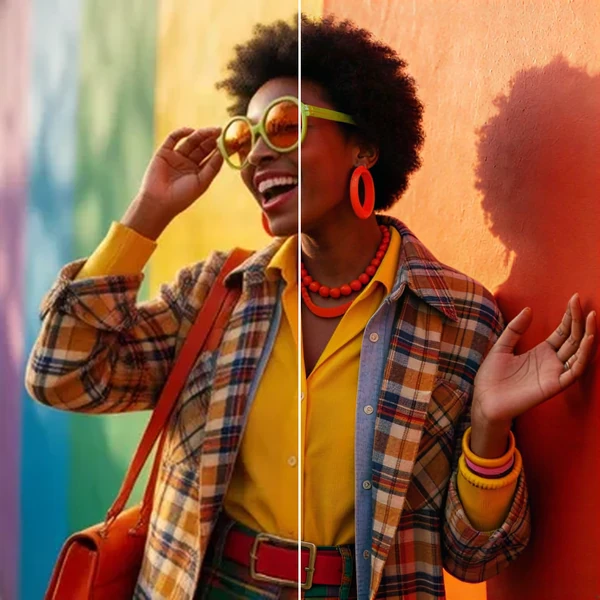
2× / 4× / 8× with recovered texture instead of smeared pixels, so a 1K draft can become a print.
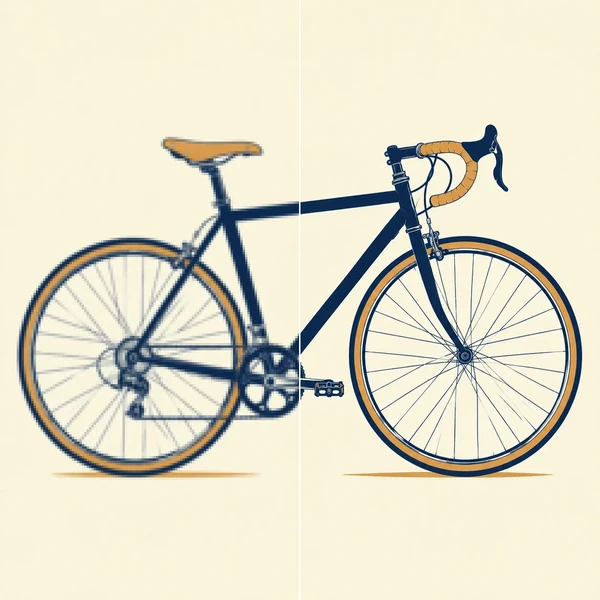
Logos, icons and flat illustrations become editable SVG that scales to any size.
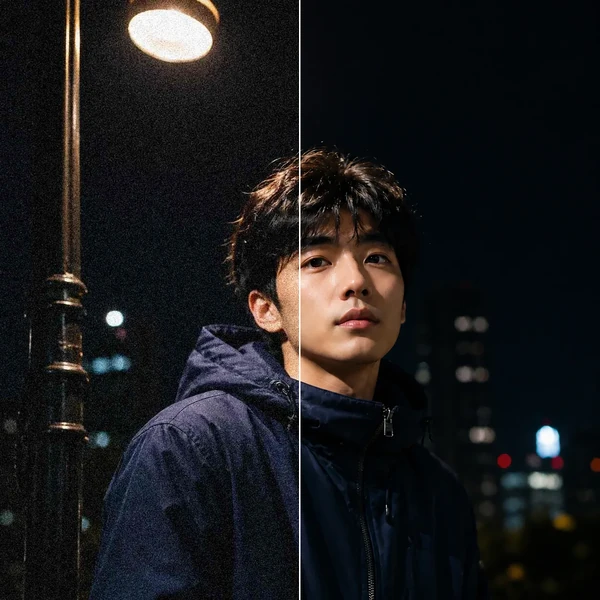
Remove grain and compression artifacts from low-light photos and scans while keeping real detail.
FAQ
Free credits, model choice, photos as input, text in images and more.
You can start free. New accounts get 10 credits, valid for 365 days, and images start at 1 cr on the cheapest model. You need an account to generate.
Pick by the job: GPT Image 2.5 Flare for fast everyday images, Nano Banana 2.1 for edits and consistent characters, Ideogram 4.5 or Qwen Image 3 for text-heavy designs, FLUX.2 Pro for photoreal products and Z-Image Turbo for cheap drafts. All 20 models run in the same workbench, and the model list above links to each model's examples.
Yes. Upload one or more images, up to 16 depending on the model, and describe what to keep and what to change. Use it to edit a photo, restyle a room or place a product in a new scene.
Yes, for short text. Put the exact words in quotes and say where they go, for example a red banner at the bottom that reads "OPEN DAILY". GPT Image, Ideogram, Qwen Image and Seedream handle headlines, labels and multilingual signs best. Check the spelling at full size before you publish.
Describe it like a photo: camera angle, lens, time of day, light source and natural skin or material texture. Skip stacks of words like "hyperrealistic 8K". Photoreal models such as FLUX.2 Pro, Z-Image Turbo and GPT Image 2.5 Flare are good places to start.
Yes. Upload a clear image of the character as a reference and describe each new scene. Nano Banana 2.1 and other reference-based models keep faces, outfits and colors close; use the same model for the whole set.
Write full sentences in this order: subject, setting, composition, light, style and where the image will be used. Put details that must not change first, then change one thing per attempt. The prompt examples above follow this structure.
Up to 4K, in 7 aspect ratios from square to wide banner, as PNG, JPEG, or WebP. The options shown depend on the selected model, and downloads have no visible watermark.
Images made on the free plan appear in the public gallery. Paid plans can keep results private.
Generally yes, and we do not claim ownership of the images you create here. Whether a specific image is safe to publish still depends on the selected model provider's terms, your plan, applicable law, and the rights attached to your prompt and reference images. Clear permission for identifiable people, brands, copyrighted artwork, and third-party product imagery, and take your own legal advice for high-stakes commercial use.
Start free
New accounts get 10 free credits. Write a prompt or copy an example to begin.