


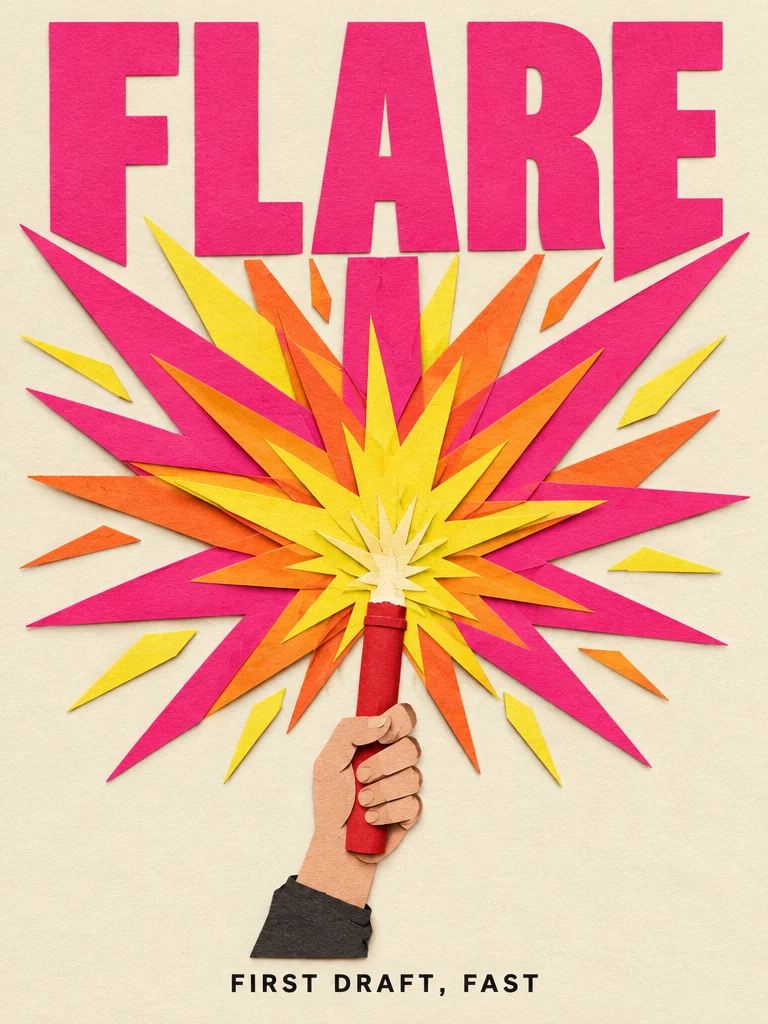
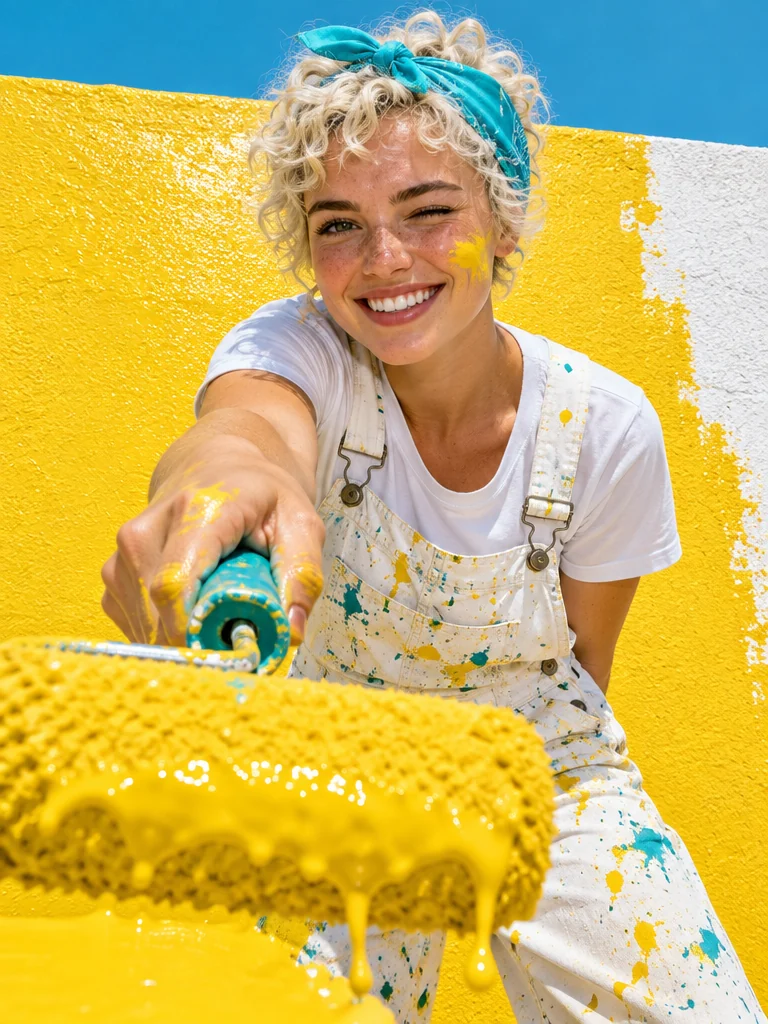
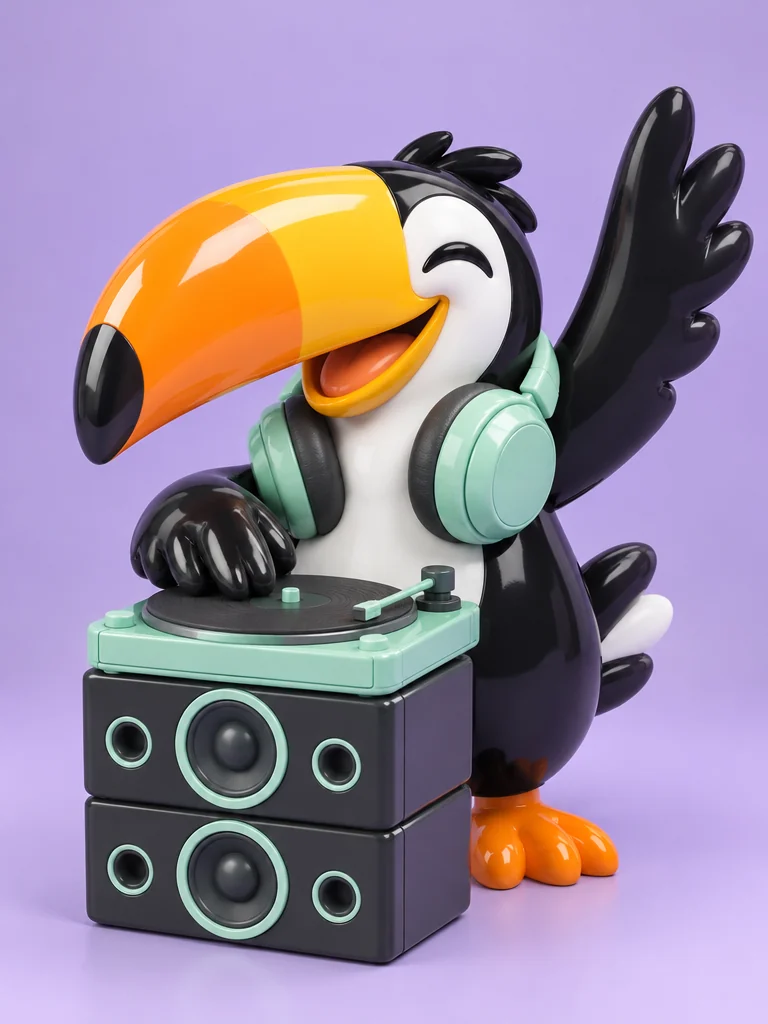
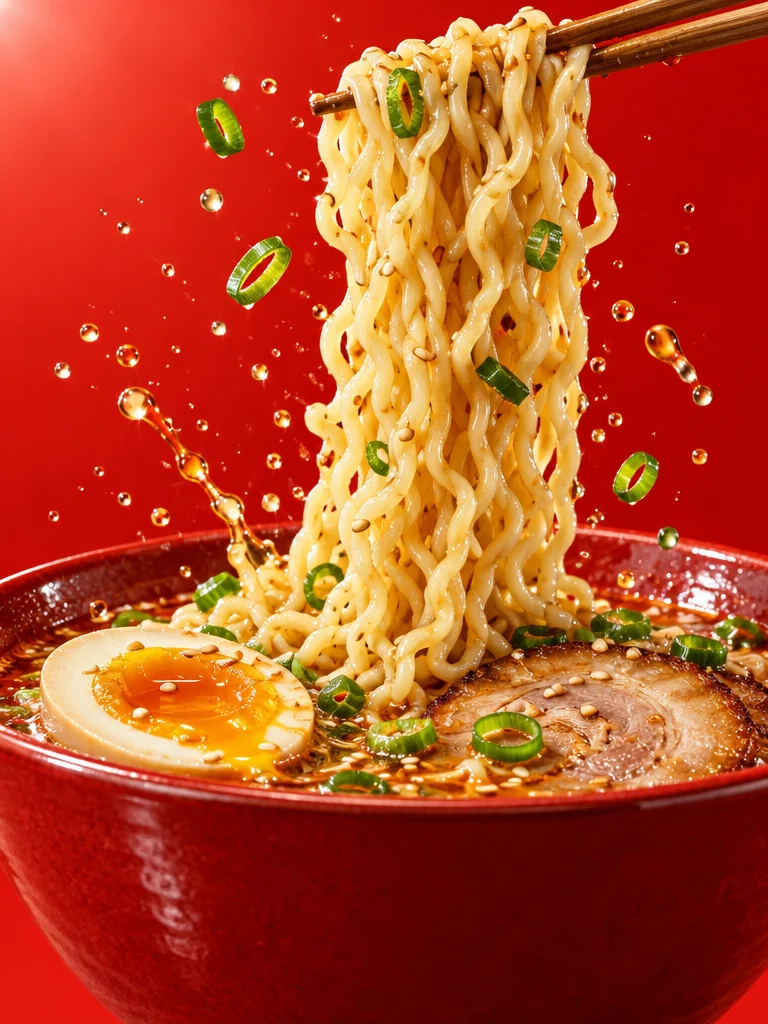
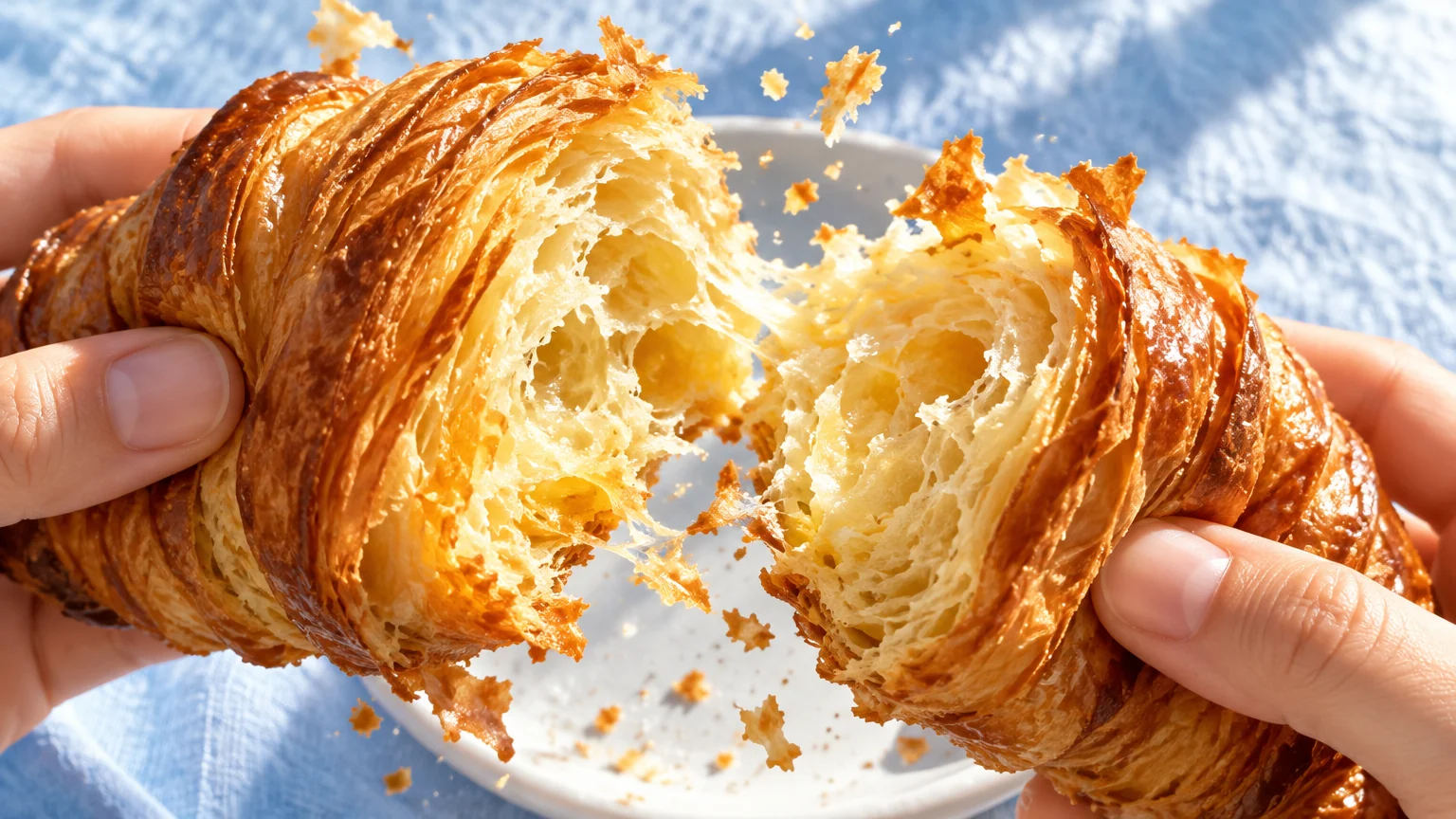
Light and texture
Light and materials that look photographed
Images 2.5 renders more natural light and richer texture. Name the light source and the material, such as low morning sun on laminated pastry, and the result follows.
OpenAI · the fast default in GPT Image 2.5
Flare is the faster of OpenAI's two GPT Image 2.5 models and carries the ChatGPT Images 2.5 upgrades. Draft several directions cheaply, then finish the one you pick at high or 4K. No ChatGPT plan or API key needed.
What's new in GPT Image 2.5
OpenAI says Flare brings the ChatGPT Images 2.5 improvements in quality, editing, and speed to its API. These are the four you notice first. The pictures are examples, not side-by-side tests.
Light and texture
Images 2.5 renders more natural light and richer texture. Name the light source and the material, such as low morning sun on laminated pastry, and the result follows.
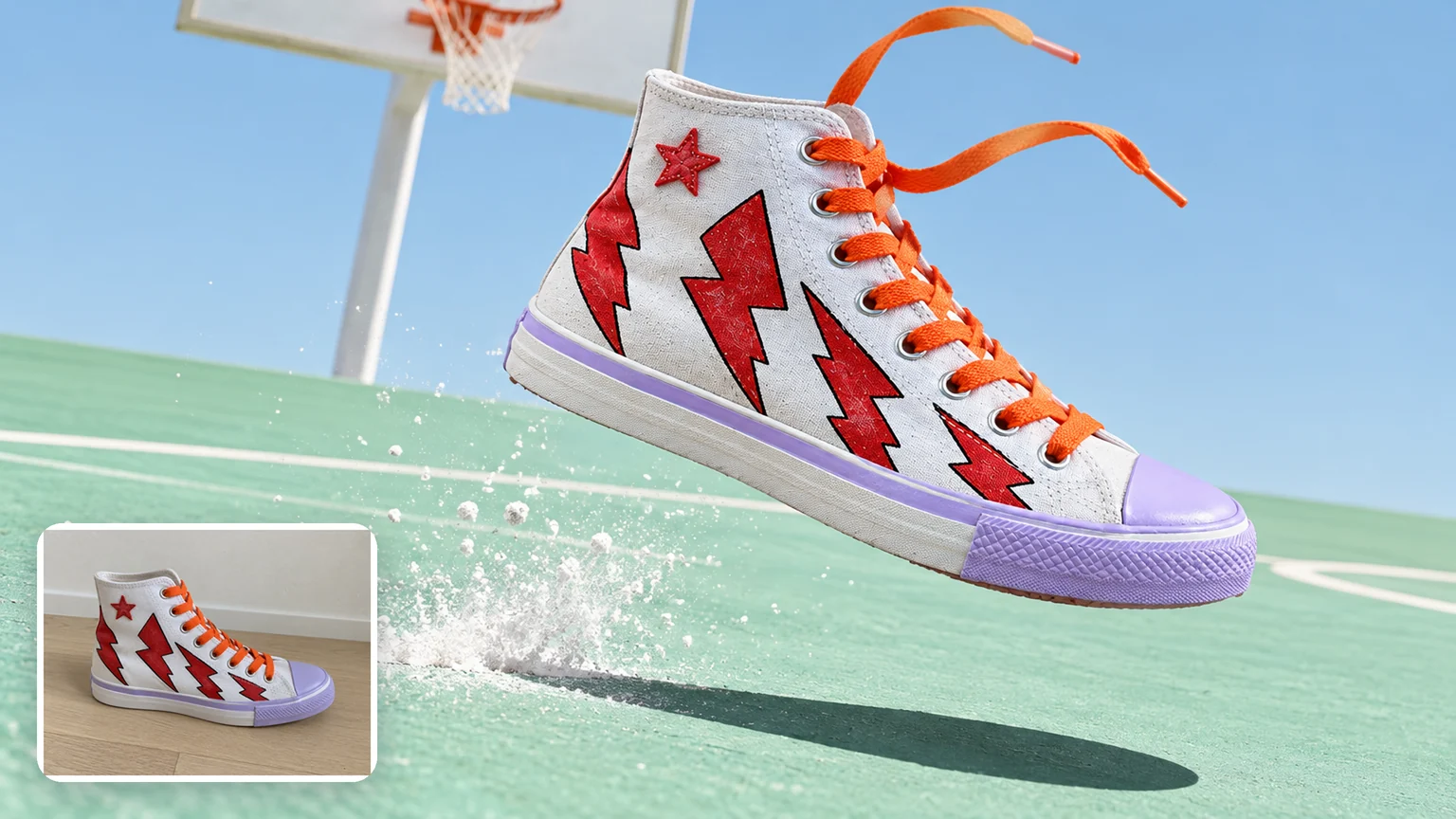
Reference photos
Upload a photo of a pet, a product, or a person and describe where it should go. Images 2.5 is better at keeping distinctive features, and Flare accepts up to 16 reference images per run.
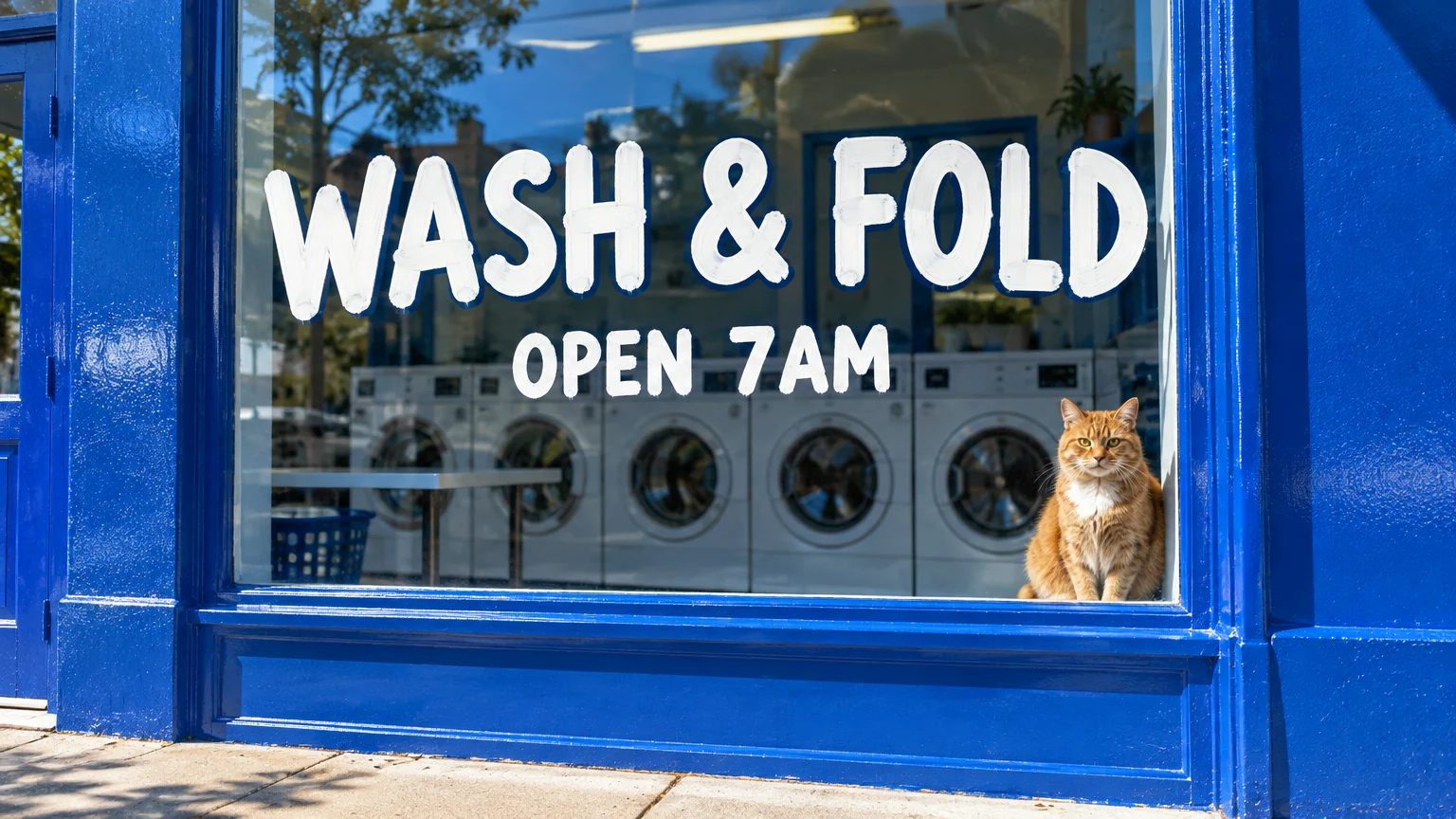
Short copy
Signs, labels, and headlines come out right more often when they are short and in quotes. Long, text-heavy layouts are a better job for GPT Image 2.
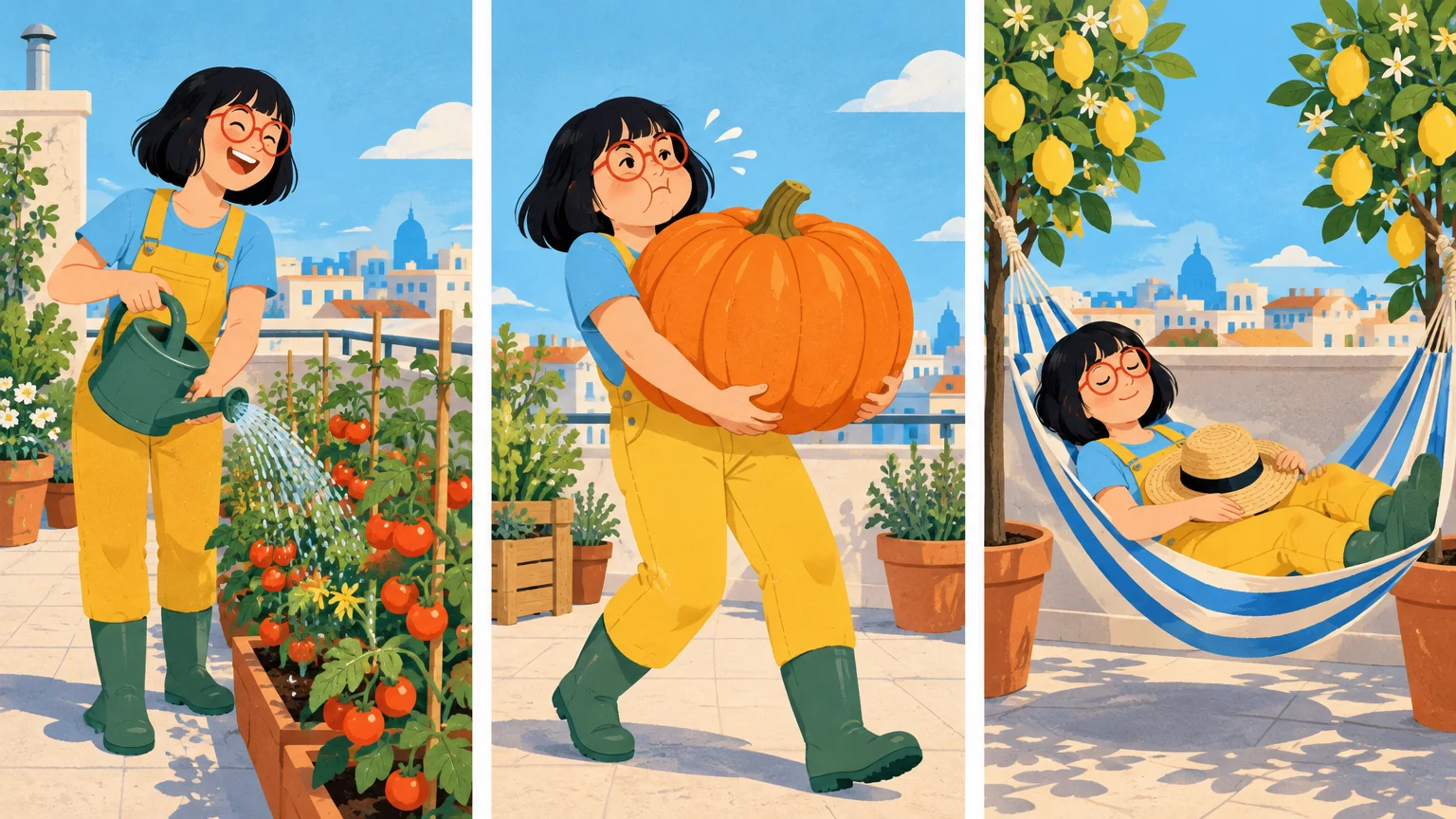
Series
Describe the character once and ask for several panels in one image to keep the face, hair, and outfit together. Separate runs can still drift, so reuse a finished panel as a reference.
Drafts
4 drafts at 1K low cost 8 credits in total, so you can compare whole directions before paying for a final. The grids below are example directions, not one model output.
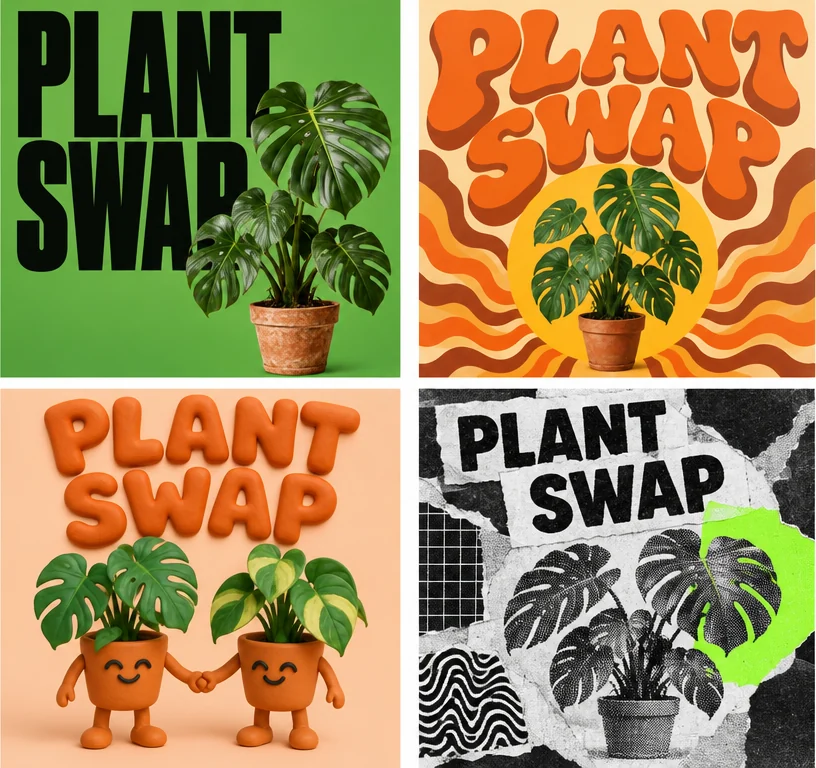
Event poster
Run one poster brief in several visual styles and judge the headline and the main subject at thumbnail size, where most people first see a poster. Only the style that still reads at that size is worth a higher-quality run; here, one plant-swap brief in four styles.
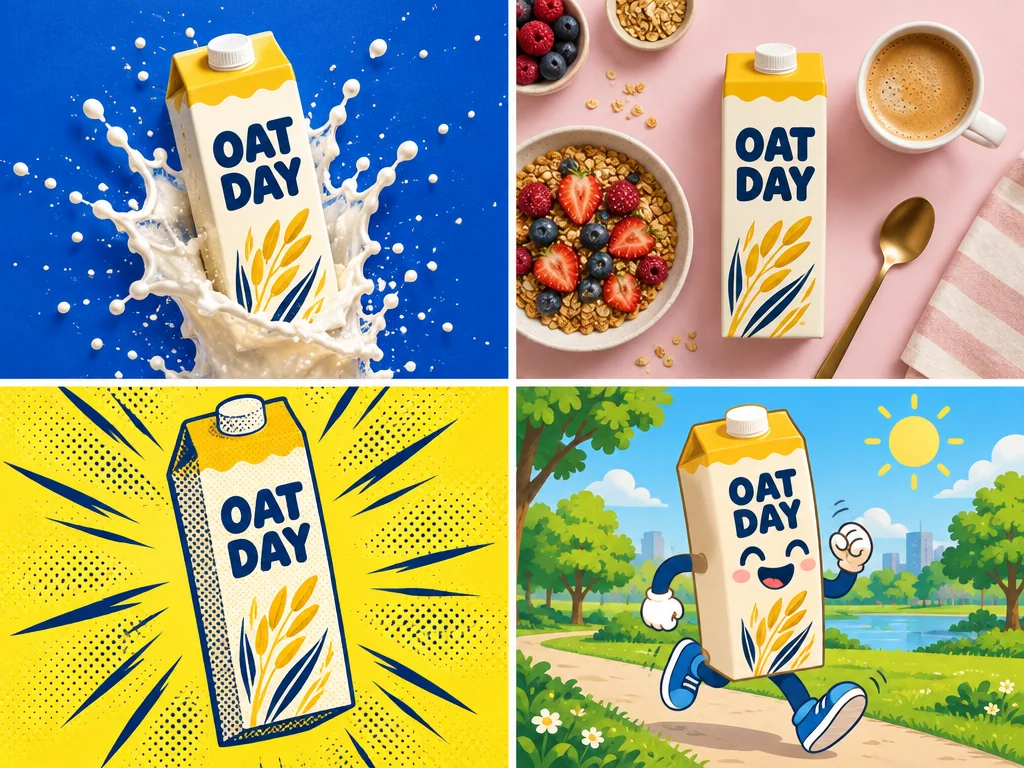
Product ad
Keep the product description fixed and vary only the ad concept, such as packshot, flat lay, illustration, or mascot. Check that the pack's shape, colors, and name match in every version; uploading a real product photo as image 1 holds them more firmly.
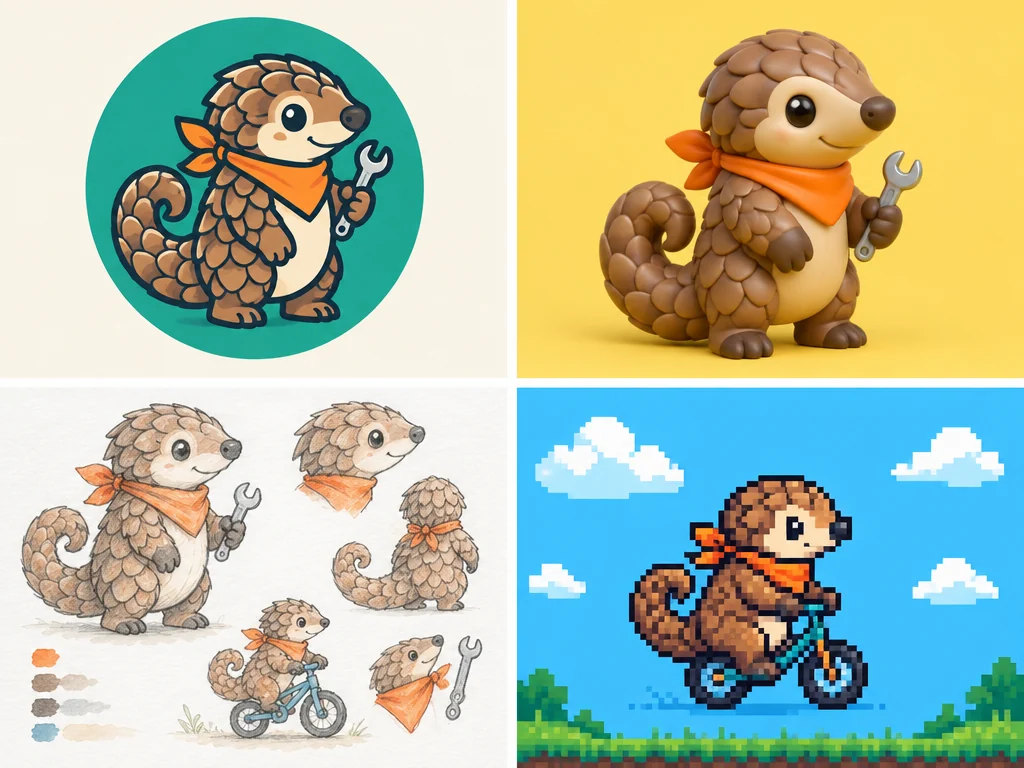
Mascot
Describe the character once and try it as a badge, a toy, a sketch sheet, or a sprite to see which look fits the brand. Once one wins, upload it as a reference so new poses keep the same features.
Spend credits where decisions are made: cheap rounds while the idea is open, one careful run once it is settled. These habits follow OpenAI's GPT Image 2.5 prompting guide.
Fix the brief, vary one line
Write the subject, purpose, format, and exact copy once. Change only the direction line between rounds, so you compare styles rather than prompts.
Draft in rounds at 1K low
Ask for up to 4 images per run. Composition, color, and layout already read clearly at this size.
Finish with the same prompt
Keep the prompt and aspect ratio of the draft you picked, then rerun it at high, 2K, or 4K.
Put exact copy in quotes
Quote headlines and labels, say where they sit, and spell brand names letter by letter.
Start at xhigh or max
They cost many times more than low, and OpenAI notes that a higher setting doesn't guarantee a better result. Save them for a detail that still fails at high.
Ask for a transparent background
Oeneo AI doesn't offer that setting for Flare. Generate on a plain backdrop, then use Background Remover.
Rewrite everything to fix one detail
Upload the draft as image 1 and name the single change. If the rest has to stay exactly as it is, switch to GPT Image 2.5 Sunburst.
Fill the image with small text
Dense paragraphs can still come out wrong. Keep copy short and check it at 100% zoom.
Example prompt: "Poster for a Sunday plant swap in the park. Headline 'PLANT SWAP' in large letters at the top, a potted monstera in the center, portrait 3:4. Direction: 1970s bubble letters in orange and brown."
Each cell is the credit cost of one text-to-image result; the small line is an edit with one reference image, and every extra reference adds 2 credits per image. GPT Image 2.5 Sunburst costs the same at every setting. The Generate button shows the exact total before you submit.
| Quality | 1K | 2K | 4K | Good for |
|---|---|---|---|---|
| lowDefault | 2Edit: 3 | 2Edit: 4 | 3Edit: 5 | Drafts and direction checks |
| medium | 4Edit: 6 | 4Edit: 8 | 6Edit: 10 | Quick social posts and previews |
| high | 16Edit: 24 | 16Edit: 32 | 24Edit: 40 | Final images for most uses |
| xhigh | 32Edit: 48 | 32Edit: 64 | 48Edit: 80 | A detail that still fails at high |
| max | 60Edit: 90 | 60Edit: 120 | 90Edit: 150 | Last try on the hardest details |
OpenAI treats GPT Image 2.5 output above 2560×1440 as experimental, so 4K results can vary more than 1K and 2K.
Each model has its own page and runs in the same workbench on one credit balance.
 OpenAI
Slower renders, built for edits that must leave the rest of the image alone.
View model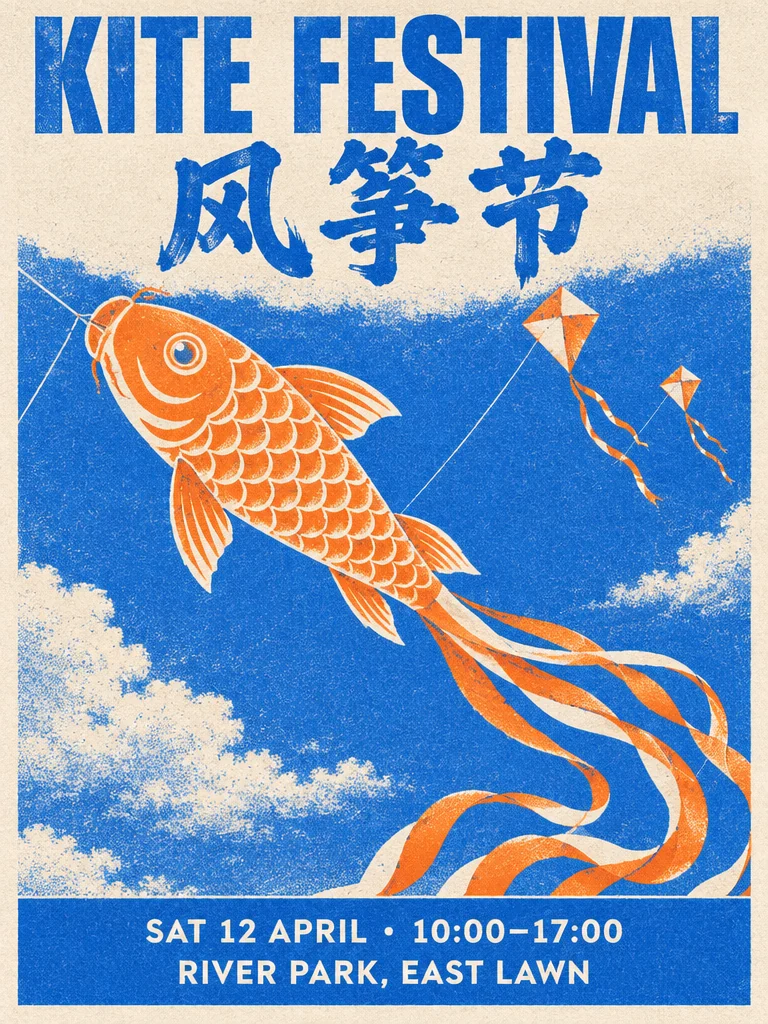 OpenAI
OpenAI's previous model, strong on text-heavy posters, infographics, and comics.
View model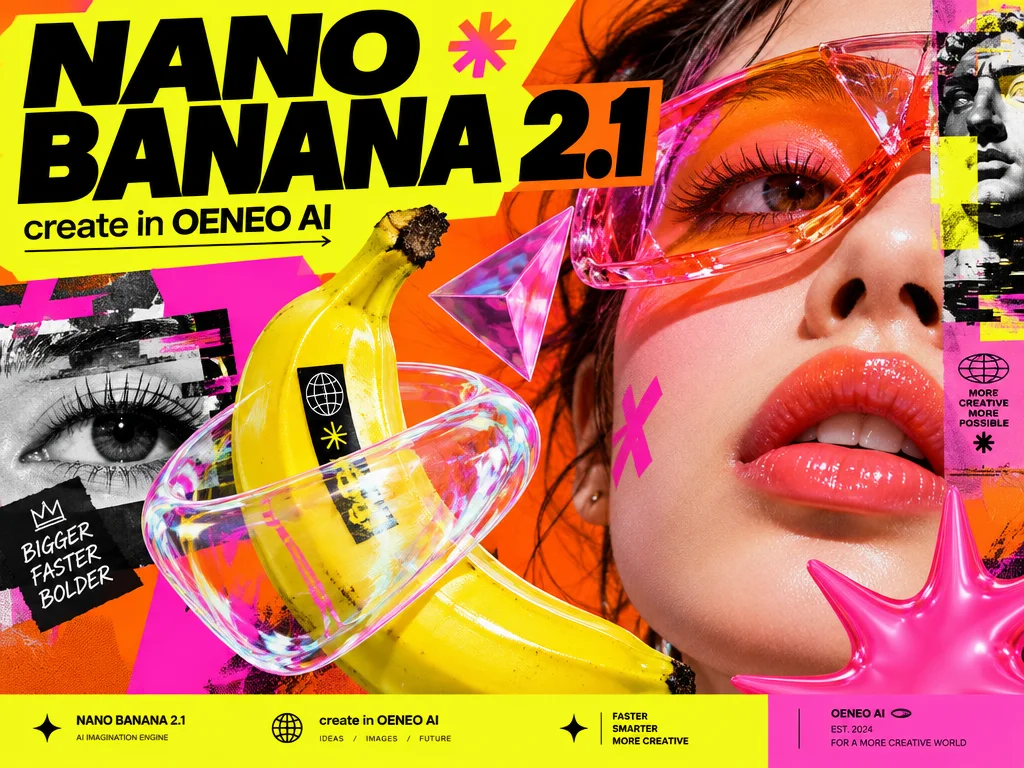 New
New Google
Consistent characters, product placement, exact short text
View model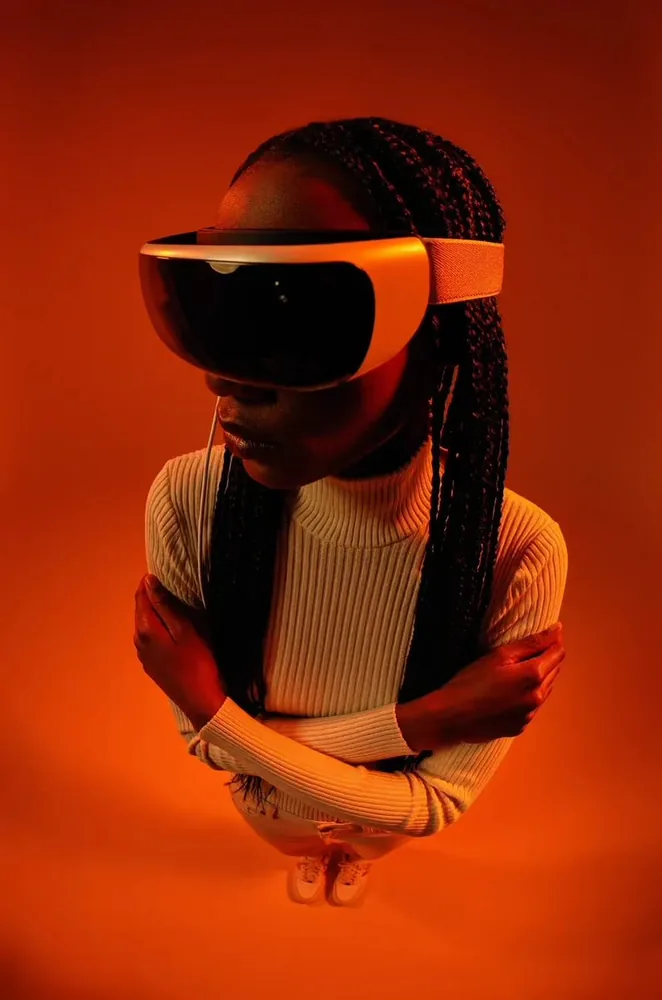 New
New Black Forest Labs
Composed scenes from a prompt or references
View modelRemove the background, upscale, vectorize or denoise any result, all on the same credit balance.
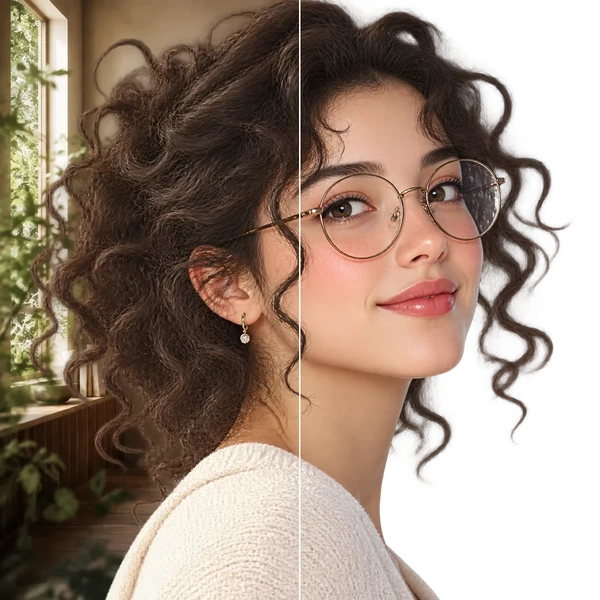
Transparent PNG or WebP with clean hair and product edges, ready for a listing or a new composition.
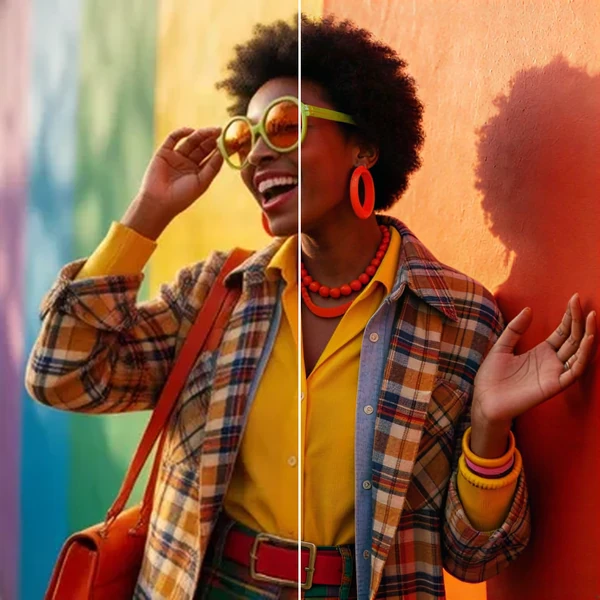
2× / 4× / 8× with recovered texture instead of smeared pixels, so a 1K draft can become a print.
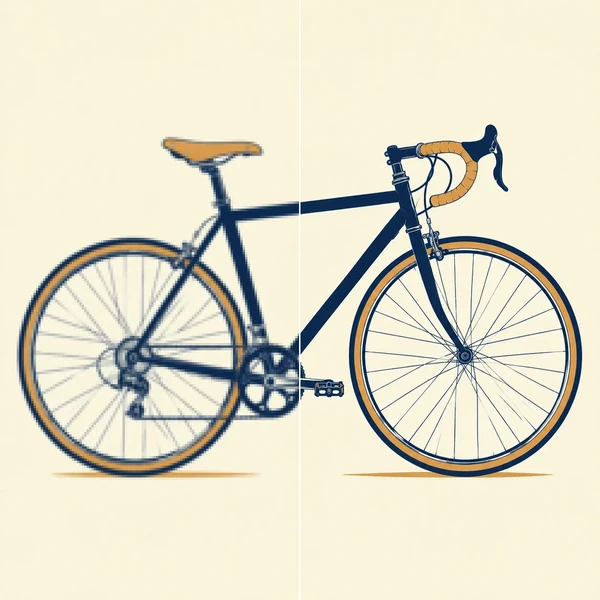
Logos, icons and flat illustrations become editable SVG that scales to any size.
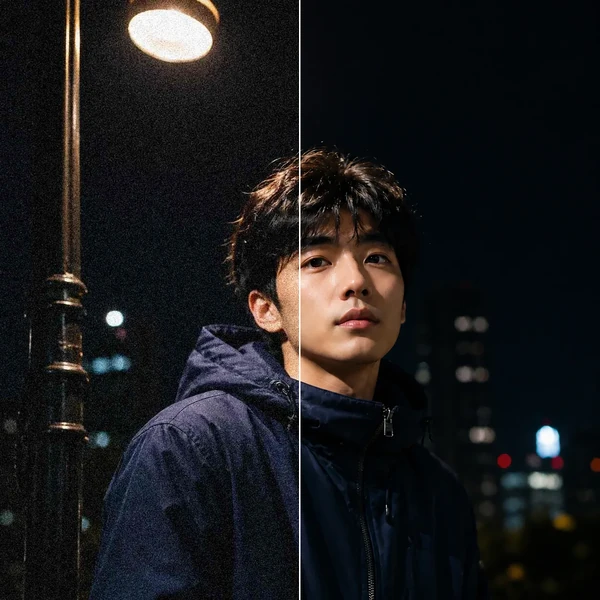
Remove grain and compression artifacts from low-light photos and scans while keeping real detail.
GPT Image 2.5 is the image model family OpenAI released on September 8, 2026; inside ChatGPT it appears as ChatGPT Images 2.5. The API offers two versions. Flare is the one OpenAI calls the default choice for most applications and its fastest model for high-quality everyday images. Sunburst is slower and built for precision editing. This page runs Flare.
OpenAI hasn't said which API model ChatGPT uses, and ChatGPT doesn't let you choose between Flare and Sunburst. On Oeneo AI you pick Flare directly in the browser, without a ChatGPT plan or an OpenAI API key.
Both cost the same credits at every size and quality level on Oeneo AI, so the choice is about time. Start with Flare for drafts, exploring ideas, and everyday images. Switch to Sunburst when an edit has to leave the rest of the image untouched or a final file needs extra care on fine detail; OpenAI notes it takes longer. The Sunburst page compares the two side by side.
OpenAI says Flare delivers higher-quality images than GPT Image 2, and its prompting guide suggests trying Flare first when a GPT Image 2 prompt already works for you. The quality names don't line up on price: a 1K image costs 16 credits at GPT Image 2 medium and 16 at Flare high. Keep GPT Image 2 for continuing a series made with it; the GPT Image 2 page compares both generations in detail.
You can try it for free: new Oeneo AI accounts get 10 credits, valid for 365 days. A 1K image at low costs 2 credits, so that's about 5 drafts; a 1K image at high costs 16. Failed tasks are refunded, and images made on the free plan are public.
OpenAI describes Flare as its fastest model for high-quality everyday images, with 50% lower latency than GPT Image 2. We don't promise a fixed time: higher quality levels, 4K, long prompts, and busy periods all add to it.
Up to 16 per run. Number them in the prompt and give each a job, for example "image 1 is the product, use image 2 only for the color palette." The first reference is included in the edit price; each additional one adds 2 credits per image. With Auto, the output follows the first image's aspect ratio.
Yes. 4K output is up to 3840 px on the long edge: 3840×2160 at 16:9 and 2880×2880 at 1:1. OpenAI treats sizes above 2560×1440 as experimental, so settle the image at 1K first and check the 4K result at full size.
Not on Oeneo AI. OpenAI's API offers both, but this Workbench doesn't send them for Flare. For a transparent PNG, generate on a plain background and run Background Remover; for a local change, upload the image and describe the area in words.
Yes, on paid plans: subscriptions include a full commercial license, and the Lifetime plan covers personal commercial use (see Pricing). Images made on the free plan are public. Before publishing, check OpenAI's usage policies and the rights to anything you upload, such as logos or photos of people.
Draft a few directions at low quality, then finish the one you pick at high or 4K.