



Fine edges
Keep soft edges where they matter
Soft edge detection helps glasses rims, jewelry, flyaway hair, fur, and thin straps keep their shape instead of turning into halos or jagged outlines.
Upload a product, portrait, or pet photo and get a transparent cutout ready for a marketplace listing, profile image, campaign layout, or composited scene.
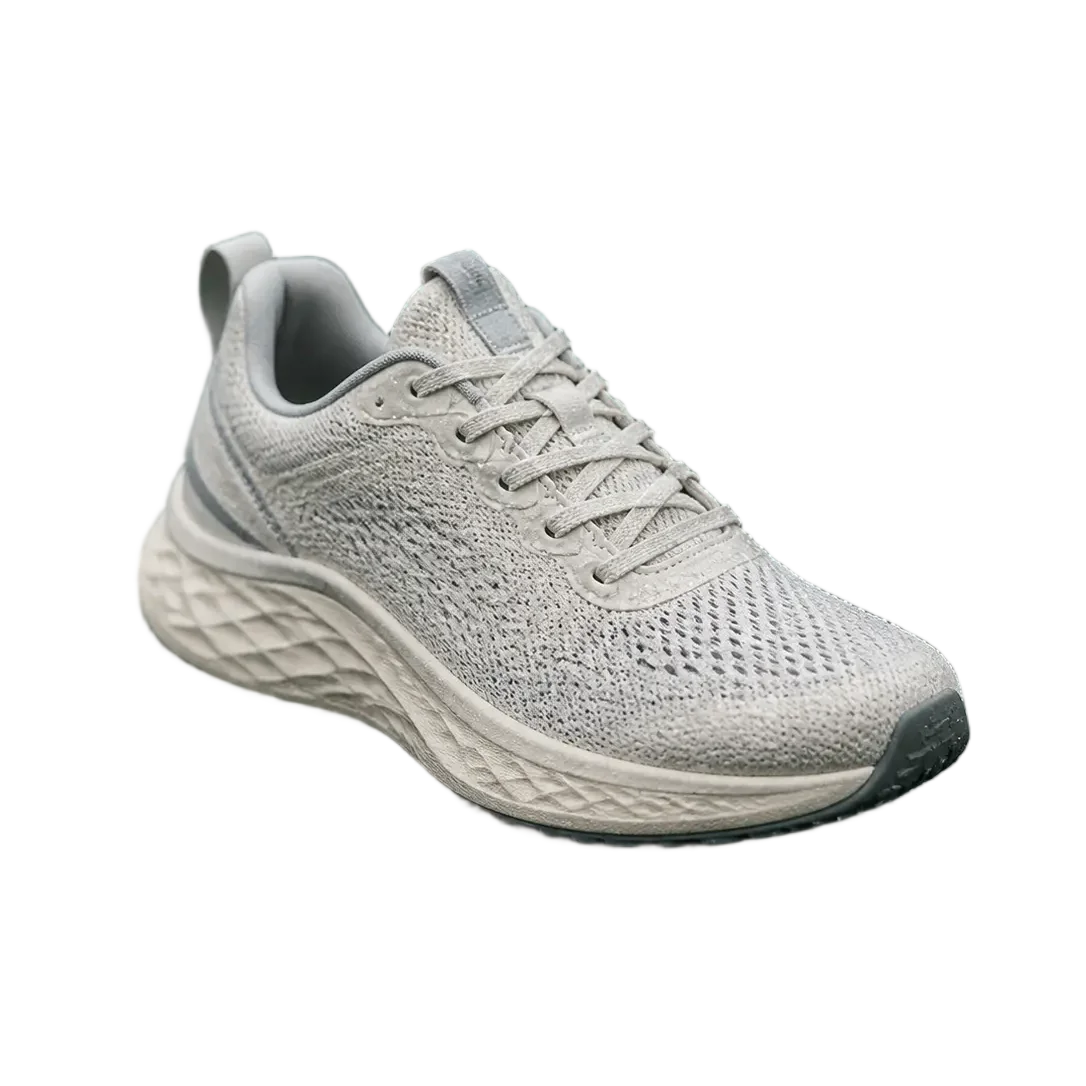
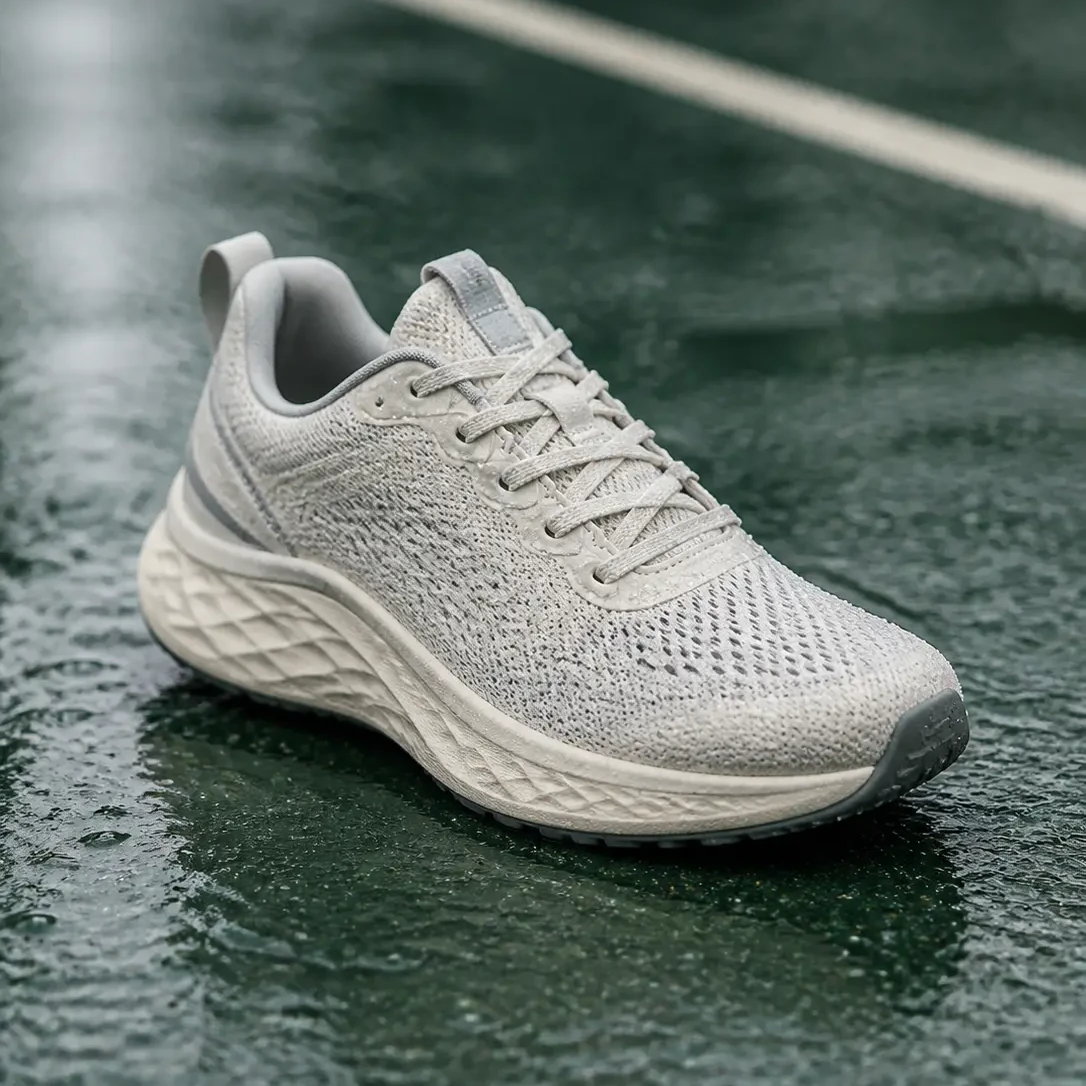
Background removal succeeds or fails at the boundary. Compare each original with its transparent result and inspect flyaway hair, fur, laces, and thin product outlines yourself.
 Original
 Transparent PNG
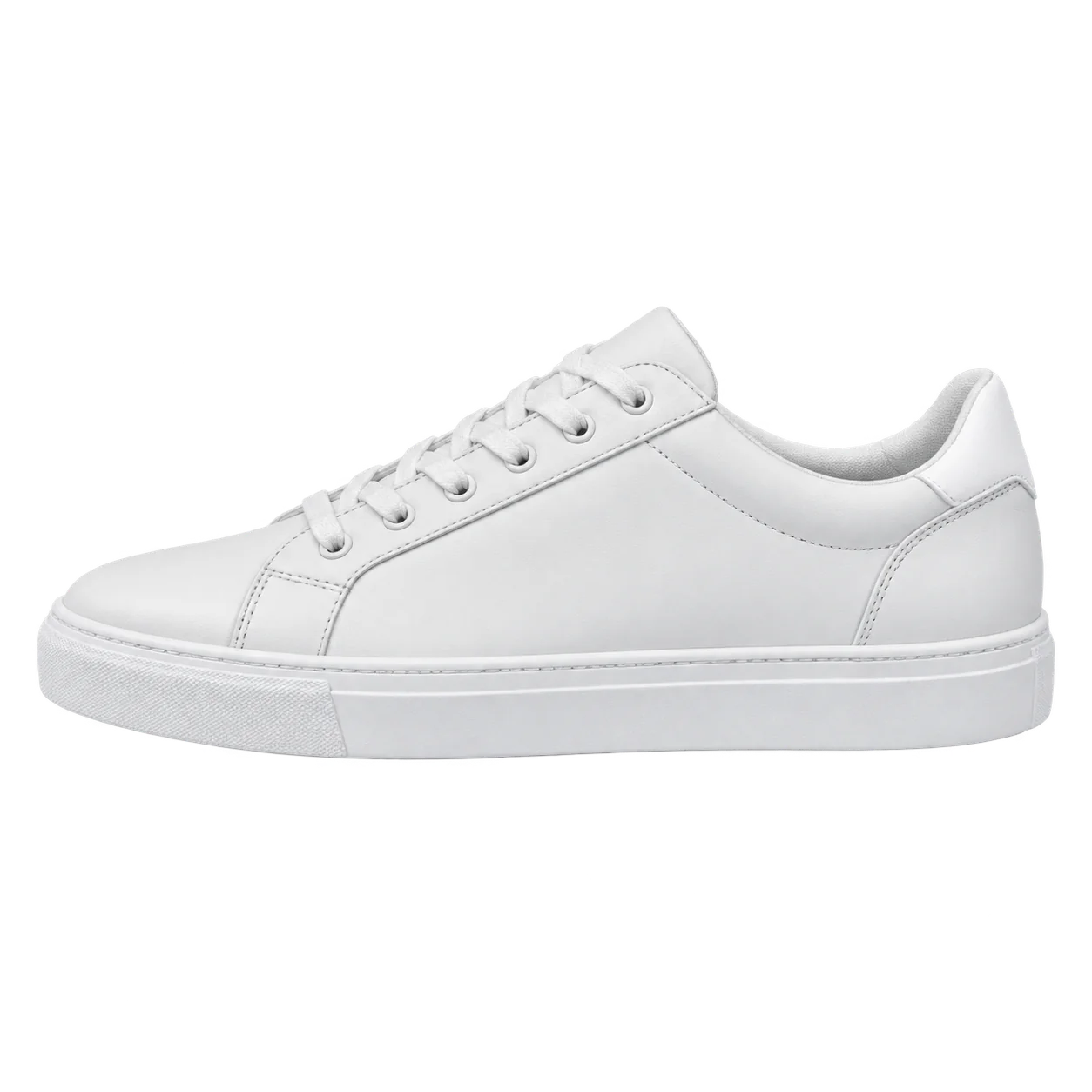
Laces, stitching, and the full sole outline remain visible, ready for a white background or marketplace template.
 Original
 Transparent PNG
Curls, glasses rims, and earrings reveal halos quickly. Compare the fine strands against the original before publishing.
 Original
 Transparent PNG
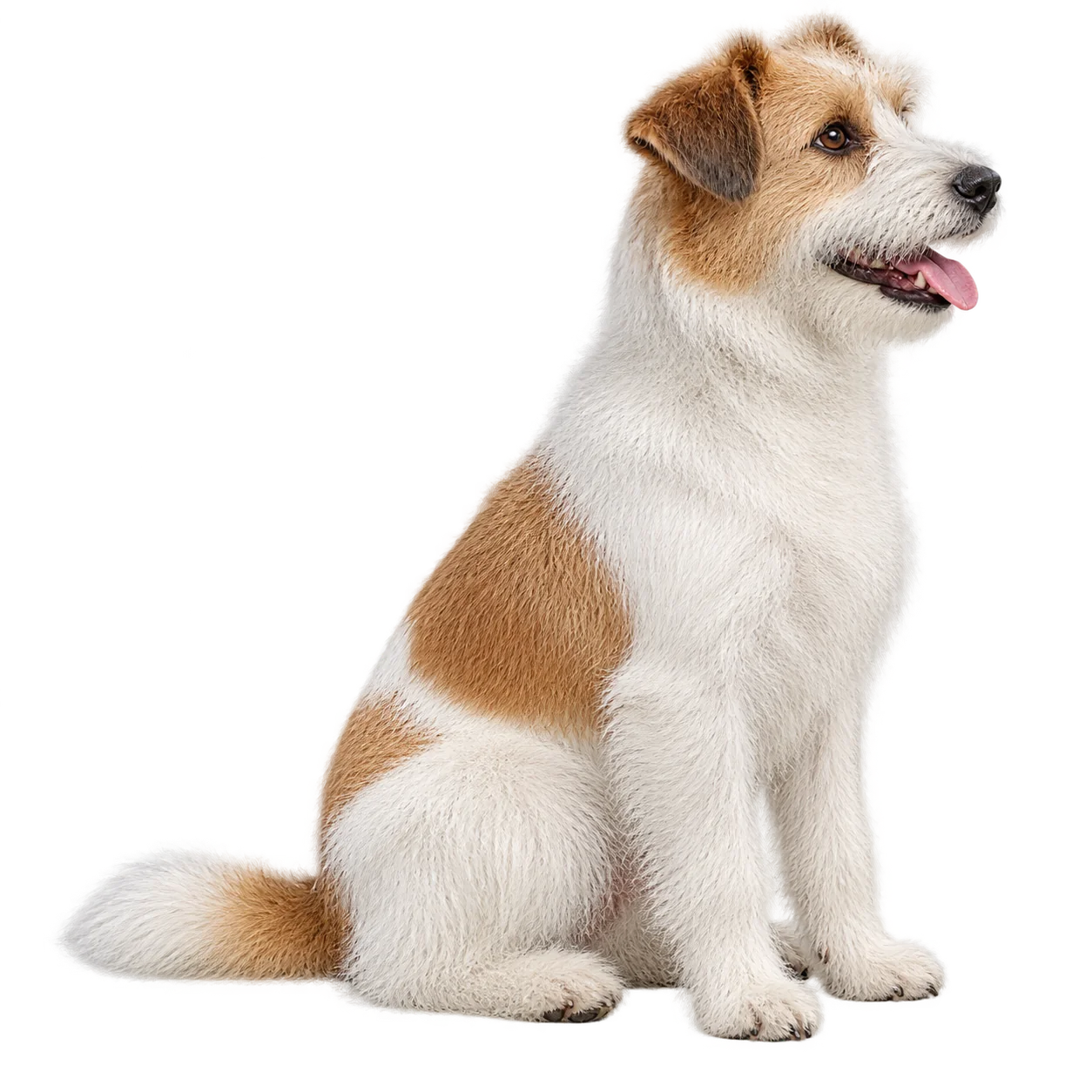
Long fur and whiskers stay soft at the boundary, so the isolated subject still reads as a photograph.
How it works
Upload one image, review the quoted cost, check the edge, and download a transparent PNG ready for the next design step.
Choose a PNG, JPG, or WebP with one clear subject. The workbench reads its size and shows the credit quote before you run it.
Approve the quote. The AI detects the foreground and separates it from the scene without a lasso, brush, or manual mask.
Drag the before-and-after slider across hair, fur, laces, and product outlines to check the cutout where it matters.
Save the transparent PNG, then switch to upscaling, vectorization, or denoising when the next step needs it.
What makes the cutout useful
A useful cutout is more than a missing background: inspect the edge, download a real alpha PNG, and continue into the listing, profile, or layout where the subject belongs.
Fine edges
Soft edge detection helps glasses rims, jewelry, flyaway hair, fur, and thin straps keep their shape instead of turning into halos or jagged outlines.

Transparent PNG
The PNG contains a true alpha channel rather than a white fill. Place the cutout on any color, gradient, or scene without removing the background again.

Consistent catalogs
Process product photos through the same workflow so cutouts share a consistent edge treatment across marketplace templates, comparison grids, and white-background requirements.

Composition-ready
Preserve the subject's proportions and clean silhouette so it drops into product cards, profile images, social layouts, and composited scenes without another cleanup pass.
Segmentation is strongest when the subject is visually distinct from its background. Choose a source with enough contrast and resolution to preserve the edge you need.
One identifiable subject
A person, product, pet, or logo with a visible outline against its surroundings.
Different tones at the boundary
A busy background can work when the subject's edge tones differ from what sits behind them.
Enough pixels for fine detail
Hair, fur, and thin details need pixels to work with. A sharp 1–4 MP photo beats a compressed thumbnail.
Subject and background share a tone
Dark hair against a dark wall or a white product on white can leave the boundary ambiguous.
Glass, smoke, and translucent objects
Semi-transparent regions do not have one clear edge. Inspect them before publishing.
Blurred or heavily compressed sources
Detail that was never captured cannot be separated. Denoise first or start from a larger original.
This tool removes the background and returns the isolated subject. It does not replace the background, generate shadows, or include a manual eraser brush; use the PNG in your design tool for those steps.
The exact input limits, transparent output, and per-image processing rules enforced by this workspace.
Where transparent cutouts help
Place the same isolated subject into a product listing, profile card, campaign layout, or new scene without repeating the cutout work.
Turn inconsistent product shots into uniform cutouts for marketplace listings, white-background requirements, and comparison grids.
Example: Shoes photographed on three different tables become one consistent catalog row.
Remove the office, bedroom, or street behind a portrait and place the person on a neutral or branded background.
Example: A team page where every headshot shares the same clean backdrop.
Isolate a creator, product, or mascot once and reuse it across stories, thumbnails, and ad crops.
Example: One cutout of a presenter reused across an entire launch campaign.
Lift a logo or signature off its scanned or photographed background to get a transparent PNG for documents and print.
Example: A signature photographed on paper becomes a clean transparent PNG for contracts.
Background remover FAQ
Answers about supported files, transparent output, difficult edges, credits, and what this focused tool does not attempt to replace.
Upload a PNG, JPG, or WebP, confirm the credit quote, and run background removal. The AI detects the subject, removes the surrounding background, and opens a before-and-after slider. Download the result as a transparent PNG without manual selection.
Yes. The output is a PNG with a real alpha channel, so the removed area is transparent rather than filled with white. Place the cutout on any color, photo, gradient, or design.
JPEG cannot store transparency. Upload the JPG here and the tool returns a transparent PNG of its subject, which is the standard way to turn a JPEG photo into a transparent asset.
The model is designed for soft edges such as flyaway hair, pet fur, glasses rims, and thin straps rather than a hard outline. Results still depend on source contrast and sharpness, so inspect those areas before publishing.
Images are harder when the subject blends into the background, contains semi-transparent objects such as glass or smoke, or is heavily blurred or compressed. A sharper original or a quick denoise pass usually helps.
Yes. Logos, signatures, and flat graphics photographed or scanned on paper work well when the mark contrasts with its background. For artwork that scales cleanly, send the transparent PNG to Image Vectorizer afterward.
1 credit per megapixel of the source image with a minimum of 1 credit — a 2000 × 2000 px photo is about 4 credits, and the exact quote is shown before you submit. New accounts start with 10 free credits valid for 365 days, and failed jobs are refunded automatically.
The current workbench processes one image per run and returns the isolated subject. Background replacement, shadow generation, and batch processing are not included; place the transparent PNG on a new background in your design tool.
Ready for a clean cutout?
Upload one photo, review the credit quote, and download a transparent PNG in the same workspace. New accounts start with 10 free credits.