



Make SomethingUnexpected
New & Featured
The newest and strongest models, each with its own page.
Create
Turn ideas into images and videos.
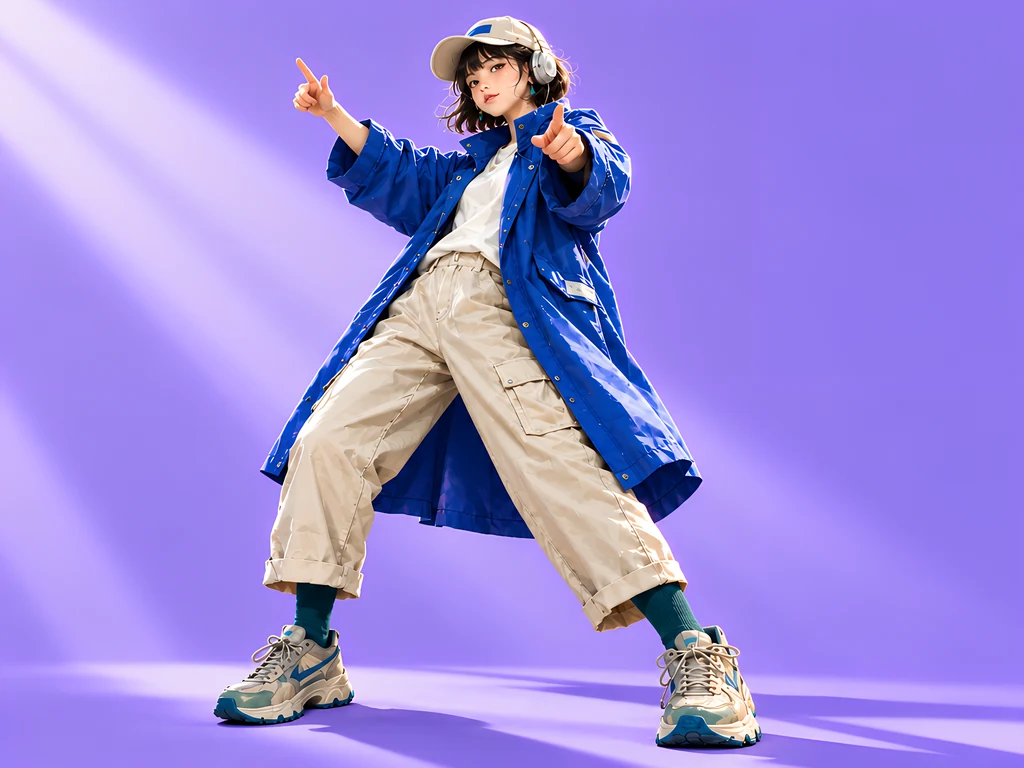
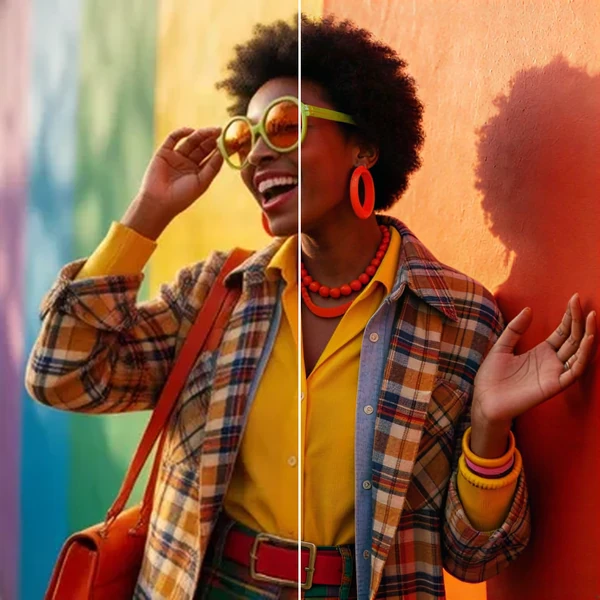
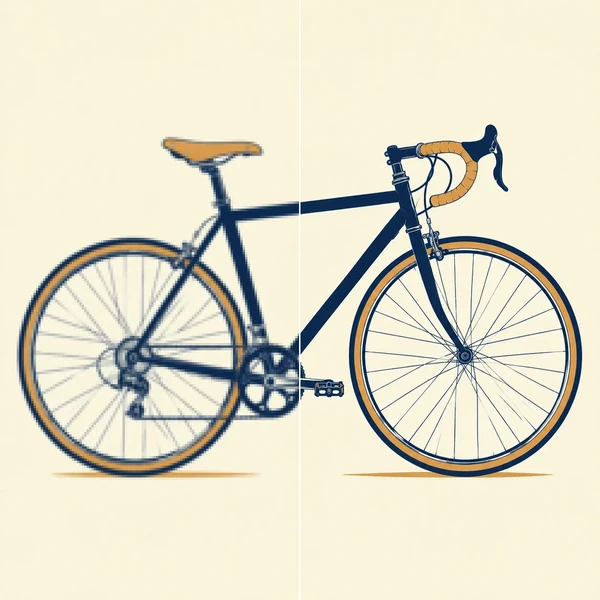
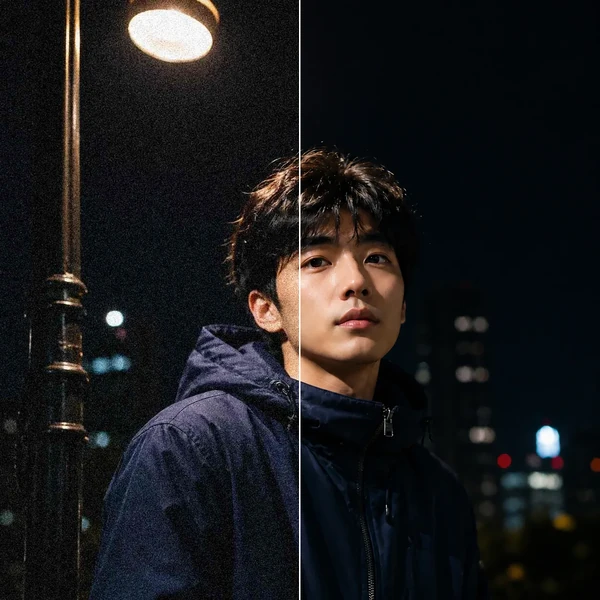
Image editing tools
Prepare product photos, larger images and scalable SVG artwork with background removal, upscaling, denoising and vectorization.
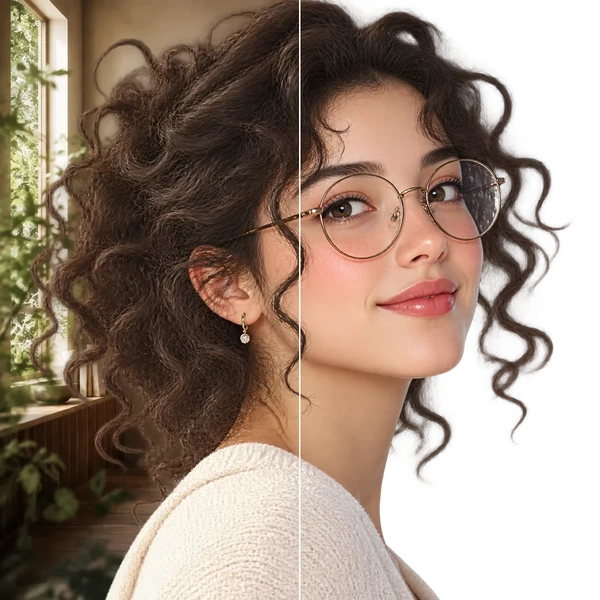
Video tools
Use video upscaling, extension, background removal and motion control on uploaded clips or supported generation results.
Creations
Recent output from the workbench, across models and tools.
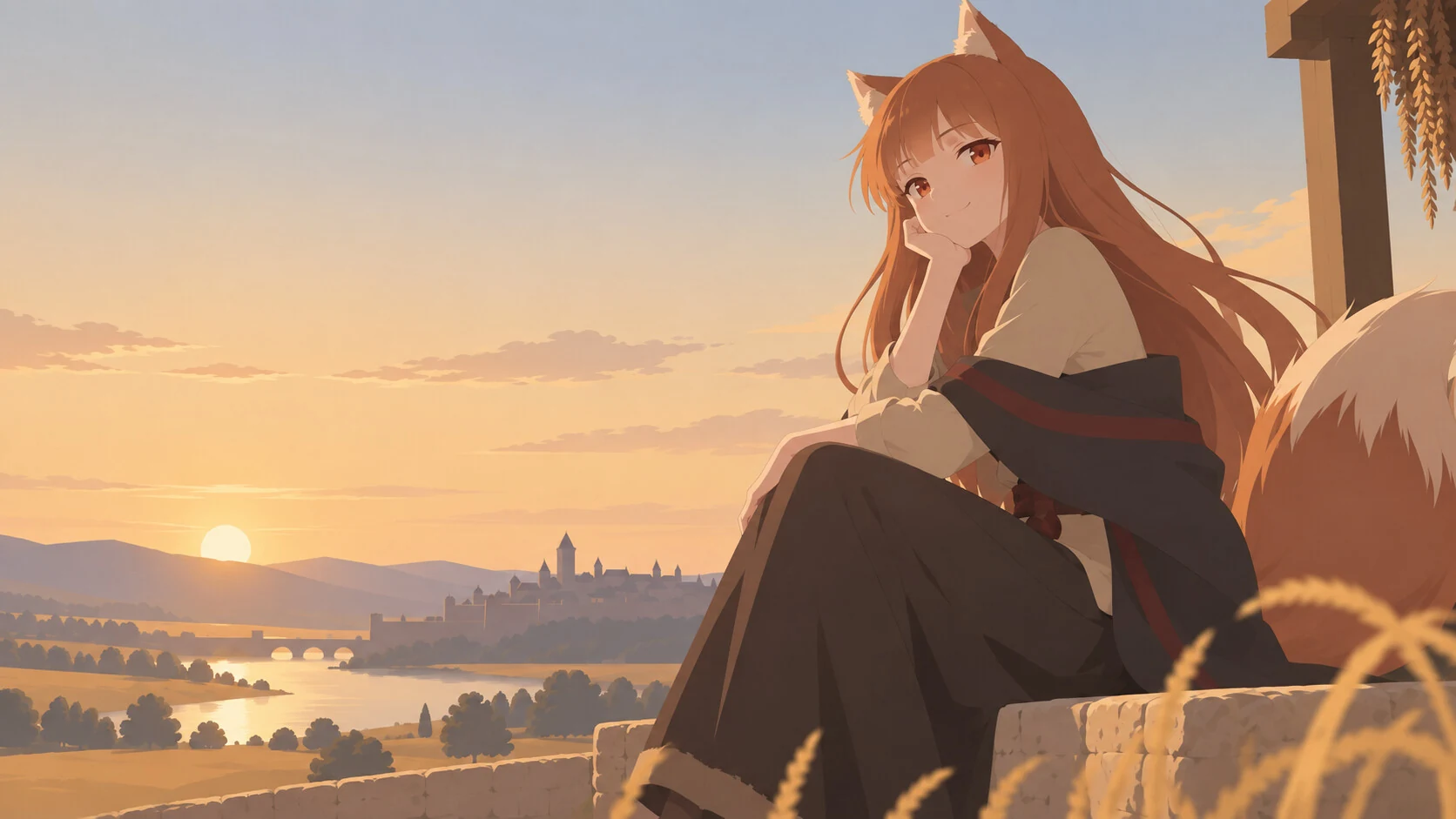
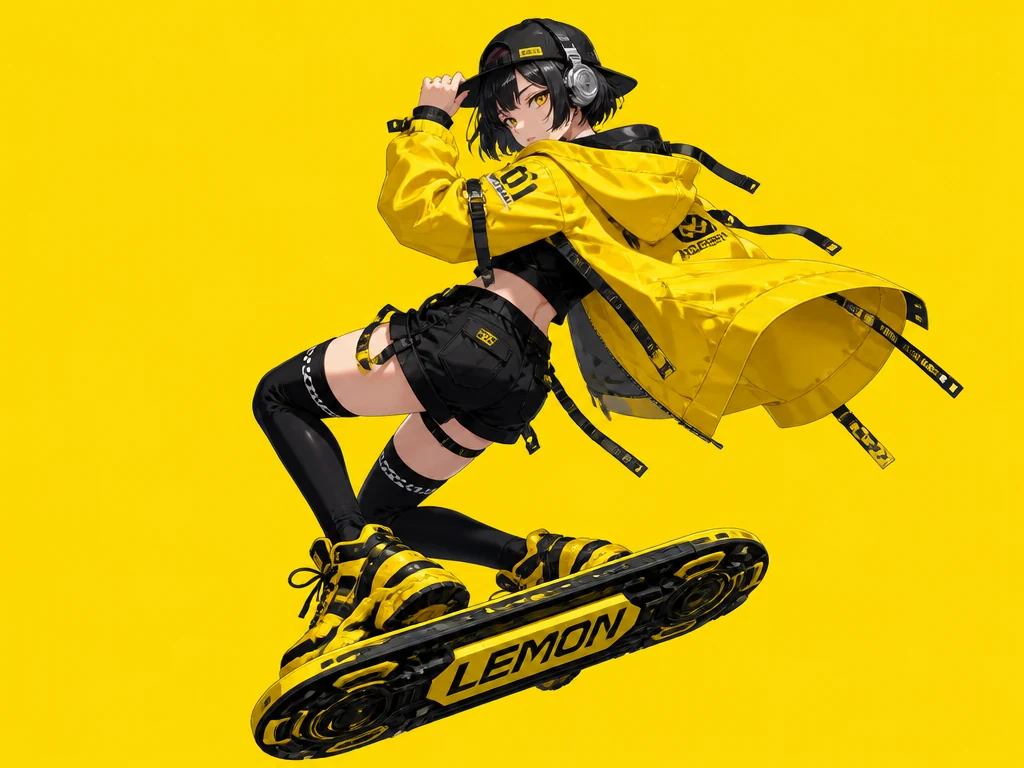
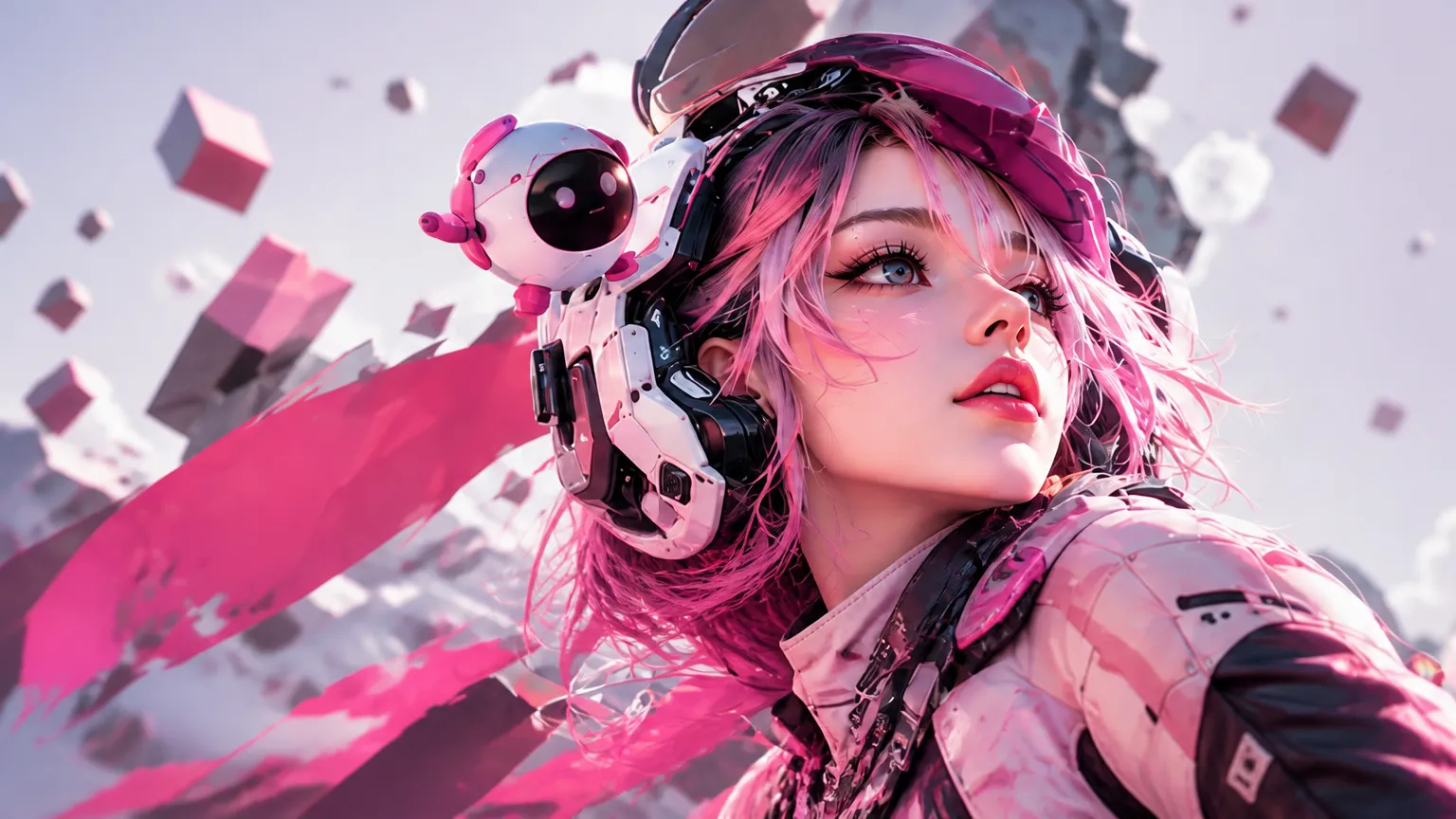
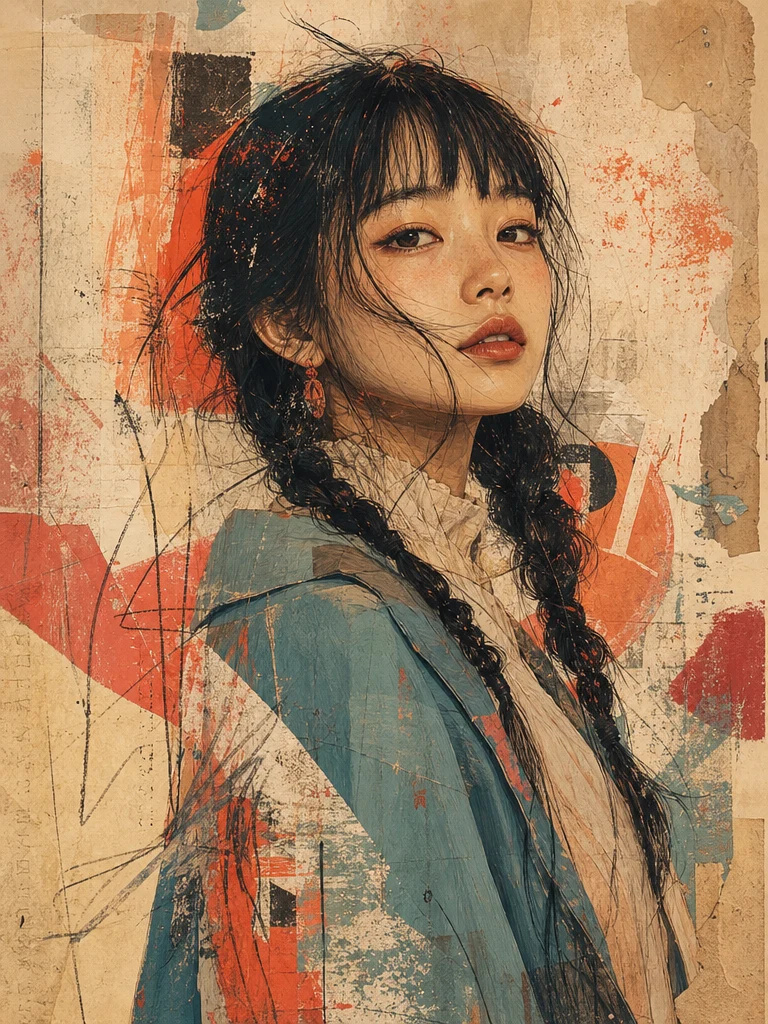
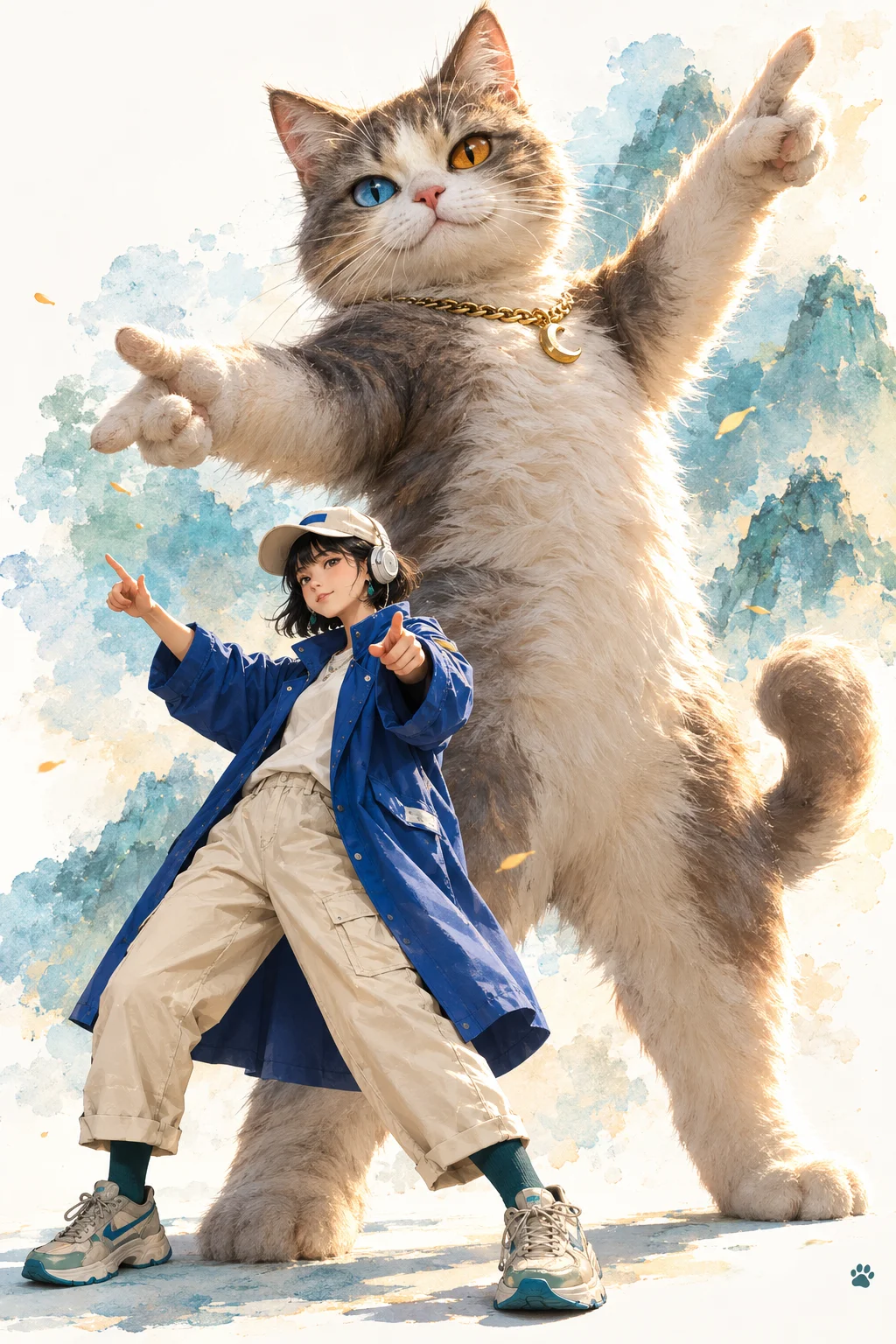
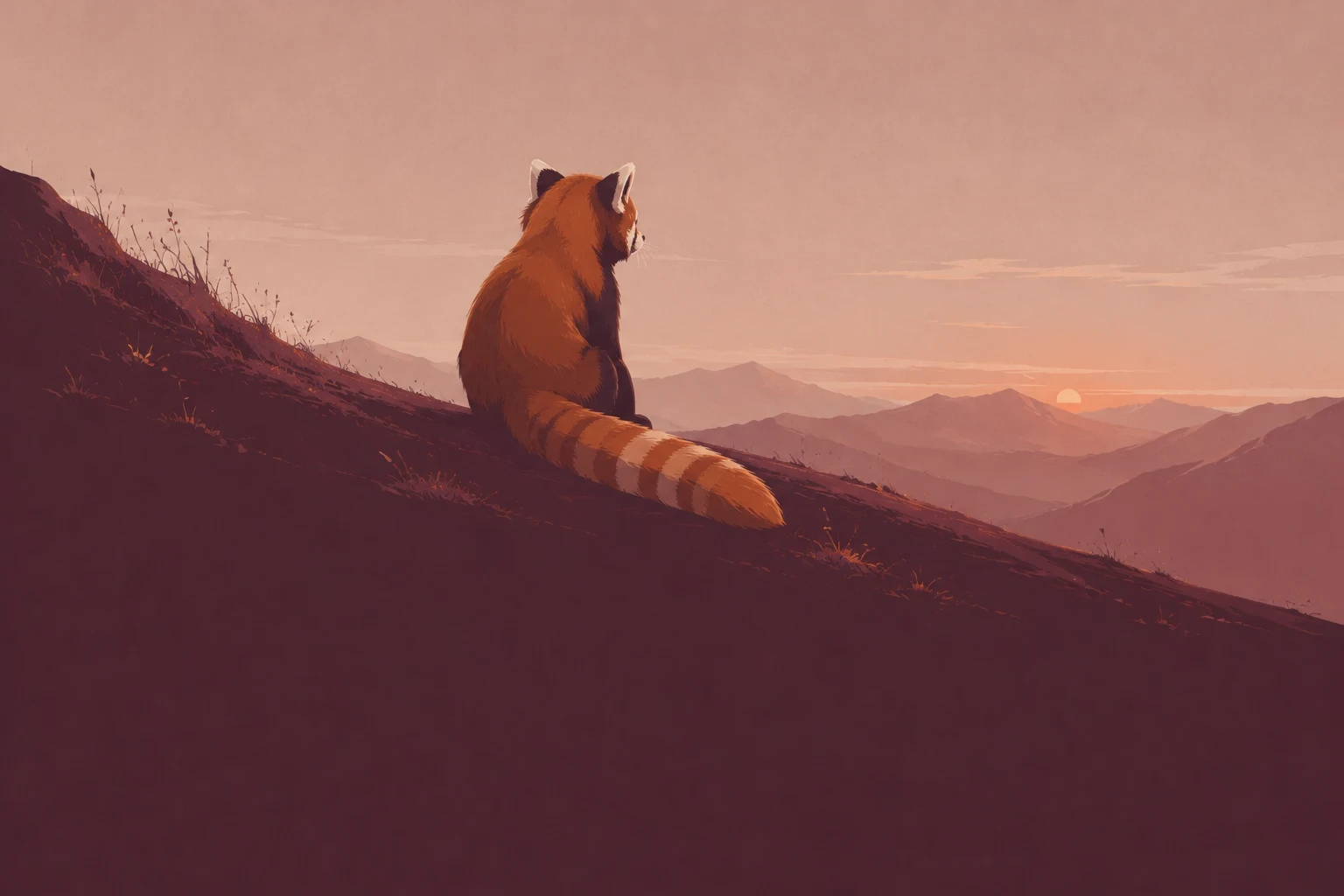
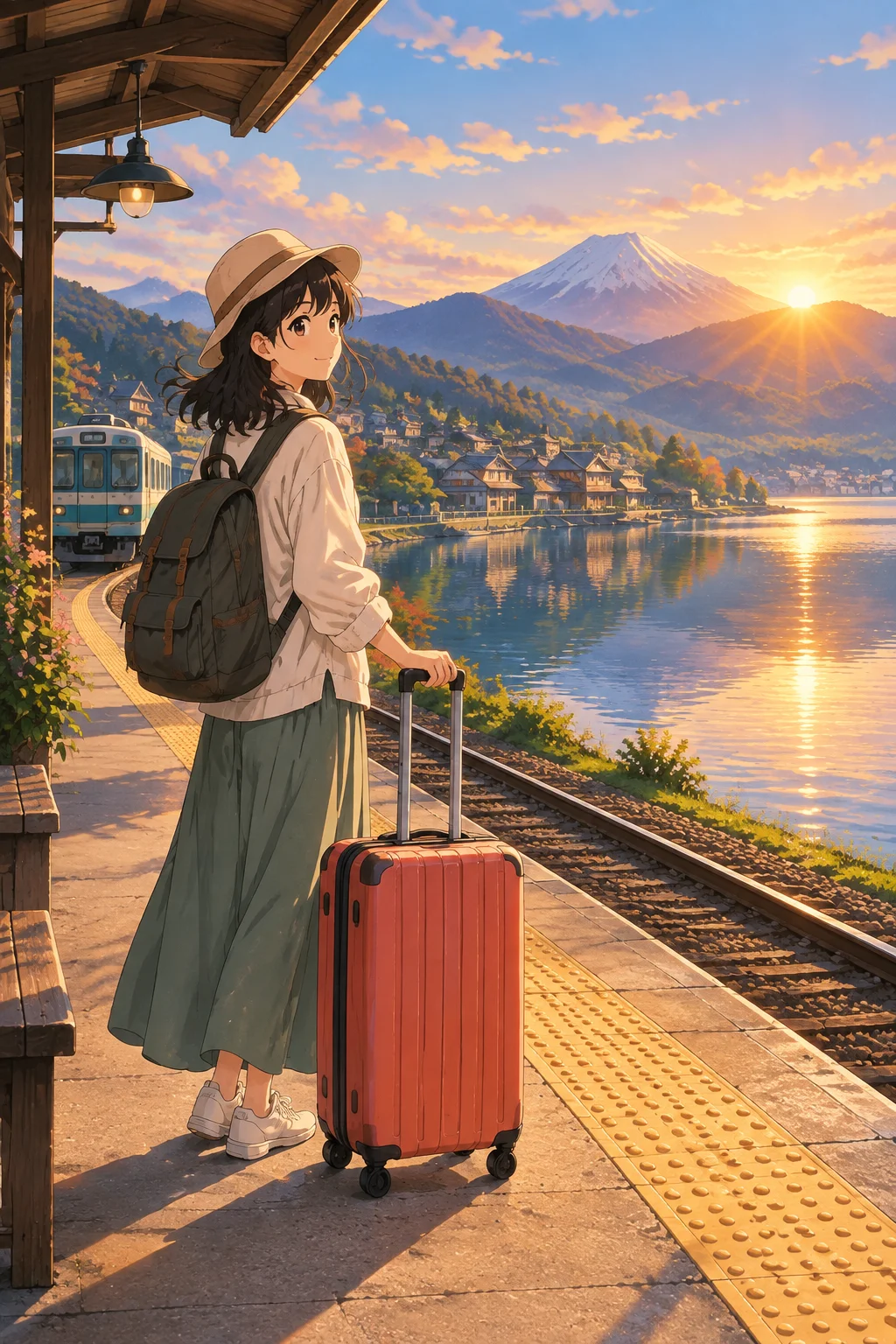
- OpenAI
- Google
- ByteDance
- Black Forest Labs
- xAI
- MiniMax
- Kling


- Free credits
- 10 signup credits to try images, videos and tools. Valid for 365 days.
- Leading models
- GPT Image, Nano Banana, Kling and more. One workspace, one credit balance.
- Create and refine
- Generate an image or video, then send supported results straight to editing tools.
Model selection
Which AI image and video models can you use?
Explore GPT Image, Nano Banana, FLUX, Kling, Seedance and more in one workspace. Compare models for readable text, product photos or moving scenes, with a shared credit balance.
Start here
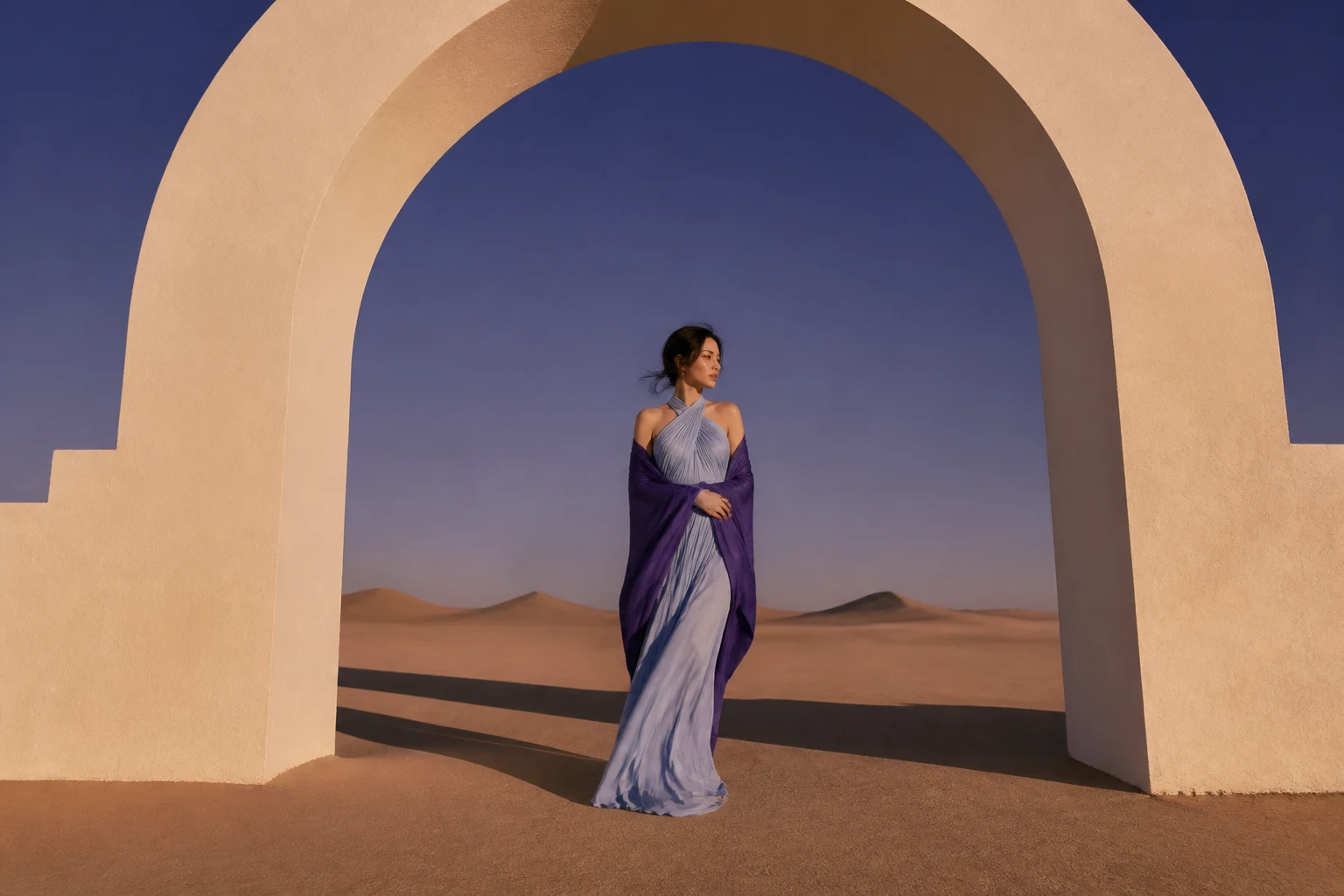

More models in the same prompt box

Which AI video model fits your shot?
Choose MiniMax, Kling, Seedance, Vidu and more for text to video, image to video or reference-led scenes. Compare supported tasks and audio options before starting a clip.
Image and video editing
How can you refine your images and videos?
Remove image backgrounds, upscale photos, vectorize logos or reduce noise. For videos, upscale a clip, extend a shot, remove its background or guide a character with motion reference.
Image editing tools
Prepare product photos, larger images and scalable SVG artwork with background removal, upscaling, denoising and vectorization.
Video tools
Use video upscaling, extension, background removal and motion control on uploaded clips or supported generation results.
Video Background Remover
Cut the subject out of any clip and export a transparent WebM or a solid colour.
Open toolImage to video workflow
How do you turn an AI image into a video?
Set the subject and style in an image first, then send it to image-to-video generation. Continue with video editing tools in the same workspace, using one credit balance.
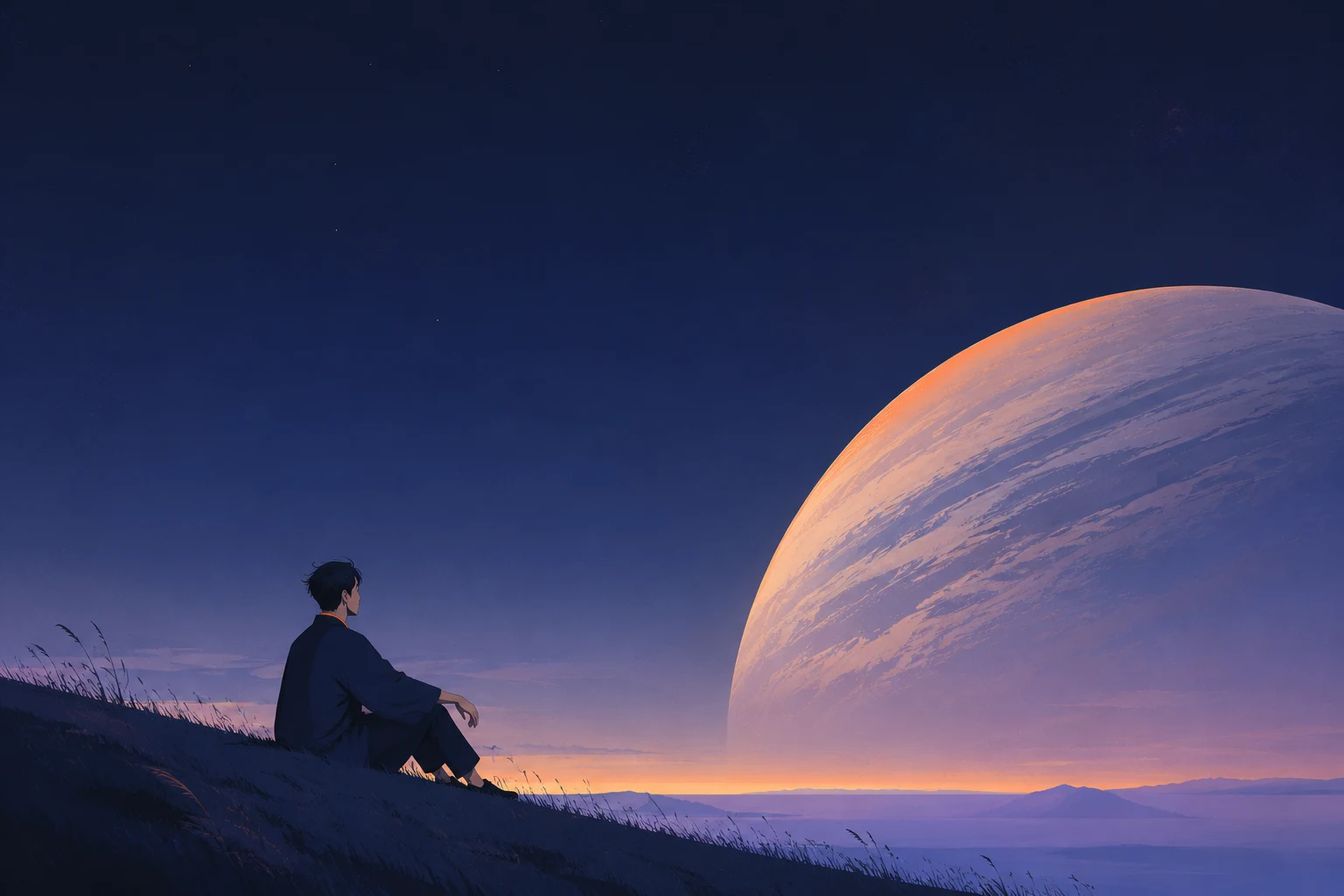
Create the starting image
Generate a product photo, character or scene from text and supported references. Review the composition before using it as the first frame of a video.
Open the generatorBring the image to life
Use your still as the opening frame and describe what should move. Choose a video model for the shot, then send supported results to upscaling, extension or other video tools.
Generate a videoVoice & SFX
Separate narration and sound-effect tools are planned. Some available video models already generate audio; check the selected model's options.
Credits, history and privacy
Why create AI images and videos with Oeneo AI?
Compare models without separate subscriptions, see the credit cost before generating and keep your results in one creation history. Paid plans also offer private generations.
One credit balance
Use the same credits for image generation, video generation and editing tools. Choose models without buying a subscription for each one.
Price before submit
See the credit total for your selected model and settings before you generate an image or video.
Automatic refunds
Failed image and video tasks keep a record and return consumed credits automatically.
Control visibility
Free generations are public. Paid plans let you choose private results, with your work saved in personal creation history.
Visual inspiration
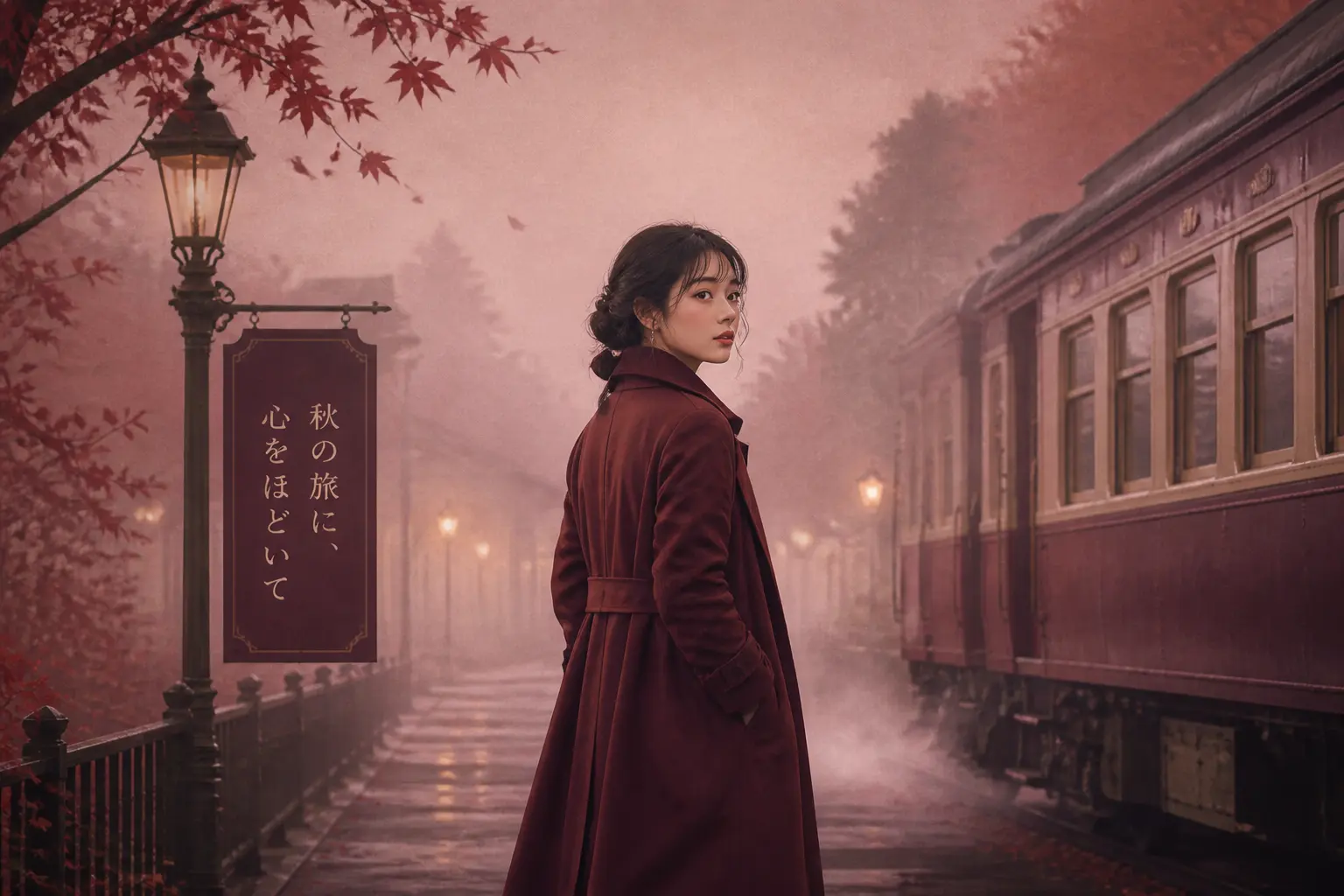
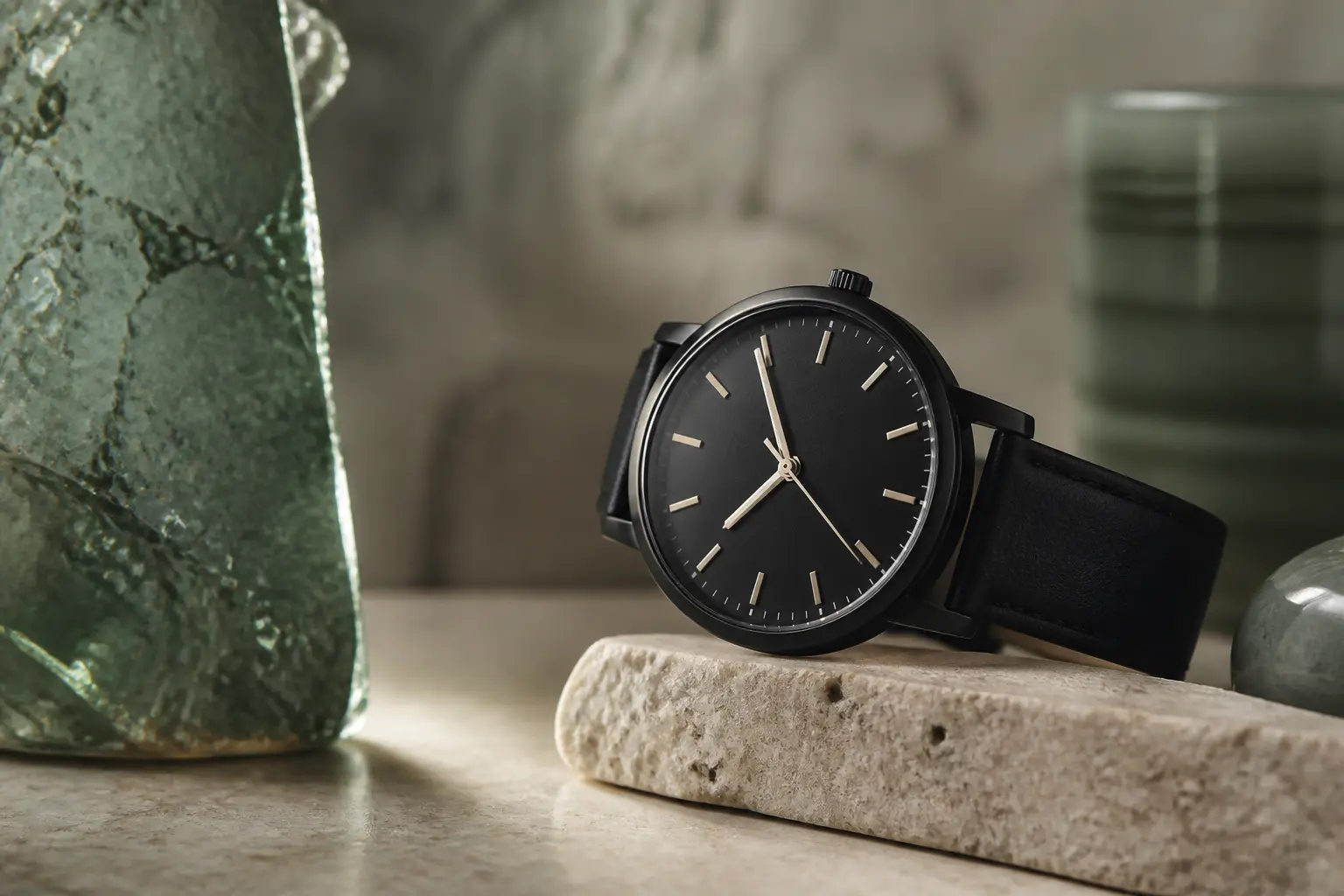
Find a direction in AI image examples
Explore product shots, typography and visual styles, then open the image generator to create your own version.
Open the generator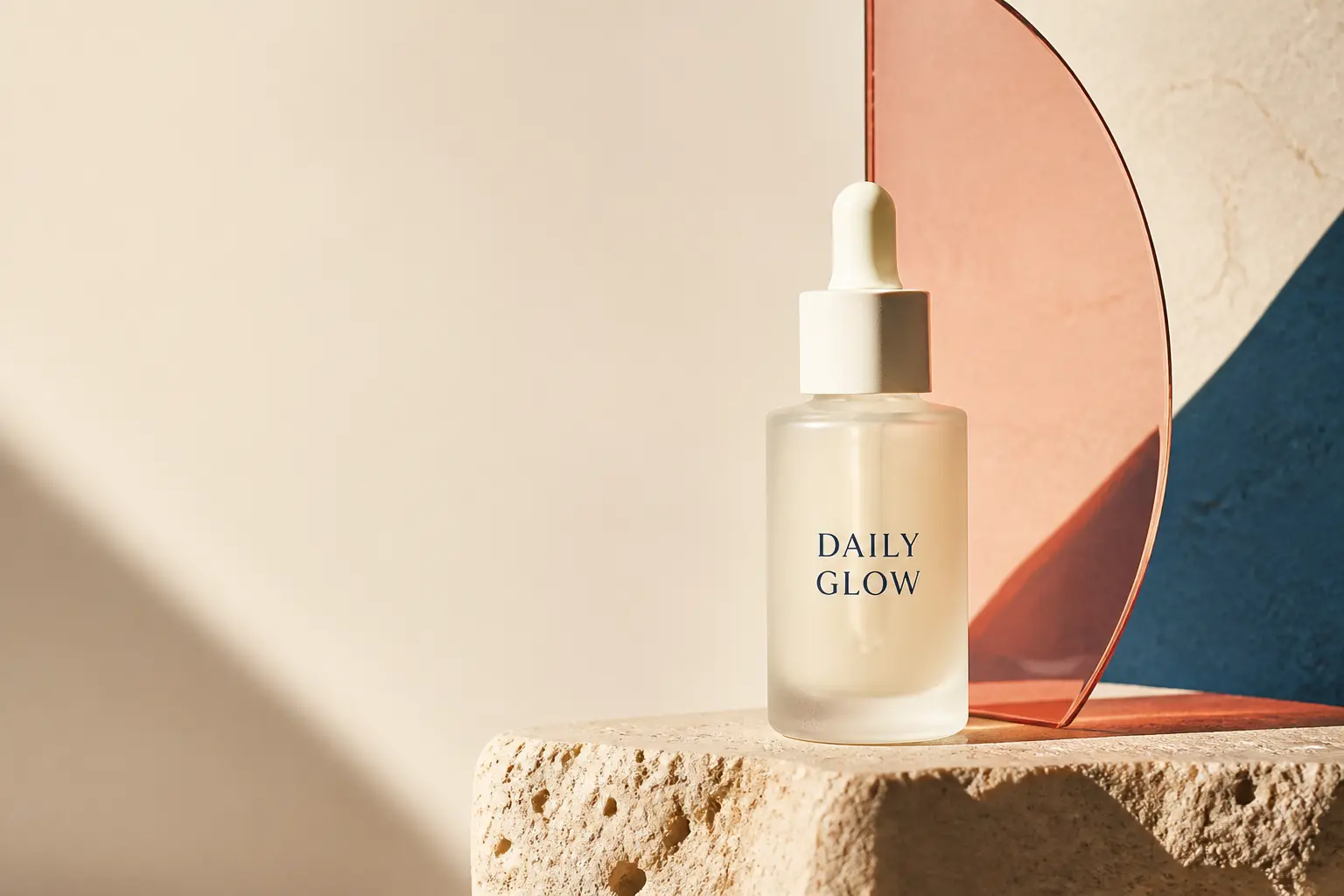
How do Oeneo AI credits and plans work?
Start with signup credits, then choose a subscription or a one-time credit pack. Use the same balance for AI image generation, video generation and editing tools.
FAQ
AI image and video generation FAQ
Learn how to choose models, use your own references, refine results and manage credits or private generations on Oeneo AI.
What is Oeneo AI?+
Oeneo AI brings AI image generation, video generation and editing tools into one browser workspace. Start from text or supported references, compare leading models, then remove backgrounds, upscale results or continue a video workflow with one credit balance.
Which AI image models can you compare?+
Oeneo AI includes GPT Image 2, Nano Banana Pro, Seedream 5 Pro, FLUX.2 Pro and more. Compare them in the image workbench or read their model pages for examples. Reference, resolution and editing options depend on the selected model.
How do you choose an AI model?+
For text-heavy images, start with GPT Image 2; for multiple references, consider Nano Banana Pro or Seedream. For video, decide whether you are starting with text, an opening image, references or existing footage. Compare the selected model's capabilities and credit estimate before submitting.
Which AI video workflows are available?+
Use text to video, image to video, reference to video or video to video, depending on the model. MiniMax, Kling, Seedance, Vidu and more share the same workspace and credit balance. Each model supports its own inputs, durations and audio options.
How much does AI video generation cost?+
The credit estimate depends on your selected model, duration and settings. Some models also bill for input videos or reference media. Review the total before submitting; failed generation tasks refund consumed credits automatically. Available clips start at 18 credits.
How can you improve a video you already have?+
Yes. Upscale a clip for a bigger screen, extend a shot by a few seconds, cut out the subject for a transparent or solid background, or transfer the motion from a reference clip onto a character image. Each tool has its own page with steps and pricing.
How do you prepare an AI image for delivery?+
Remove a background for a product listing, upscale an image for a larger display, vectorize a logo into SVG or denoise a photo. Send supported generation results to an editing tool, or upload your own image.
Can I use my own images or clips?+
Yes. Use supported reference images for image generation. For video, use an opening image, reference images or clips, or a source video to edit. Accepted media, quantities and duration limits depend on the selected model or tool.
How many credits does one generation cost?+
Credit use depends on the model, resolution, quality, output count, and reference images. The exact cost for your current settings is shown on the Generate button before you submit, and failed generations return their credits automatically.
Is there a free trial?+
Yes. New accounts receive 10 starter credits, valid for 365 days, so you can try image and video generation plus the finishing tools before choosing a paid plan.
How do subscription credits work?+
Monthly plans add credits each monthly billing period. Yearly plans grant the annual credit allowance after payment. Each plan card shows its included credits.
Can I buy credits without a subscription?+
Yes. Credit packs are one-time top-ups that work with or without a subscription. Each pack's validity period is shown before purchase.
Are all models available on the free plan?+
Free accounts can use the models currently enabled in Oeneo AI, with enough credits for the selected task. Model previews marked Coming soon are not connected yet. Paid plans add credits and the option to keep generations private.
Are my creations private?+
Free image and video generations are public. Paid plans let you choose private generations. Your results are saved in personal creation history; see the privacy policy for how prompts and uploads are handled.
Do downloads have a watermark?+
No visible watermark. Download in PNG, JPEG or WebP wherever the selected model supports it, at up to 4K resolution.
Can I use the results commercially?+
Generally yes — we do not claim ownership of what you create here. Whether a specific image or video is safe to publish also depends on the selected model provider's terms, your plan, applicable law, and the rights attached to your prompt and reference images.
Do I need to install anything?+
No. Oeneo AI runs in the browser on desktop and mobile. Sign in and your credits, generation history and settings follow you across devices.
Start with 10 free credits
Create your next AI image or video
Generate product images, explore visual styles or turn a still into a video. Compare available models and keep editing in Oeneo AI with one credit balance.