




Family and childhood
Make a Hotel Lobby AI duet with siblings or friends
Use the format for a lighthearted clip with siblings, school friends, or two young family members. The contrast between their looks gives the pair its own character.
Use two photos to make a vertical Hotel Lobby AI video remix. Bring friends, family, pets, or characters into the viral orange-stage performance format.
Try a Hotel Lobby AI template to load its prompt, motion reference, and two photo slots into the video generator.
More Hotel Lobby remixes
See how the same two-person video effect can become a family moment, a character crossover, or a short clip built around a shared interest.
Family and childhood
Use the format for a lighthearted clip with siblings, school friends, or two young family members. The contrast between their looks gives the pair its own character.
Character crossover
A paired Hotel Lobby AI video can put two recognizable fictional looks in one playful performance scene. Use character images only when you have the right to use them.
Across generations
The two-photo format can turn a parent-and-child or grandparent-and-grandchild pairing into a shared performance moment, with each person keeping a distinct place in the frame.
Shared interests
Give a friends' video a racing angle by pairing motorsport looks and a familiar performance setup. The same format can adapt to other shared hobbies and inside jokes.
Trend context
Learn what the Hotel Lobby AI trend means, how the two-photo video template works, and why it is different from AI hotel lobby interior design.
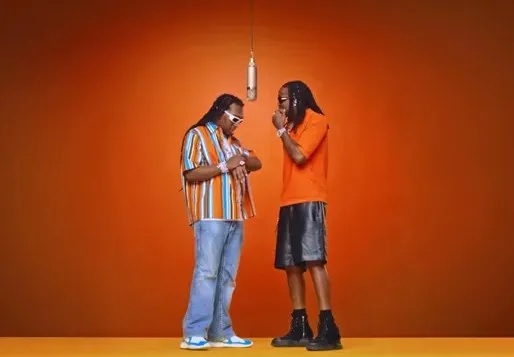
It is a user-made AI video remix inspired by the orange performance setting associated with Quavo and Takeoff's HOTEL LOBBY | A COLORS SHOW. People replace the original pair with friends, family, pets, or characters.
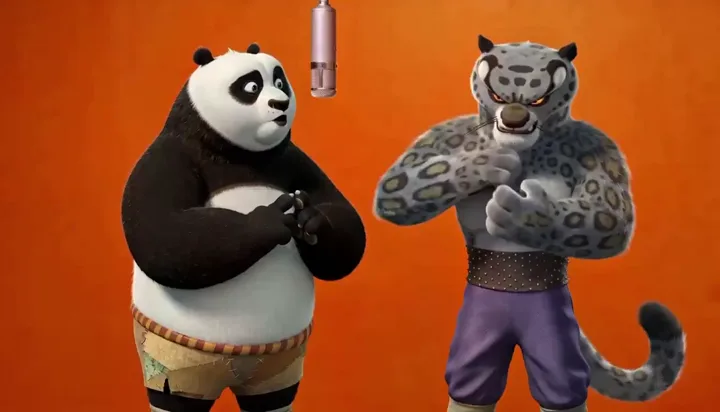
Searches for Hotel Lobby AI trend, orange booth AI, or Hotel Lobby challenge point to a recognizable performance scene: an orange backdrop, two subjects, and a hanging microphone. They are looking for a video remix, not an AI hotel lobby interior generator.
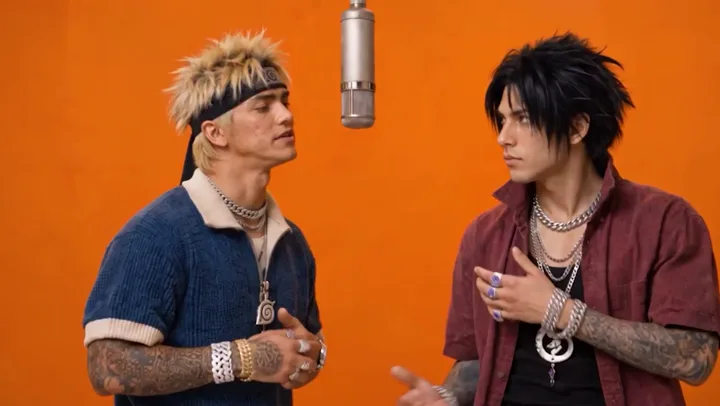
This Hotel Lobby AI generator uses two image references and a motion reference to create a short video. Load the template prompt, add one photo for each subject, review the model's quote, and generate. It is a video workflow rather than a social camera filter or guaranteed face swap.
Visual signature
The recipe keeps the visual brief focused on the parts people remember from the trend.
The saturated field keeps attention on the subjects and gives the format a distinct first impression.
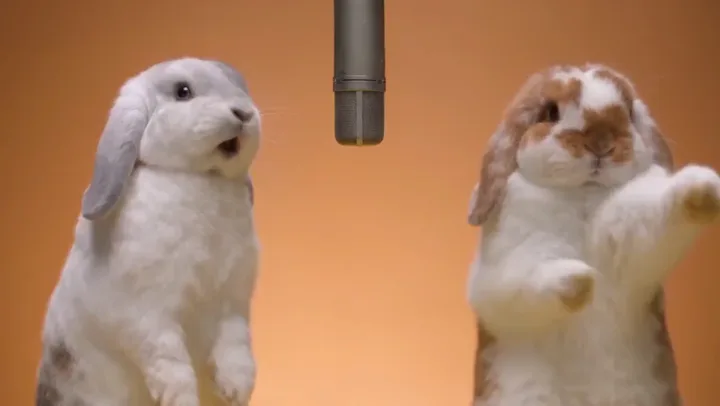
A single microphone between the subjects anchors the composition and signals a performance scene.
The central idea is a pair: friends, pets, characters, or any two subjects the model can interpret.
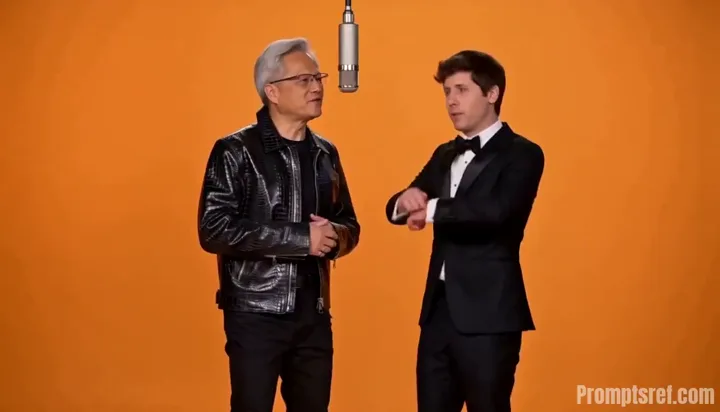
A restrained setup gives the subject swap and performance gesture room to carry the clip.
Two distinct, well-lit subjects give the reference workflow a clearer starting point.
One main subject per image
Keep each face or character easy to distinguish from the background.
Clear, even lighting
Choose an image where facial features, clothing, or an animal's markings are visible.
Similar framing for both subjects
A comparable subject size makes it easier to place both references in one scene.
Crowded group photos
The model may not know which person in a group should become one of the two subjects.
Faces hidden by objects or cropping
Heavy occlusion and cut-off heads leave fewer visual details to preserve.
Very small or blurry subjects
Low detail can make identity and appearance less consistent in the generated clip.
Use images you have permission to upload. Results vary with the model and source material.
The page starts with a fixed reference-to-video recipe. Available outputs and the exact credit quote come from the selected model and workbench.
How to make it
Start with two images, then review the result before sharing it.
Choose one clear subject for each photo and keep the A/B order you want in the video.
The example loads a prompt, a video reference, and two image references into the video workbench.
The workbench checks the selected model, reference limits, and credit quote before submission.
Review the generated clip, then download it or continue editing with another Oeneo AI video tool.
FAQ
What to know about the trend, inputs, credits, and generated videos.
Hotel Lobby AI is a viral video remix trend inspired by the orange performance setup associated with Quavo and Takeoff's HOTEL LOBBY | A COLORS SHOW. This Oeneo AI page provides an independent two-photo video workflow inspired by that format.
Choose a Starter example or add two clear photos to the reference-to-video workbench. The Hotel Lobby AI prompt and motion reference load with the template. Check the model, settings, and credit quote, then generate and preview your video.
The Hotel Lobby AI two-photos workflow uses one image reference for each subject, plus a video reference. Put the person or character you want in the first position in Photo A, and the second in Photo B.
Yes. Add one clear photo for each person. The Hotel Lobby AI recipe uses both image references with a video reference to guide the new clip; the result can vary by model and source photos.
People may call it a Hotel Lobby AI filter or face swap, but this page generates a new video from two image references and a motion reference. It is a reusable video template, and it cannot guarantee an exact face replacement.
Yes. Try a pet duet, a friends' video, or two fictional characters. Results depend on the selected model and source images, so identity and motion are not guaranteed.
The Starter loads a prompt that asks the model to keep the reference video's scene and replace its faces with the two people in your images. You can review or edit the prompt before generating.
Video generation uses credits. The workbench shows the exact quote before you generate, and failed tasks follow Oeneo AI's refund process. Available registration credits depend on the current account offer.
This page does not connect to CapCut or provide a CapCut template. It generates the video in Oeneo AI; you can download the result and edit or publish it in another app if you choose.
The page does not provide or attach the original song. Audio behavior depends on the selected generation model; check its workbench setting and use music only when you have permission.
The recipe starts at a vertical 9:16 aspect ratio. MiniMax H3 controls the available output durations and resolutions; the workbench shows its current options before generation.
No. Oeneo AI is not affiliated with or endorsed by Quavo, Takeoff, Migos, or COLORS. The page is inspired by a public video trend.
Only upload images you have permission to use. Images of other people, public figures, fictional characters, and music may carry additional rights restrictions.
Keep creating Hotel Lobby AI videos
Load two images into the Hotel Lobby AI video generator, or explore more Oeneo AI video workflows for editing and finishing your clip.